How to Build a Website in Framer and Connect a Custom Domain
After generating and editing a canvas with Framer AI prompts, connect a custom domain by first subscribing to a Basic or higher paid plan.
 Framer
- Category
- Build with AI
- Official sources
- 5
- Read time
- 5 min
- Last checked
- 2026.09.24
Prerequisites Before Starting with Framer
Free plan users can only deploy to free framer.photos or framer.website subdomains. To connect a custom domain, you must upgrade to a Basic plan ($10/month minimum) or higher. In enterprise environments where a workspace administrator has disabled AI features, Framer Agents automatic canvas generation is restricted.
| Tier | Free Plan | Basic Plan | Pro Plan |
|---|---|---|---|
| Connected Domains | Free Framer subdomain only | 1 custom domain | 1 custom domain |
| AI Credits | 500 credits included | 1,000 credits/month | 3,000 credits/month |
| Bandwidth Limit | 1 GB/month | 50 GB/month | 100 GB/month |
Attempting to connect a custom domain on the Free plan automatically redirects to the payment screen, so upgrade the plan first. Users with "Viewer" workspace permissions cannot configure DNS records or publish; Owner or Editor permissions are required.
If AI features are restricted on an enterprise account, request AI feature approval from the workspace admin in workspace settings, or choose a template-based manual workflow.
Requirements to Provide to Framer Agent
Example website requirements to enter in the Framer Agent prompt field. For higher AI generation quality, clearly define the brand name, layout requirements, target audience, and required sections as text.
`Build a modern landing page for a SaaS product named 'Parallel'. Include a bold hero section with headline 'Investing, Automated.', an overview of 24/7 market analysis feature, a grid showing customer testimonials, and a primary call-to-action button 'Get early access'.
Use dark mode layout with responsive breakpoints for Desktop, Tablet, and Phone.`
When entering DNS records, match the exact values below in your domain registrar's DNS management page. Use an A record for the root domain and a CNAME record for subdomains.
- Root domain A records: 31.43.160.6 and 31.43.161.6 (per Framer's help center)
- Subdomain (www) CNAME record:
sites.framer.app - Remove any AAAA record, and if you use CAA records, allow Framer's certificate issuance
- DNS proxy setting: If using Cloudflare, set to "DNS Only" (recommended)
5-Step Framer AI Website Generation and Domain Connection Procedure
- Open the Framer dashboard, click "Start with AI," paste the prepared prompt into the input field, and generate the initial canvas automatically.
- In the generated canvas, open the right-side "Agent" and "Style" panels, pick one of the offered models (for example GPT 5.6 Terra) in the Agent's model picker, adjust Text, Color, Padding, and Border Radius values, and align layouts for each breakpoint (Desktop 1200, Tablet 810, Phone 390).
- Navigate to the left "CMS" tab, click "Add Collection," build blog, portfolio, or product listing data, then bind data fields to canvas layers.
- Open the top "Site Settings" menu, select the "Domains" tab, verify the paid plan status, and enter the owned domain address in the "Connect a domain" field.
- Log in to your domain registrar console (e.g., Gabia or Cloudflare), go to DNS settings, enter the A record value or CNAME record (
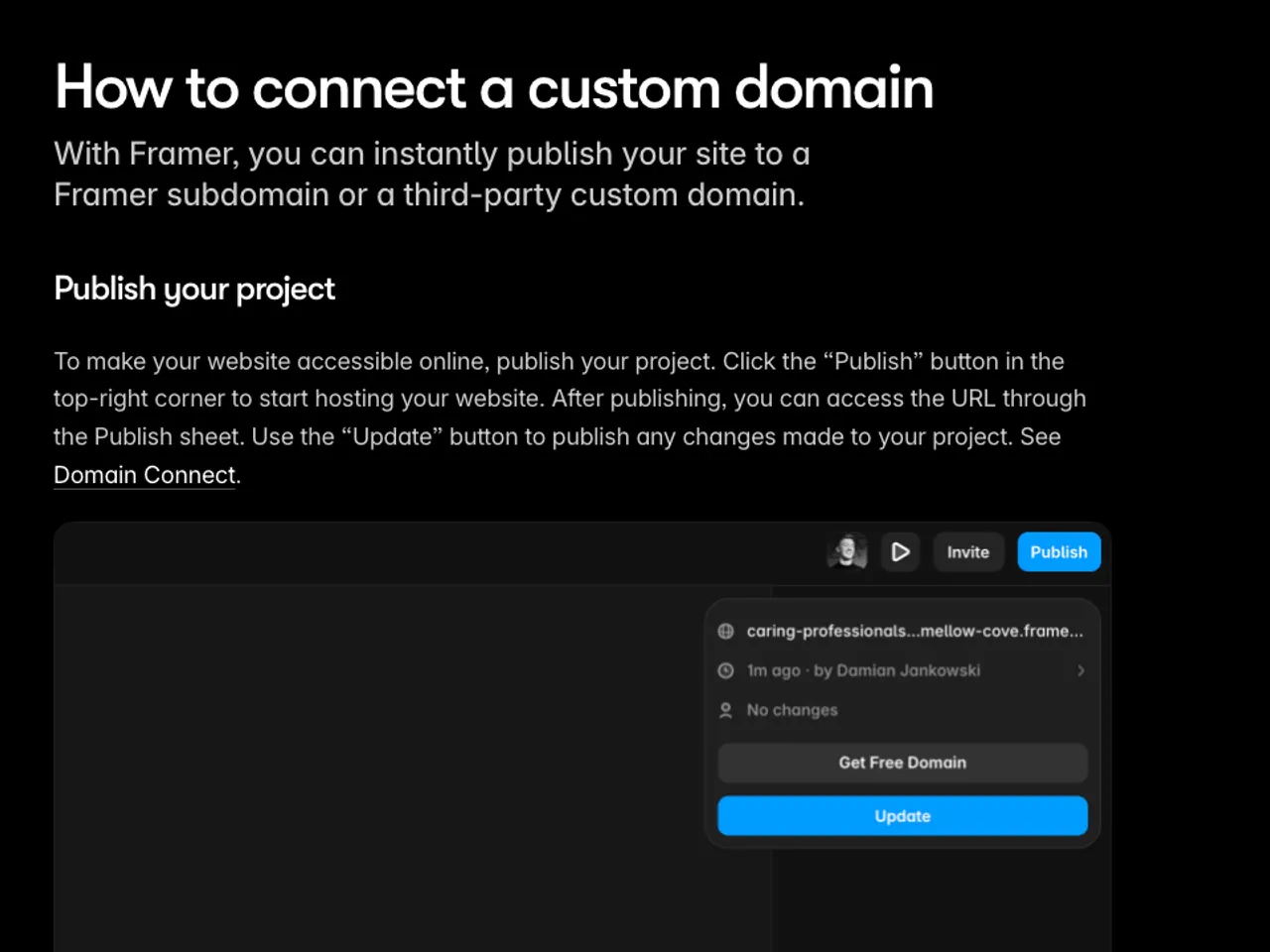
sites.framer.app) provided by Framer, return to the Framer admin screen, and click "Publish" to activate the connection.
Verification Checklist After Publishing
Confirm successful domain connection by clicking the deployment URL issued in the Publish completion modal and checking live browser access. When entering the connected custom domain in an external browser address bar, the SSL certificate (HTTPS) must be active, showing a lock icon on the left side of the address bar.
In Site Settings > "Domains", verify the domain shows as connected and the browser address bar shows the padlock (SSL). Test on both mobile and desktop browsers to confirm text readability and button click responsiveness work correctly at each breakpoint.
Error Diagnosis and Alternative Paths
If the status does not change after connecting, follow Framer's troubleshooting order: delete any third-party A records and AAAA records left on the same host, and make sure a CAA record is not blocking Framer's certificate issuance. DNS changes take time to propagate at some registrars, so check again later.
With Cloudflare as the DNS manager, follow Framer's help center and turn off the proxy (orange cloud) on those records so they are "DNS only" (gray cloud); otherwise Framer cannot issue the certificate. If it still does not connect after that, wait and check again.
If you lack DNS record modification permissions in a corporate network environment or cannot change nameserver settings, request external CNAME forwarding from your domain management or network administration team.
If internal security policy prohibits direct CNAME exposure, migrate to the Advanced Hosting feature available on Framer Pro plan or higher, or implement a separate reverse proxy path.
Revision history · 2026-09-24
This article was revised against the provider’s official documentation. Korean note
Sources
framer.com — How to connect a custom domain (2026-09-24)
framer.com — Troubleshooting custom domain issues (2026-09-24)
framer.com — Framer Pricing (2026-09-24)
framer.com — How AI credits and Agents pricing work (2026-09-24)
framer.com — Choosing a model in the Framer Agent (2026-09-24)
Open provider document