Create an App with Lovable and Bolt: Steps and Plan Comparison
Use Lovable for web-focused services and Figma design integration; use Bolt for full-stack server environments and rapid prototyping.
- Category
- Build with AI
- Official sources
- 4
- Read time
- 5 min
- Last checked
- 2026.09.24
Prerequisites Before Starting with Lovable
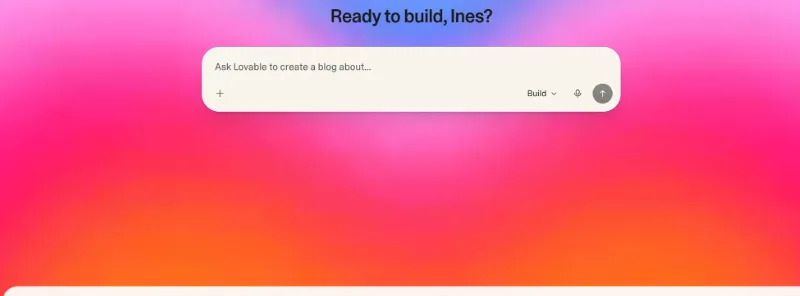
Lovable and Bolt are AI-driven development platforms that generate web applications from natural language. Before building a service, compare the pricing conditions, credit allowances, and permission scopes of each platform. Select the appropriate platform based on whether the goal is design system integration or full-stack environment testing.
When using free tiers, verify credit limits and whether generated projects are public. Work can begin immediately in a personal web browser, but a GitHub account must be prepared in advance for source code storage and version management.
| Comparison Item | Lovable | Bolt | Notes |
|---|---|---|---|
| Base Free Benefit | 5 credits daily (max 30 credits monthly) | Daily base token allocation | Per official documentation |
| Key Features | Figma integration, GitHub/GitLab sync | In-browser full-stack execution | Workflow difference |
| Project visibility | Workspace-private projects on every plan | Public and private projects on the free plan too | Chosen in project settings on both |
| Monthly Pricing | Pro $25 / Business $50 | Varies by plan | Shared workspace basis |
Free accounts can create private projects too, but training opt-out is a per-account setting and SSO exists only from Business up, so check the organization's policy before entering confidential data. Users under 18 require legal guardian consent.
Example Prompt for App Requirements
When writing an AI prompt, explicitly specify data structures, UI components, and user permissions instead of listing fragmented requirements. The prompt below can be copied directly into the chat window.
[App Goal]
Create a web application for managing schedules and tasks.

[Key Features]
1. Users can create, edit, delete, and mark tasks as complete.
2. Each task includes title, description, due date, and priority (High/Medium/Low).
3. Place filter tabs for 'All', 'In Progress', and 'Completed' at the top.

[Design and UI Level]
- Apply responsive web layout.
- Display task list as clean dashboard-style cards.
Use the following checklist to verify whether the generated application functions correctly after prompt submission.
- Confirm that a card is created in the list when data is added.
- Confirm that clicking a filter button displays only data matching the selected status.
- Confirm that UI and internal data state remain consistent during edit and delete actions.
- Confirm that the responsive layout does not break at mobile screen sizes.
From Sign-Up to Code Synchronization
The following steps create an app in Lovable via web browser and synchronize the final deployable code.
- Navigate to lovable.dev/signup and complete free registration using Google, GitHub, or email.
- After login, click the 'Create project' button on the top workspace screen to open a new prompt input window.
- Enter the prepared prompt text into the chat window and click Send to start AI code generation.
- Test the generated UI and behavior in real time via the Preview tab on the right side of the screen.
- Select 'Git sync' from the top menu, connect a GitHub account, and push the generated project code to a remote repository.
Checking the Lovable result
Successful completion requires simultaneous verification of the browser result and the code repository state.
In the Lovable preview, entering test data into the input form should refresh the screen immediately without error messages. Verify that data persistence and state changes are reflected without exceptions.
Navigate to the GitHub repository page and confirm that the latest commit history is reflected. The package.json and major source files must be generated without omissions for the state to be considered normal.
Lovable Error Diagnosis and Alternative Paths
If app generation stops or errors occur after prompt entry, first check the remaining credit balance. If the daily allowance of 5 credits is exhausted, wait until the daily limit resets the next day or switch to the Pro plan via the top 'Settings → Billing' menu.
If a script error appears in the preview and does not self-recover, enter 'Analyze the error log and revert the code to the previous working state' in the prompt chat to attempt recovery.
When requirements exceed simple web apps and require complex backend infrastructure changes or container-based environment configuration, switch to the Bolt platform or download the GitHub-connected code to continue development in a local IDE.
If business requirements demand SSO login or organizational data-training exclusion policies, request approval from the workspace administrator for a Business plan or higher.
Revision history · 2026-09-24
This article was revised against the provider’s official documentation. Korean note
Sources
docs.lovable.dev — Subscription plans (2026-09-24)
docs.lovable.dev — Create an account (2026-09-24)
docs.lovable.dev — GitHub integration (2026-09-24)
bolt.new — Bolt pricing (2026-09-24)
Open provider document