Fix GitHub Repository Initialization Errors
Resolve GitHub initialization conflicts by checking the remote README or license before the first push.
 GitHub
- Category
- Developer tools & APIs
- Official sources
- 2
- Read time
- 5 min
- Last checked
- 2026.09.24
What non-fast-forward and unrelated histories errors mean
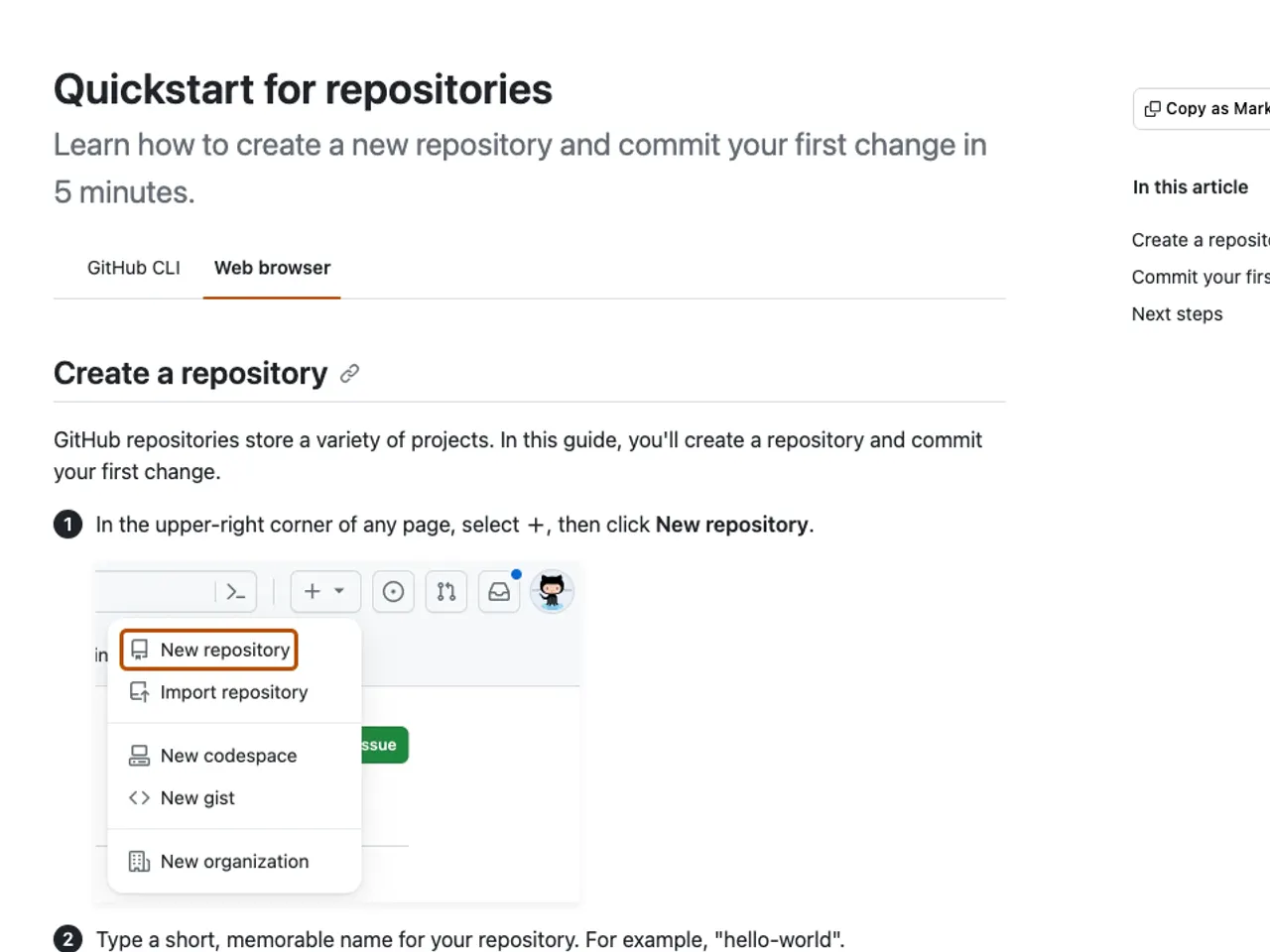
When creating a repository via the GitHub web UI with README.md, .gitignore, or LICENSE files specified, attempting to force-push local commits results in a [rejected - non-fast-forward] or fatal: refusing to merge unrelated histories error.
This occurs because the remote repository already contains an initial commit that is not connected to the local commit's ancestor.
This conflict appears when the repository was created on the web with a README, .gitignore or license and a separately initialized local commit is then pushed to it. Before proceeding, run git status and git remote -v in the command line to verify the remote URL connection and the list of currently staged files.
Causes by Terminal Message
Accurately identifying the primary cause of the error prevents unnecessary commit loss. Compare the messages currently output in your terminal against the status table below.
| Terminal Error Message | Primary Cause | Check Item | Action Direction |
|---|---|---|---|
| fatal: refusing to merge unrelated histories | Attempt to merge two repositories with different commit histories | Compare local/remote commit trees with git log | Use --allow-unrelated-histories flag |
| error: failed to push some refs to | Remote repository contains latest commits not present locally | Check remote changes after git fetch origin | Apply git pull or rebase then push |
| fatal: remote origin already exists | A different remote URL is already registered as origin | View registered URL with git remote -v | Re-register with git remote remove origin |
| error: src refspec main does not match any | No committed history locally or branch name differs | Check current branch name with git branch | Create git commit or change branch name |
From git status to a Successful Push
The following step-by-step procedure safely synchronizes the remote repository's initial files with the local project and resolves push errors.
- Open a command-line terminal in the local project's root directory and run git status to check the status of untracked files.
- If the current directory lacks a local Git history, run git init to initialize the repository and run git branch -M main to set the default branch name to main.
- Run git remote add origin https://github.com/username/repository.git to connect the GitHub remote URL to the local repository.
- Run git pull origin main --allow-unrelated-histories to merge the remote repository's README.md and LICENSE commits into the local repository.
- If conflicts occur, edit the indicated files per terminal guidance, then run git add . and git commit -m "Fix merge conflict" to complete the commit.
- Run git push -u origin main to push all local branch history to the remote repository.
Output and pages that confirm the push worked
Upon completion of the recovery procedure, the terminal displays Everything up-to-date or branch 'main' set up to track 'origin/main'. The presence of this message indicates that the branch tracking relationship between local and remote is fully established.
Access the GitHub repository URL in a web browser and refresh. If the locally created files and the README.md added via the web UI appear sequentially in a single commit list, initialization is complete.
Checking permissions and contacting GitHub Support
If pushes continue to be rejected due to network access permissions or organization policies, an account permission review is required. When logged in with an organization account, first check the repository creation and push permission policies in the admin console.
If the issue persists and a GitHub Support ticket is filed, provide the full error log, the output of git remote -v, and the Git version in use. For a new project where commit history need not be preserved, delete the local .git folder and use the GitHub Desktop application's Clone repository menu to re-clone the repository as an alternative path.
Revision history · 2026-09-24
This article was revised against the provider’s official documentation. Korean note
Sources
docs.github.com — Quickstart for repositories (2026-08-19)
docs.github.com — Create a new repository (2026-08-19)
Open provider document