Gemini API Usage: Check Limits and Prevent 429 Errors
Gemini API limits are per project in RPM, TPM and RPD. Check live values in Google AI Studio and use backoff, spend caps or a paid tier to stop 429 errors.
- Category
- Developer tools & APIs
- Official sources
- 6
- Read time
- 7 min
- Last checked
- 2026.09.24
Limits are counted in requests and tokens, not in dollars
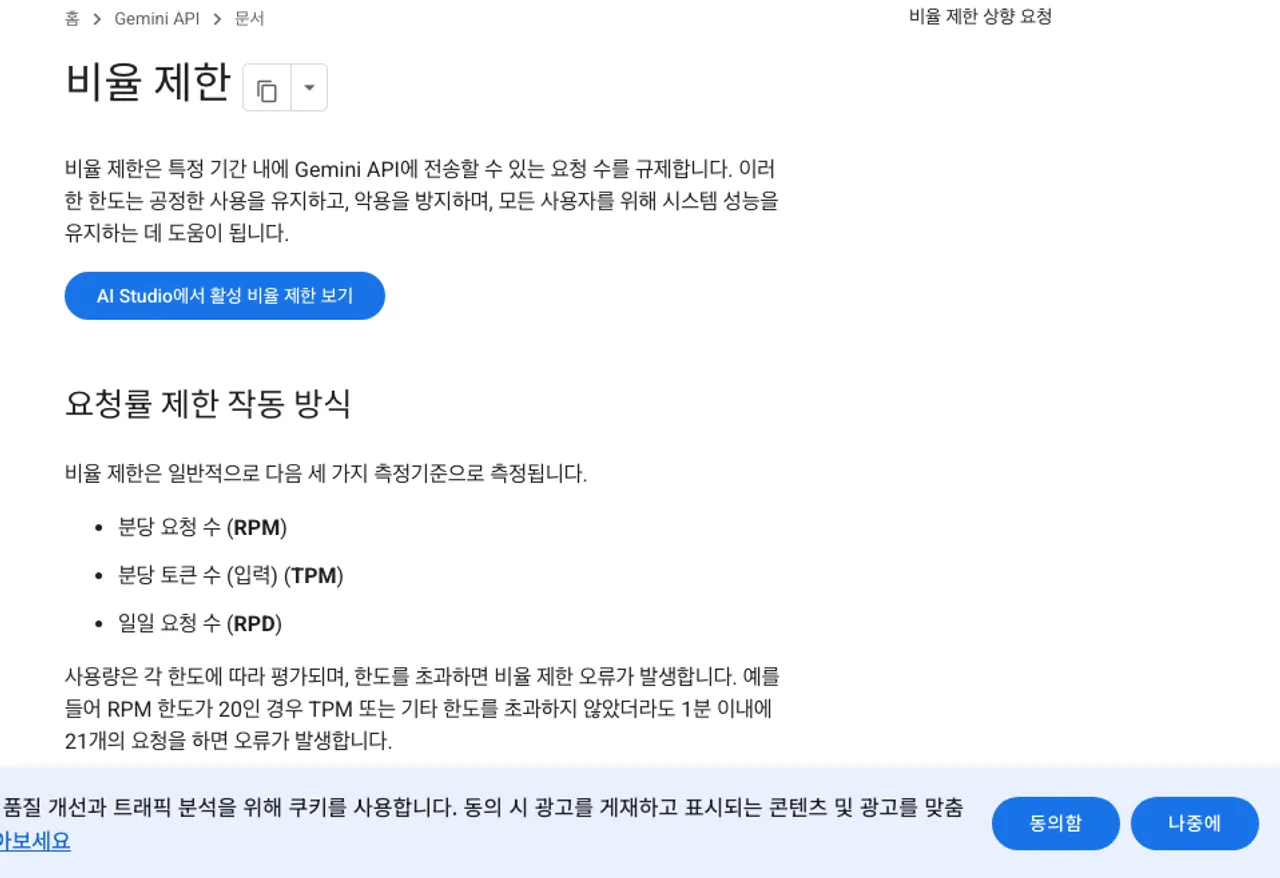
Gemini API limits are enforced in three separate units: requests per minute (RPM), input tokens per minute (TPM) and requests per day (RPD). Exceeding any one of them rejects the request even when the others have room.
If a project's RPM limit is 20, the 21st request within a minute fails even though it used almost no tokens. Image models add images per minute (IPM), and some models add tokens per day (TPD). [1]
Limits apply per project, not per API key. Creating more keys in the same project changes nothing, because they share the project's allowance. The daily count (RPD) resets at midnight Pacific time. Experimental and preview models have lower limits than stable ones. [1]
This article does not list per-model numbers. Google states in the documentation that "specified rate limits are not guaranteed and actual capacity may vary" and points to the rate-limit page in Google AI Studio for the values that apply to your project right now.
Figures such as "60 requests per minute" or "1,500 per day" that circulate elsewhere were true for one model at one time and should not be assumed for your project today. [1]
Where to check usage and the current limits
The screens to check are in Google AI Studio and the linked billing account, not in the Google Cloud Console quota pages. [2]
- Sign in to Google AI Studio and open Dashboard > Usage in the left menu. It shows requests and token usage per project.
- Open the Rate limits page (aistudio.google.com/rate-limit) to see your project's tier and its RPM, TPM and RPD for each model. These are the limits in force, and they update automatically when the tier changes.
- On a paid tier, the Billing and Spend pages show the balance, upcoming charges and cost graphs. The graphs can lag by up to 24 hours.
- If the same billing account pays for other Google Cloud services, the Cloud Billing reports break Gemini API costs out by service. Cost details usually appear within a day but can take longer than 24 hours.
- Compare your own logs' request and token totals with the Usage figures. If they diverge, first check whether another tool is using a key from the same project.
Recording the input and output token counts from each response's usageMetadata tells you which job consumes tokens without opening the AI Studio dashboard. [6]
Linking a billing account and the spend caps by tier
A Google AI Pro subscription is separate from API billing
The Google AI Pro and Ultra subscriptions used in the Gemini app do not raise API limits. Google states that "Google AI plan benefits for developer usage apply only within the Google AI Studio web interface.
Direct use of the Gemini API (such as using API keys or external applications) is billed and managed separately." When the subscription's daily AI Studio quota runs out, the official guidance is to continue with a Gemini API key on a project with Cloud Billing enabled, paying per request. [4]
So raising API limits means linking a billing account in AI Studio, not changing a Google One or Gemini app subscription. Use the Set up billing button on the API keys or Projects page to create or choose a Cloud Billing account. Depending on the account you are either asked to prepay a minimum of $5 (Prepay) or charged at the end of the month (Postpay).
Prepay balances are not refunded except when switching account types. [2]
Tiers are assigned automatically from cumulative payments
Linking a billing account places the project in Tier 1. Higher tiers are assigned automatically from the billing account's cumulative payments and the days elapsed since the first payment, usually within 10 minutes of qualifying. [1]
| Tier | Qualification | Billing account cap | Spend limit per 10 minutes |
|---|---|---|---|
| Free | Active project or free trial | N/A | N/A |
| Tier 1 | Active billing account linked | $250 | $10 |
| Tier 2 | $100 paid and 3 days since first payment | $2,000 | $50 |
| Tier 3 | $1,000 paid and 30 days since first payment | $20,000 or more | $200 |
Source: Gemini API rate limits [1]
The 10-minute spend limit is the one that trips first when expensive requests are sent in a burst. It returns the same 429 RESOURCE_EXHAUSTED error, so if you see 429 with a low request count, check whether long inputs or a premium model pushed the spend rate over the limit.
The free tier costs nothing, but prompts and responses may be used to improve Google products; paid tiers exclude that use. If you send company documents or customer data, choose a paid tier regardless of volume. [1][2]
Costs after moving to a paid tier are worked through per model in Gemini API free-tier overage costs and alternatives.
How to tell 429 causes apart
A 429 response has three causes with different remedies. Read the status and reason fields in the response body. [1][3]
| Response | Cause | Action |
|---|---|---|
429 rate_limit_exceeded / too_many_requests | Per-minute request or token limit exceeded | Retry with exponential backoff |
429 quota_exceeded | Daily request quota used up | Wait for the Pacific-midnight reset or request an increase |
| 429 RESOURCE_EXHAUSTED (paid tier) | 10-minute spend limit reached | Wait briefly and reduce the rate of expensive requests |
402 payment_required | Prepay credits depleted | Do not retry; add credits or turn on auto-reload |
403 permission_denied | Key permissions or project access | Check the key and project settings |
Source: Gemini API errors [3]
Retry only on 429, 408 and 5xx. Google's recommended pattern is exponential backoff: wait about 1 second before the first retry, then 2, 4 and 8 seconds. 400, 402 and 403 return the same result on every retry, so do not retry them.
Code that immediately re-sends a failed request burns through the limit faster, and on a paid tier every successful retry is billed again. [3]
Settings that prevent overages, in order
The first is a monthly project-level spend cap in AI Studio. It works alongside the tier cap and applies per project; invoiced accounts do not get spend caps. [2]
The second is timing. If a batch job consumes the daily request quota, move its start to after the RPD reset at midnight Pacific time.
The third is tokens per request. Limit output length with maxOutputTokens and cache results for repeated inputs so fewer requests are sent. Output tokens cost several times more than input tokens, so the output limit has the largest effect. [5][6]
The fourth is model choice. If the quality difference is acceptable, move the job to a smaller model. Gemini 2.5 Flash-Lite costs $0.10 per million input tokens and $0.40 per million output tokens, against $0.30 and $2.50 for Gemini 2.5 Flash. [5]
The fifth is the Batch API. Large jobs that are not time-sensitive cost half the standard rate in batch mode, with separate per-tier enqueued-token limits. [1][5]
If 429 still recurs in normal use after these steps, the free tier's official path is linking a billing account, and paid tiers can submit the rate-limit increase form. Google says it does not guarantee increases, so keep the request rate reduced until the answer arrives. [1]
FAQ
How do I request a higher limit?
Only paid tiers can ask, through the "Request paid tier rate limit increase" form linked from the documentation. Google states that it reviews requests but offers no guarantee. If the free tier is not enough, the first step is linking a billing account to reach Tier 1, not an increase request. [1]
Do more API keys give me more capacity?
No. Limits apply per project, so keys in the same project share one allowance. Creating more projects does not avoid the spend limits either, because tiers and billing caps are set at the billing account level. [1][2]
How is my data used on the free tier?
Prompts and responses sent on the free tier may be used to improve Google products. Paid tiers exclude that use. This condition is independent of price, so choose a paid tier for sensitive data even at low volume. [2][5]
Revision history · 2026-09-24
This article was revised against the provider’s official documentation. Korean note
Sources
ai.google.dev — Rate limits (2026-09-24)
ai.google.dev — Billing (2026-09-24)
ai.google.dev — API errors (2026-09-24)
ai.google.dev — Google AI plans in AI Studio (2026-09-24)
ai.google.dev — Gemini Developer API pricing (2026-09-24)
ai.google.dev — Generating content (API reference) (2026-09-24)
Open provider document