Get a Gemini API Key and Set the GEMINI_API_KEY Environment
Create an API key in Google AI Studio, add it as the GEMINI_API_KEY environment variable, and authentication is ready.
- Category
- Beginner guide
- Official sources
- 9
- Read time
- 5 min
- Last checked
- 2026.08.29
Gemini API Authentication Environment and Account Conditions
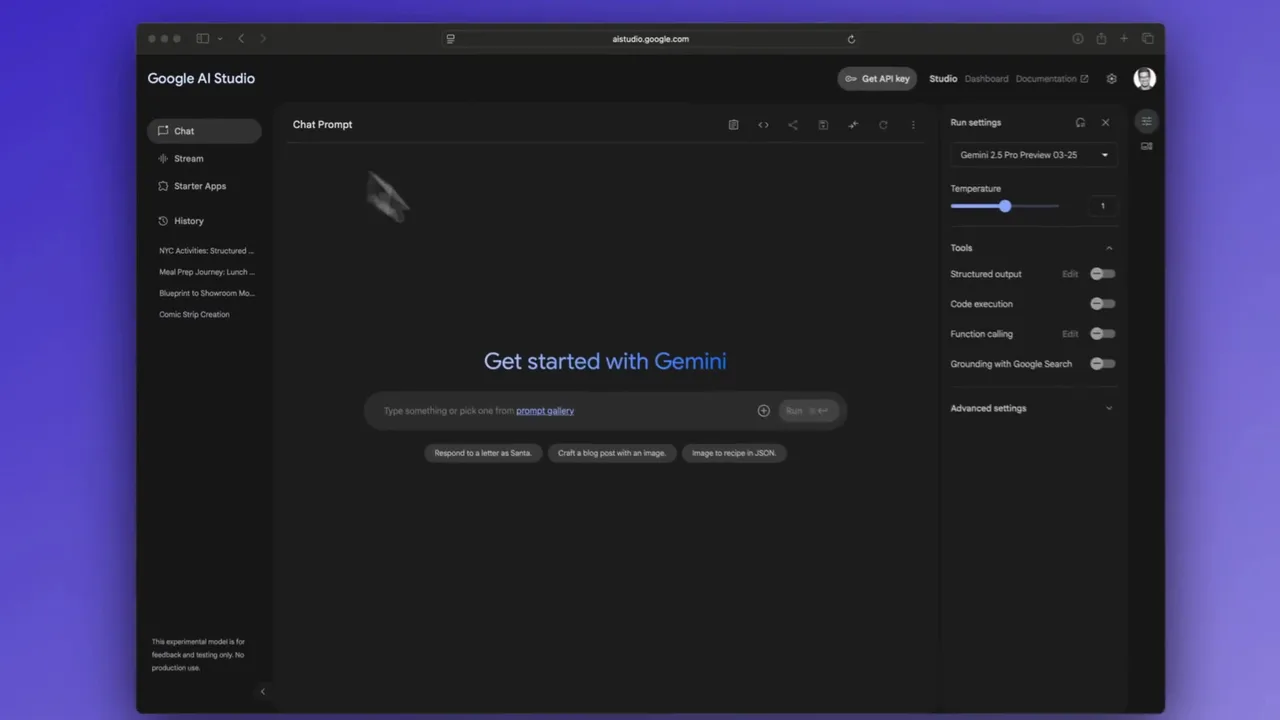
To apply the Gemini API to a project, obtain a dedicated authentication key from Google AI Studio and register it as a system environment variable. Writing the API key directly in source code creates a security risk when the repository is shared, so referencing an environment variable is recommended.
Key issuance procedures and permission conditions vary by account type and operating environment. Before starting, compare the account conditions table below to confirm whether permission approval is required.
| Category | Personal Google Account | Organizational Google Workspace Account |
|---|---|---|
| Prerequisite | Google account login | Admin console API service approval |
| Issuance Path | Direct to Google AI Studio | Google Cloud Console integration required |
| Security Setting | Personal environment variable registration | Project-level IAM permission separation |
| Exception | Immediate issuance possible | 403 error if organizational policy not approved |
For a personal account, go to the Google AI Studio website and generate the key. For an organizational account, first request the account administrator to approve access to the APIs & Services menu in Google Cloud Console.
Register the GEMINI_API_KEY Variable and Python Call Code
When setting the environment variable, use the name GEMINI_API_KEY. Loading the configured key from source code allows the model to be called securely without exposing authentication information.
Below are the Windows Command Prompt command to register the environment variable and a Python integration code example.
setx GEMINI_API_KEY "YOUR_GEMINI_API_KEY_HERE"
import os import google.generativeai as genai
api_key = os.environ.get("GEMINI_API_KEY") genai.configure(api_key=api_key)
model = genai.GenerativeModel('gemini-1.5-flash') response = model.generate_content("Hello World") print(response.text)
When using the integration example above, replace YOUR_GEMINI_API_KEY_HERE with the actual issued key string and run the command. After execution, verify that the response text appears in the terminal.
5-Step Procedure from AI Studio Access to Windows Environment Variable Registration
API key issuance and system variable registration are performed in the Google AI Studio interface and the Windows System Settings menu.
- Open a browser, go to the Google AI Studio website, and sign in with your Google account.
- Click the Get API key button at the top of the left menu and select Create API key.
- Copy the displayed API key string and save it temporarily in a secure note.
- Type Edit the system environment variables in the Windows search bar, run it, and click the Environment Variables (N) button.
- Under User variables, click New (N), enter GEMINI_API_KEY as the variable name, paste the copied key as the variable value, and click OK.
After registration, close and reopen any running Command Prompt or development editor so the changed environment variable takes effect.
Git Repository and Code Security Exclusion Settings
The issued API key must not be uploaded to a Git repository or external web server. If the authentication key leaks to a public repository, a third party can consume the quota and exceed the account limit.
Create a .gitignore file in the project root folder and add the .env string to it. If environment variables are managed in a separate .env file, configure it so that file is excluded from version control.
Do not leave the API key string as a comment or string constant in source code. In team projects, do not share the key itself; instruct each member to register their own environment variable.
API Key Authentication Error Diagnosis and Resolution
If an error occurs after registering the key and running the code, check the terminal error message and take action.
If an API_KEY_INVALID error occurs, verify that the variable value contains no spaces or typos. If the variable name was mistyped, correct the string in the os.environ.get("GEMINI_API_KEY") call to match exactly, including case.
If a 403 Forbidden error appears, the organizational account's API access is restricted. In the Google Cloud Console APIs & Services menu, confirm that the Generative Language API is enabled, or switch to a personal account and run again.
In a correctly configured environment, running echo %GEMINI_API_KEY% in the terminal outputs the configured key string normally.
Sources checked
one.google.com — Google AI plans (2026-08-29)
gemini.google — Gemini – Your AI assistant from Google (2026-08-29)
deepmind.google — Gemini — Google DeepMind (2026-08-29)
gemini.google — Introducing Gemini, your new personal AI assistant (2026-08-29)
deepmind.google — Gemini 3.1 Pro - Google DeepMind (2026-08-29)
play.google.com — Google Gemini - Apps on Google Play (2026-08-29)
gemini.google — Gemini for Students — your AI study buddy from Google (2026-08-29)
gemini.google — What is Gemini and how it works (2026-08-29)
gemini.com — Trade Crypto, Predict Outcomes & Earn — All in One Platform | Gemini (2026-08-29)
Open provider document