Use Generative Fill in Adobe Photoshop
Select an area, enter a prompt in the Contextual Task Bar, and review three generated variations in five steps.
- Category
- Beginner guide
- Official sources
- 7
- Read time
- 5 min
- Last checked
- 2026.08.28
Workspace and Account Requirements
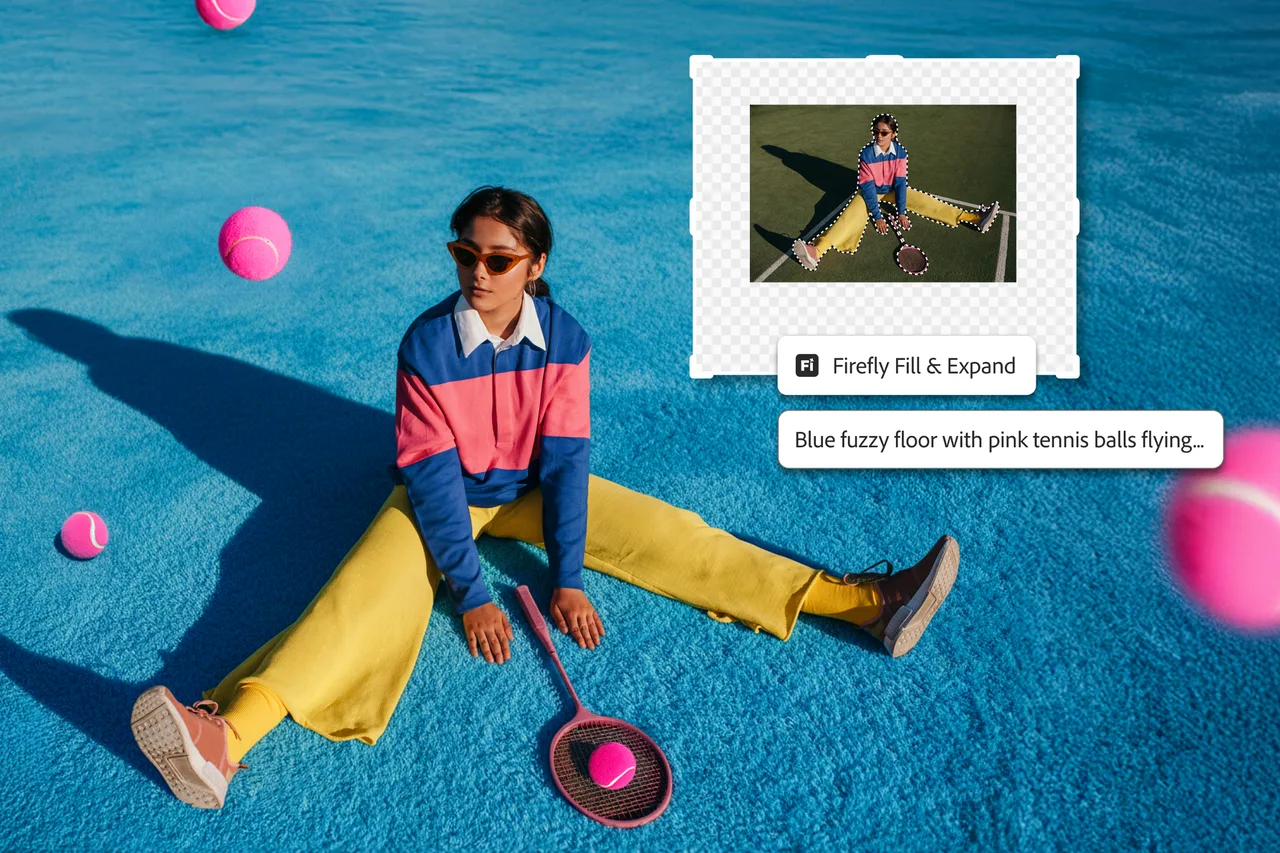
To run Generative Fill in the Adobe Photoshop desktop app, account eligibility and internet connectivity must be satisfied beforehand. In an offline environment with no network connection, the cloud-based AI engine cannot be reached, so the processing button remains inactive. For business organization accounts, Generative AI features may be restricted by Admin Console policies.
| Item | Individual Plan | Team/Enterprise Plan |
|---|---|---|
| Network Condition | Required online access | Required online access |
| Admin Control | Self-managed | Admin Console policy applied |
| User Guidelines Compliance | Guidelines applied automatically | Enterprise security policy and guidelines applied |
| Credit Reset Basis | Per-plan renewal cycle | Per-enterprise contract renewal |
| Offline Work | Not supported | Not supported |
Under the User Guidelines policy, text prompts containing sensitive personal information or potential copyright infringement are rejected by the automatic filtering system. Generative features are also disabled when the license has expired or is on a private plan, so verify the plan status before execution. For organization accounts, check the Generative AI permission policy in the Admin Console first.
Prompt and Review Criteria for Area Selection
The shape of the target object and the method for defining individual area boundaries must be specified precisely to obtain the intended composite result. Running with an empty prompt analyzes surrounding background elements and automatically performs a natural fill.
When entering a prompt, use concrete object nouns to add or change rather than command-style words such as "remove background" or "delete object." Writing in English maintains recognition accuracy; awkward Korean phrasing should be corrected and retried. Providing ample margin around the subject and combining specific words increases the validity of generated variations.
The final composited object is not painted directly onto the original layer but is automatically separated as an independent generative layer. In the Layers panel, inspect the edge boundaries and tonal blending of the generated object.
5-Step Generative Fill Procedure
- Launch Photoshop Desktop, open the image file, and select the Lasso Tool or Rectangular Marquee Tool from the Tools panel.
- Drag to define the exact area to change or add, activating the selection border.
- Click the Generative Fill button in the Contextual Task Bar that appears below the selection.
- Enter the desired object term in English in the text input box, or leave it blank, then click Generate.
- Click the three variation thumbnails in the Properties Panel to apply the most natural result to the layer.
Review and Correction Criteria for Generated Output
Completed Generative Fill results must be compared against the original lighting direction, shadow angle, and noise grain. Swap through the variations list in the Properties Panel to check for awkward seams against the original background.
If generated edges are blurred or resolution is low, enable the Enhance Detail option in the Properties Panel to restore sharpness. During final human review, verify text print fidelity and facial distortion, then perform corrections.
Content Credentials are attached, so AI generation or modification history is embedded in file metadata. Complete the quality review step aligned with print and digital distribution standards. Verify export settings beforehand, because damaged metadata makes original history verification impossible.
Error Diagnosis and Alternative Paths
If the Generate button is disabled or a warning appears after entering a prompt, check network connectivity and User Guidelines violations first. The system blocks execution when the prompt includes trademarks or protected terms.
For guideline violation messages, revise the prompt to generic nouns and re-enter. When credit limits are exceeded or account permissions restrict the feature, switch to the web-based Adobe Firefly site to perform the same task.
If errors persist, use the standard Fill command from the Layers panel or switch to manual compositing with the Clone Stamp Tool. Business account users should request AI feature permission adjustments from their organization admin. Individual subscribers should verify payment details and license renewal date to restore service connectivity.
Sources checked
adobe.com — Adobe Firefly plans (2026-08-27)
adobe.com — Adobe generative AI user guidelines (2026-08-27)
adobe.com — Adobe Acrobat AI Assistant (2026-08-27)
helpx.adobe.com — Generative Fill in Photoshop (2026-08-27)
adobe.com — Adobe: Creative, marketing and document management solutions (2026-08-27)
adobe.com — Adobe products: desktop, web, and mobile applications | Adobe (2026-08-27)
en.wikipedia.org — Adobe Inc. - Wikipedia (2026-08-27)
Open provider document