Adobe Express vs Canva Free: Features and AI Limits
Side-by-side comparison of Adobe Express and Canva free plans: AI usage limits, templates, storage, exports, and risks before upgrading.
- Category
- Comparison
- Official sources
- 5
- Read time
- 9 min
- Last checked
- 2026.09.24
Key decision criteria
Adobe Express and Canva both start without a card, but they count free usage differently. Canva lists templates, assets, storage, and AI allowances in its plan table with relative specificity.
Adobe Express states that free users receive replenished daily creation opportunities, but the exact count and which features are included can change. Therefore, choose based on a month’s worth of repeat work, not a single logo or card.
Compare free plans in one table
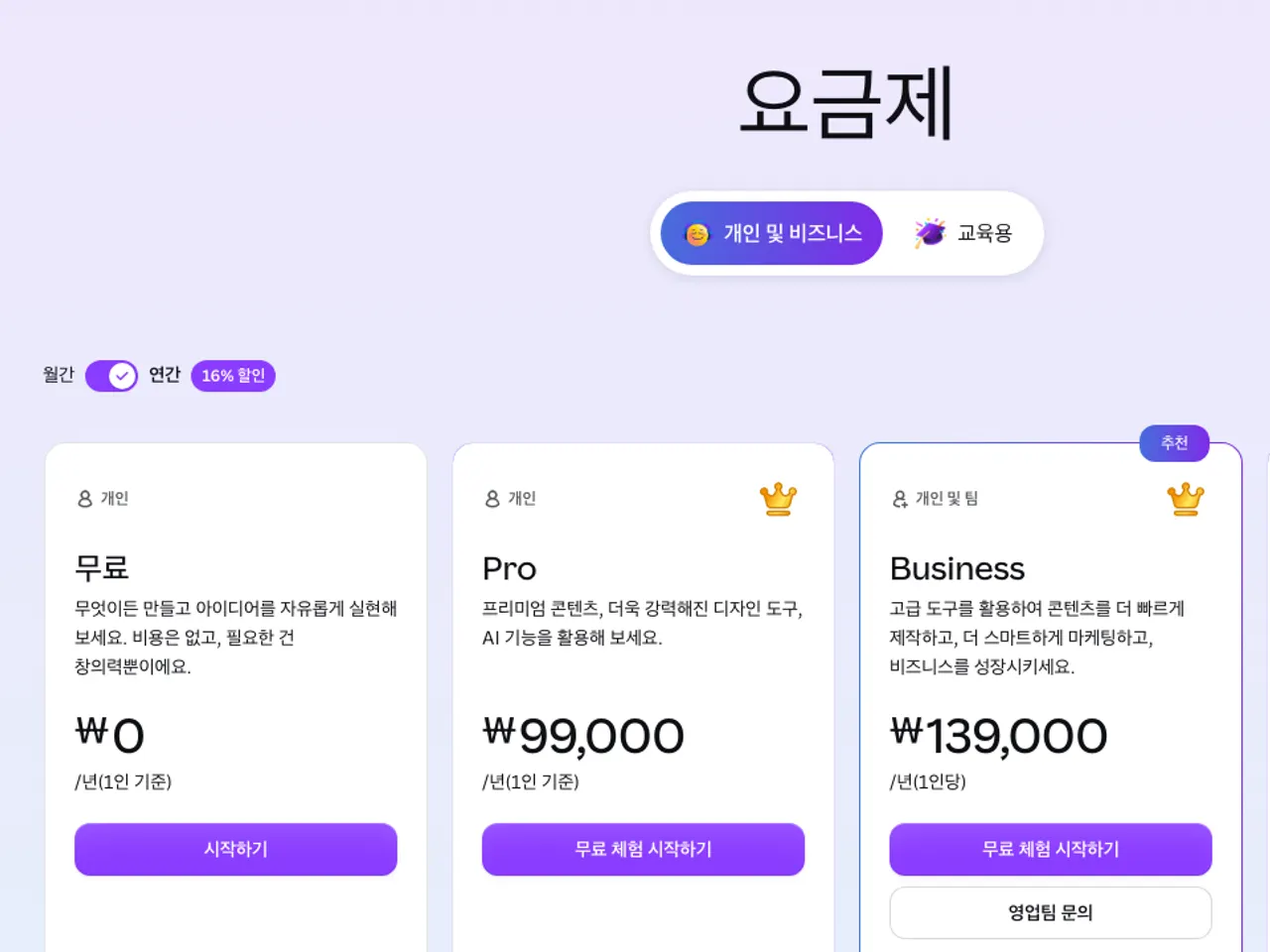
Values below were verified on August 15, 2026 from each company’s official pricing pages. Screens vary by region, tax, account type, and feature release status, so recheck the plan page in your logged-in account before payment.
| Comparison item | Adobe Express Free | Canva Free | Impact on selection |
|---|---|---|---|
| Start cost | Free, no card required | Free for individuals | Both allow zero-cost trials |
| AI allowance | Daily replenished free creation opportunities; exact count varies | Up to 20 Standard or Premium AI uses (one shared limit) | Canva’s monthly limits make planning easier |
| Templates | Free templates and Adobe editing flow provided | Over 1.6 million templates | Rapid ideation favors Canva |
| Photos, videos, graphics | Free Adobe Stock range and Express assets | Over 4.7 million free assets | Prioritize asset search volume by checking Canva first |
| Cloud storage | 5 GB | 5 GB | For large files, periodically audit actual usage |
| Generative AI deduction | Image generation, object insert/remove, generative expand, rewrite consume free generation quota | Multiple AI tools share one monthly allowance | Heavy use of one tool can limit others |
| Free editing | Manual edits, color, font, layout changes may not consume generation quota | Drag-and-drop editing and standard design creation | Non-AI edits remain free |
| Upgrade risk | Free trial may auto-start paid subscription after end | Check if Pro/Business free trials are available in account | If trials are enabled, confirm cancellation date before renewal |
Canva Free allows up to 20 Standard or Premium AI uses in total; the two tiers share one limit rather than each having its own count. Adobe may change the exact number and eligible features of free creation opportunities, so do not apply past blog credit numbers to your current account.
When Adobe Express Free is appropriate
Adobe Express is worth testing first when you need Firefly-based creation and Adobe assets in the same editing flow.
Adobe Express Free’s AI Assistant offers edits that do not consume generation quota—color, font, layout changes, or searching non-premium assets—and generating a design does not consume them either, while image generation, similar image generation, object insert/remove, Resize with Expand, and rewrite consume free generation opportunities.
Keep Adobe Express Free if you can produce a few daily drafts and wait for the next day’s replenishment. If you must continue editing assets created in Photoshop or other Adobe apps, first verify file compatibility and library flow in Express.
Conversely, if you need to generate large volumes of AI images weekly and cannot wait for replenishment, do not rely on the free plan’s schedule; instead compare current credits and approved budgets in paid plans.
Adobe Express Premium generative credits are listed as 250 per month in the official FAQ, but free users receive limited daily creation opportunities instead of a fixed monthly credit. Premium video and audio generation may require separate Firefly plans or additional credits; do not assume Express Premium grants unlimited Firefly creation.
When Canva Free is appropriate
Canva Free suits rapid assembly of card news, presentations, short videos, and print materials from templates. The official plan page shows over 1.6 million templates, over 4.7 million photos, videos, graphics, and audio, and 5 GB storage for free users.
The free plan includes one brand kit (up to 3 colors) and Pro includes five; AI tools such as background removal, resizing and auto-translation, and 100 GB storage are Pro features.
Choose Canva Free if you frequently create multiple formats and value a large searchable template library. It also simplifies monthly AI usage planning when you need to allocate numbers. Note that mixing Standard AI and Premium AI shares the same pool, so you cannot count 20 uses per tier as both available.
If background removal, auto-resizing, or batch production are core needs, validate with a real project trial rather than forcing free-only workarounds. For accounts without an active trial, only the free lock icon appears; do not click the payment button.
Schools and nonprofits may qualify for separate free tiers; check the official eligibility page before purchasing individual Pro.
Compare both tools in 30 minutes without payment
Identical deliverables must be created in both tools to judge differences. The test below uses a social image, a presentation slide, and a short video cover as representative repeat tasks.
- Create free accounts on both services and confirm the Free status and absence of active trials on the plan screen.
- Create an identical 1080×1080 task with the same title, one photo, logo, and two brand colors.
- Search templates using the same industry and purpose, record quality and edit time for the first 10 free drafts.
- Run one AI image generation in each tool and note whether the usage display or remaining allowance changes.
- Press background removal, resize, and phrase rewrite buttons to mark which features are free or locked.
- Export as PNG and PDF, then compare resolution, watermarks, font corruption, file size, and transparent background support.
- Reopen the Billing or Plans screen to confirm the free plan remains active; if a trial end or auto-renewal date appears, save the cancellation deadline in your calendar.
Use the following checklist to record results:
Task name / Free template fit / Edit time / AI deduction / Paid lock feature / Export formats / Watermark / Storage increase / Trial end date / Final selection
If any paid-lock feature blocks a required task, eliminate that tool’s free plan. If both complete the task, keep the faster one; if times are close, choose the tool whose storage replenishment and AI refresh cycle match your workflow.
Choosing by user needs
Choose Canva Free first if you regularly create multiple card news and presentation formats; its larger template and free asset pool are advantageous. Canva’s usage display also makes it easier to set team rules for monthly AI allocation.
Choose Adobe Express Free if you already own Adobe assets and want a lightweight Firefly trial. If your personal workflow can exhaust daily free generation and wait until the next day, avoid buying fixed credits and finish edits manually.
If background removal and repeated resizing are required each time, first calculate the manual workaround cost in both free plans. Only consider upgrading if the weekly time saved exceeds the subscription cost with internal approval.
Schools and nonprofits should apply for dedicated programs instead of individual Pro; do not use premium assets in final deliverables until eligibility is confirmed.
For commercial deliverables, separately verify licenses for templates and stock assets, copyright and portrait rights for uploaded logos and photos. Free export availability does not imply permission to resell assets or register trademarks. Keep records of asset sources and plan status with client files.
Diagnose when limits or exports fail
If an AI button stops working, first check the usage limit message and remaining allowance. In Canva, confirm whether the monthly shared pool is exhausted; in Adobe Express, check if today’s free creation opportunities are depleted.
If the issue is a limit, logging out or reinstalling will not restore access; wait for the reset time or switch to manual edits.
If a template marked free locks during export, inspect the project for mixed premium photos, fonts, or effects using per-item lock icons. Replace those elements with free assets and export again under a new filename.
If the problem persists, make a project copy and remove elements in halves to isolate the cause; for unresolved account errors, prepare screenshots and the project URL before contacting official support.
A task is considered complete when the PNG or PDF opens without watermarks, specified size and fonts are preserved, and the account plan still shows Free. If AI was tested, confirm the usage screen reflects the expected deduction.
If a feature works on the browser but not on the mobile app, check region and app version, and use the web version for necessary edits only.
Feature names and allowances can change. Before final payment or bulk production, reopen the Adobe Express pricing page, Adobe generative credits FAQ, and Canva pricing page to compare the conditions displayed in your account against this comparison table.
Revision history · 2026-09-27
This article was revised against the provider’s official documentation. Korean note
Sources
Adobe Express — Pricing: Compare Free & Premium Plans (2026-08-15)
Adobe Help Center — Generative credits FAQ (2026-08-15)
Adobe Help Center — AI Assistant FAQ (2026-08-15)
Canva — Canva Pricing: Compare Free, Pro, Business and Enterprise plans (2026-08-15)
helpx.adobe.com — Adobe Express AI Assistant FAQ (2026-09-27)
Open provider document