How to Summarize PDFs with ChatGPT
Upload a PDF to ChatGPT, run a summary prompt in five steps, and resolve the 512 MB file-size limit and upload-cap errors.
 OpenAI
- Category
- Beginner guide
- Official sources
- 2
- Read time
- 5 min
- Last checked
- 2026.09.24
Prerequisites Before Using ChatGPT
To summarize a PDF in ChatGPT, verify the upload limits and document constraints that apply to the active account plan. Upload frequency limits and storage quotas differ by plan type and are enforced on a daily or 3-hour rolling basis.
Scanned image PDFs that prevent text extraction and password-protected files restrict internal data analysis.
Official documentation specifies the following file-upload limits and plan-level operating criteria.
| Item | Free Plan | Plus / Pro / Team / Business Plans |
|---|---|---|
| Upload frequency limit | 3 per day | 80 per 3 hours |
| Storage quota | 25 GB shared per user | 25 GB per user / 100 GB shared per organization |
| Files per project | 5 max | Go, Plus: 25 max / Edu, Pro, Business, Enterprise: 40 max |
Enterprise and organization accounts may restrict file-data processing options through administrator policies. Before uploading PDFs that contain corporate confidential information or personal data, confirm that the data-learning opt-out setting is enabled in the privacy menu.
Structured Summary Prompt
To extract the full structure and key content of a PDF accurately, use a concrete structured prompt. Requesting a simple summary is less effective than asking the model to separate the table of contents, key figures, core conclusions, and actionable takeaways.
Copy the following prompt template directly into the prompt input field.
[Summarize the uploaded PDF according to the structure below.]
1. Document overview: Core topic and purpose of the entire document (within 3 sentences)
2. Key content: Chapter-level key points and major numerical data mentioned
3. Conclusions and implications: Final conclusions presented and practical action items
When specific figures or quote locations must be located, specify the extraction items in the query. For documents exceeding 100 pages, request chapter-by-chapter analysis in addition to the overall summary.
If the PDF contains tabular data or statistics, attach the data converted to CSV or Excel format, or name the specific table columns to request a data comparison.
Upload PDF and Verify Summary
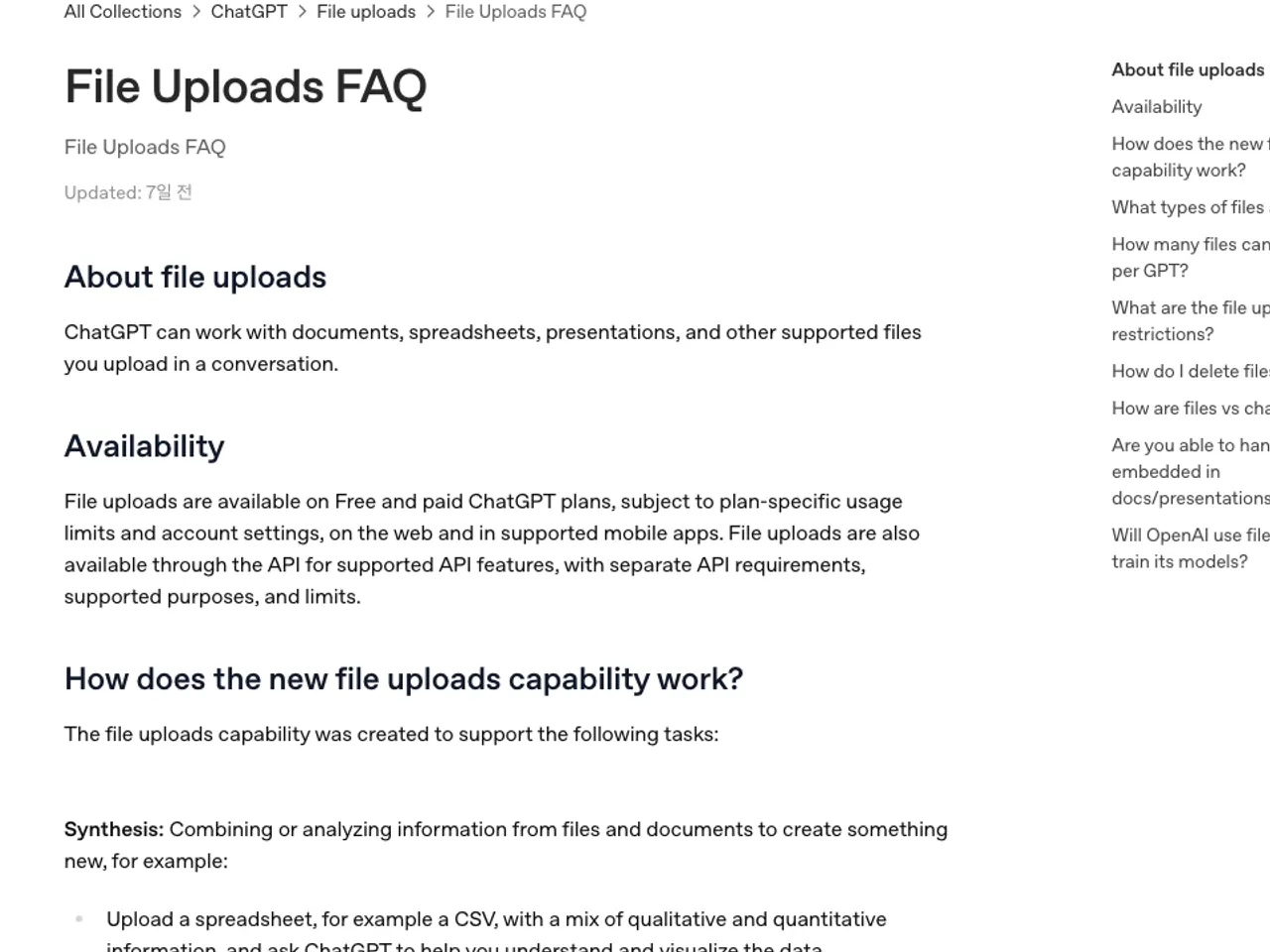
The complete workflow for uploading a PDF in the ChatGPT web interface and confirming the summary result.
- Open the official ChatGPT site in a web browser and log in.
- Click the "+" file-attachment icon to the left of the message input box.
- Select the target PDF stored on the computer or mobile device and complete the upload.
- When the upload-complete status icon appears, enter the prepared summary prompt.
- Click the send icon to start AI response generation and review the published paragraphs and structured summary items.
If the "upload limit reached" error occurs, wait for the rolling window to reset or consider upgrading to a higher plan. For organization plans, verify in the admin console that file-upload permission is correctly granted.
When multiple files must be analyzed simultaneously, the GPTs and Projects menus allow batch uploads only within the specified maximum file count.
Verify ChatGPT Output
Validating that the generated summary matches the original PDF's numerical and contextual data is mandatory. Hallucination can introduce non-existent statistics or figures, so core cited information must be cross-checked.
Check the following four verification items.
- Accurate reflection of key numerical data such as dates, amounts, and ratios from the source document
- Presence of context distortion in major chapter conclusions or quotations
- Addition of fabricated information not present in the source document
- Complete paragraph coverage according to the specified format and items
If missing or unclear sections are found during review, send a re-analysis prompt specifying the page number or subheading. When handling enterprise data, confirm in Settings > Data Controls that prompt and attachment learning usage is disabled.
Diagnose Errors and Alternative Paths
When upload-limit errors or file-parsing failures occur, diagnose the cause stepwise and use alternative routes.
If the file-attachment button is inactive on an organization account, check the admin console to confirm that Advanced Data Analysis and file-attachment policies are enabled. If a system-wide service outage is suspected, visit status.openai.com to review server incident status.
When the basic chat window reaches its upload cap, consider using the Projects feature or the API developer console to transmit documents. If limit errors persist, prepare the login email, request ID, and screen captures and submit an inquiry to the official OpenAI support center.
Revision history · 2026-09-24
This article was revised against the provider’s official documentation. Korean note
Sources
help.openai.com — ChatGPT file uploads FAQ (2026-08-16)
OpenAI Help Center — Data controls in ChatGPT (2026-09-24)
Open provider document