ChatGPT Enterprise Data Protection: Training, Residency, Sharing
ChatGPT Enterprise and Business exclude inputs and outputs from training by default. Admins use Workspace settings; residency is fixed at contract.
 OpenAI
- Category
- AI for work & Office
- Official sources
- 4
- Read time
- 6 min
- Last checked
- 2026.09.24
Training exclusion is the default, not a setting
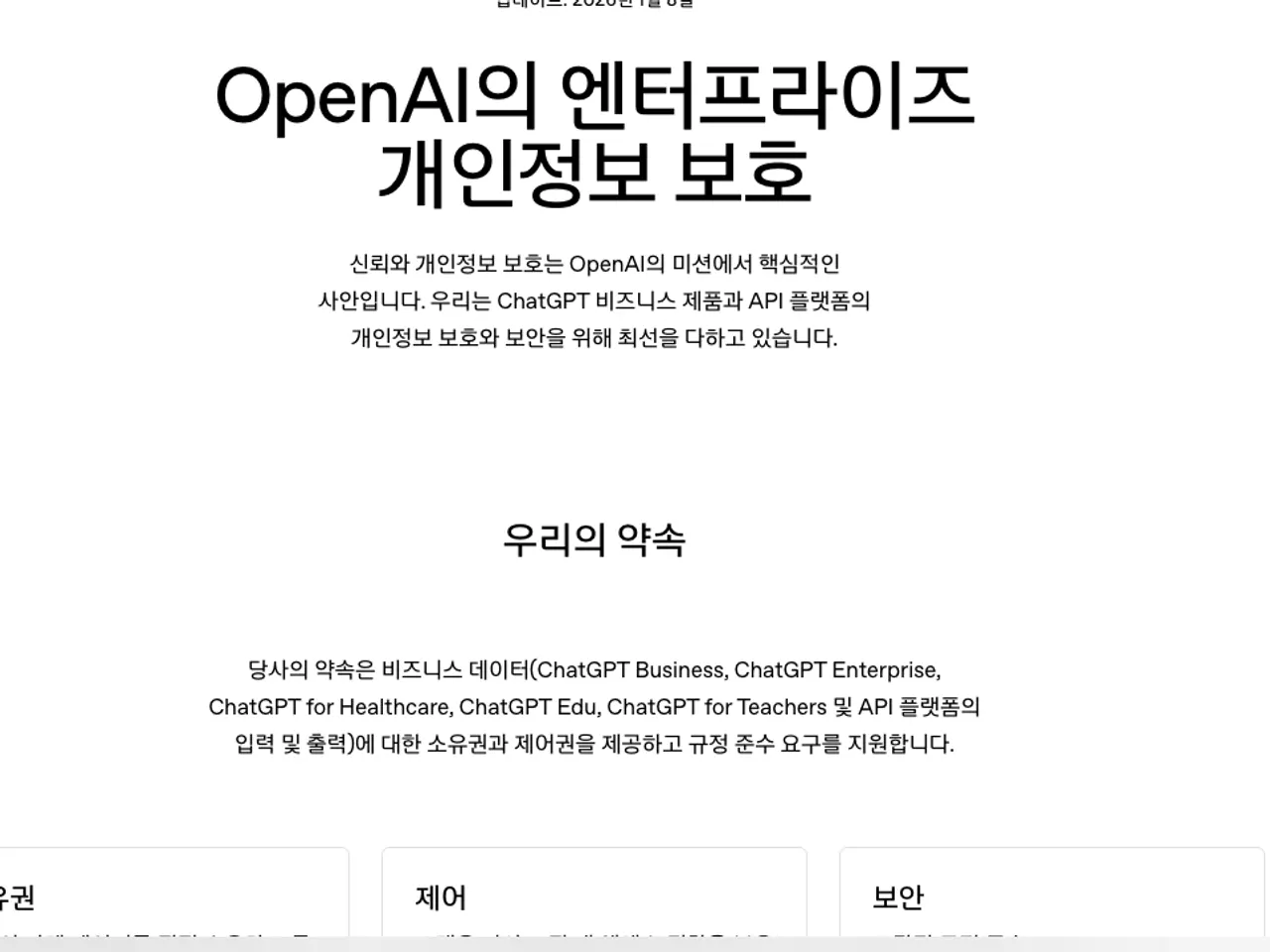
OpenAI states that by default it does not use inputs or outputs from ChatGPT Enterprise, Business or Edu to train or improve its models. An admin therefore does not need to find a "turn off training" switch, and no item by that name exists in the admin screens.
Data is encrypted with AES-256 at rest and TLS 1.2 or higher in transit, and Enterprise customers can use enterprise key management (EKM). [1]
| Item | Enterprise | Business |
|---|---|---|
| Inputs and outputs used for model training | Excluded by default | Excluded by default |
| Data residency (storage location) | Supported (chosen when a new workspace is contracted) | Not eligible |
| Inference residency (where the model runs) | Supported regions only (Europe, US, UAE) | Not eligible |
| Disable shared links entirely | Yes | No (links do not open outside the workspace) |
| SAML SSO and roles (member, admin, owner) | Provided | Provided |
Source: OpenAI business data page, data residency help, Business data-sharing help [1][2][4]
The admin surface is a single "Workspace settings" screen
There is no separate admin console site: in ChatGPT, select the profile icon and open Workspace settings. Every role can open it, but workspace-wide changes are made by owners and admins.
The sections are General, Members, Groups, Permissions & roles, Models, Billing, GPTs, Apps, Workspace analytics and Identity & access. [3]
- Profile icon → Workspace settings → General: workspace name and image, organization and workspace IDs, and the AI policy notice.
- Members and Groups: invitations, roles, seat types and groups.
- Permissions & roles: available models, GPT creation and sharing, Canvas, Projects, memory (shared memory and improved memory separately), link sharing and Work access, per default role or custom role.
- Identity & access: sign-in methods such as SSO.
- After a change, sign in with an ordinary member account and confirm that the restricted features are actually hidden.
The data residency region is displayed, not editable
Data residency is chosen when a new Enterprise or Edu customer contracts and provisions a workspace; the supported regions are Australia, Canada, Europe (EEA and Switzerland), India, Japan, Singapore, South Korea, the UAE, the United Kingdom and the United States. There is no control for changing the region of an existing workspace.
Owners and admins can only view the configured region under Workspace settings > General, next to the organization and workspace IDs, as Data Residency Region; if the value is missing or unclear, contact OpenAI Support. [2]
Inference residency (running the model inside the region) is available only in Europe, the US and the UAE for workspaces with data residency enabled, so a Korean workspace can keep storage in South Korea but cannot pin model execution to Korea.
In-scope content is memory, data-analysis artifacts, conversations, custom GPTs, files and image-generation inputs and outputs; new features are not automatically covered. [2]
Shared links and scheduled-task sharing
In Enterprise, sharing chats and scheduled tasks within the workspace is controlled by the "Share chats and scheduled tasks in the workspace" setting under Workspace settings > Permissions & roles.
When it is off, members cannot create shared links or shared scheduled-task links, and a link created inside the workspace opens only for members of that workspace.
In Business, shared links do not open for people outside the workspace, who are sent to the ChatGPT home page with a message that they do not have access, but the sharing feature itself can be disabled only in Enterprise. [3][4]
The normal state after restricting sharing is a disabled share button in a member account and an existing link that shows no conversation when opened in an outside browser. If member screens do not change after the setting, check the per-role settings (default role and custom roles) separately.
Decide before company documents go in
Business (formerly Team) provides training exclusion, SSO and role management but not data residency or disabling shared links, so choose an Enterprise contract if a rule requires storage to stay in Korea, and if there is no such rule, Business also gives training exclusion and SSO.
Personal Plus and Pro accounts have no workspace management and require each user to turn off training in Data controls themselves, so they are not the right choice for company use.
On any plan, admin settings do not replace a document-handling policy: classify which documents may be uploaded by confidentiality level in the company's security policy first, and ask OpenAI sales or support when contract terms are unclear. For documents that admin settings cannot restrict, a copy with personal data removed is the alternative. [1][2][4]
Revision history · 2026-09-24
This article was revised against the provider’s official documentation. Korean note
Sources
openai.com — Enterprise privacy and security (business data) (2026-09-24)
OpenAI Help Center — Data residency and inference residency for ChatGPT (2026-09-24)
OpenAI Help Center — Managing workspace settings in ChatGPT Enterprise (2026-09-24)
OpenAI Help Center — Managing data sharing and privacy in ChatGPT Business (2026-09-24)
Open provider document