Configure ChatGPT basic chat settings in 5 steps
Configure ChatGPT data controls and custom instructions in five steps to save history and manage model training preferences.
 OpenAI
- Category
- Beginner guide
- Official sources
- 6
- Read time
- 5 min
- Last checked
- 2026.09.17
ChatGPT account types and access comparison
ChatGPT differs in chat history retention and data training settings depending on login status and plan. Beginners can use this table to choose the access method that matches their work purpose.
| Access method | Login required | Chat history saved | Disable data training option | Primary use cases |
|---|---|---|---|---|
| Guest access | Not required | Not available | Supported in Settings | One-time searches and queries |
| Free account | Required | Available | Supported in Settings | General chat, document summary, image upload |
| Paid account (Plus/Pro) | Required | Available | Supported in Settings | High-performance reasoning, large file analysis |
| Organization account (Business) | Required | Available | Organization policy applied automatically | Enterprise data security and team work |
Guest access does not retain chat history after the browser closes, so continuous conversation work requires signing up for a free account and logging in. For work involving corporate confidential data or personal information, verify that you are logged in with an organization account where dedicated management policies apply before entering any data.
ChatGPT custom instructions and output validation data examples
Text data that can be pre-specified in the Custom Instructions section before starting a chat. Specifying the user's role and preferred output format eliminates the need to repeat the same request in every turn.
[User background example]
- Role: IT product marketer
- Key interests: Data-driven marketing, AI tool usage
- Preferred explanation style: Lead with the core conclusion, then list concrete execution steps as numbered items

[Answer output rules example]
- Narrative style: Use ~합니다/~입니다 endings
- Remove unnecessary greetings and exclamations
- Define technical terms briefly in parentheses on first use
- Present complex comparison data in tables
Copy the template above into the Custom Instructions fields in Settings, then save. All new chat windows created afterward will apply the specified output rules. To verify the rules are reflected, open a new chat window, enter a test question, and compare the answer format.
5-step ChatGPT chat environment setup procedure
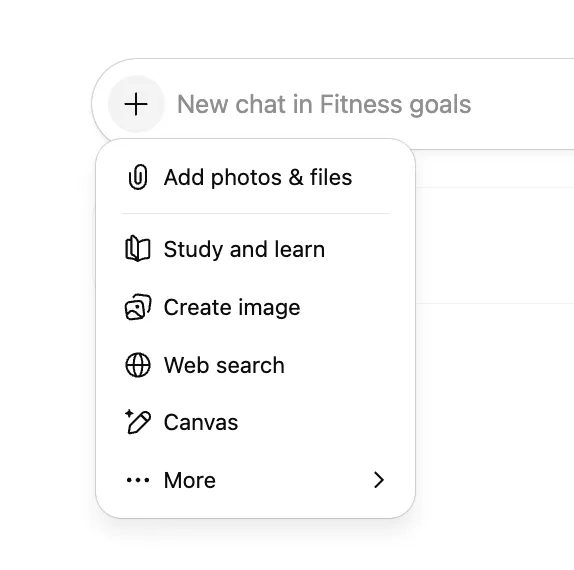
Procedure for configuring the ChatGPT chat environment in a browser or app and running the first chat. Click the detailed menu locations and buttons in order to complete the configuration.
- Enter chatgpt.com in the browser address bar, click the Log in button at the top right, and sign in with your account.
- Click the account profile name or profile icon at the bottom left of the screen, then select Settings.
- In the Settings window, go to the Data Controls tab and turn the Improve the model for everyone toggle off or on.
- Click Custom instructions (or Personalization), paste the prepared text into the user background field and the answer output rules field, then click Save.
- Click the New chat button at the top left to create a new chat window, type a question in the bottom input field, click the send icon, and verify the answer follows the specified format.
Chat settings and answer output How to Verify the Result
Checklist for confirming that configured options are applied correctly in the system. Re-adjust settings if output does not match intent.
- Narrative style validation: Confirm that generated answer sentences end consistently with the style specified in settings.
- Data management status validation: In the Data Controls tab, verify the model training toggle remains in the intended blocked (Off) or allowed (On) state.
- Chat list save validation: Check that the just-completed chat title appears automatically in the left sidebar and remains in history.
- File and image attachment validation: Use the attachment (clip) icon in the bottom input field to verify documents and images upload without errors.
Diagnose settings not applying and alternative actions
Recovery methods when answers remain unchanged or settings fail to save after changes. Remediation path varies by browser state and account permissions.
If custom instructions are saved but not reflected in a new chat, check whether an existing chat window is still open. Custom instructions do not apply to already-started chats; they take effect only in new chat windows created via the New chat button.
When using an organization account, the model training toggle in the Data Controls tab may be grayed out and unclickable. This occurs because the organization administrator has enforced data processing policies from the central console. Switch to a personal account or contact the internal IT administrator regarding data management policy.
If a free account shows a usage limit message or model pause notice, wait and retry or switch to a guest window for one-off queries. For workloads requiring expanded capacity and faster processing, review the plan management path in Settings to consider upgrading to a paid plan.
Sources
openai.com — Introducing ChatGPT - OpenAI (2026-09-17)
openai.com — OpenAI | Research & Deployment (2026-09-17)
openai.com — GPT-4 | OpenAI (2026-09-17)
chatgpt.com — ChatGPT Plan | Free (2026-09-17)
chatgpt.com — Download ChatGPT (2026-09-17)
openai.com — Start using ChatGPT instantly - OpenAI (2026-09-17)
Open provider document