Configure API Keys in VS Code
VS Code lets you store API keys in OS environment variables or a project .env file without committing them to the repository.
- Category
- Beginner guide
- Official sources
- 6
- Read time
- 5 min
- Last checked
- 2026.09.10
.env versus settings.json: where keys are stored
In VS Code, manage API keys per project using a root .env file or apply global settings via settings.json.
| Configuration method | Storage location | Scope | Security risk |
|---|---|---|---|
| Project .env | Project root (.env) | Current workspace only | Risk of leak if .gitignore is missing |
| User settings.json | %APPDATA%\Code\User\settings.json | All projects for the logged-in user | Risk of leak during settings sync |
| OS global environment variable | System environment variables | All processes on the system | Accessible by other programs |
Default paths for settings.json by OS are as follows. Windows stores it at %APPDATA%\Code\User\settings.json. macOS uses ~/Library/Application Support/Code/User/settings.json. Linux stores it at ~/.config/Code/User/settings.json.
Use the project .env method for quick tests. For system-wide integration, apply the OS environment variable method. Avoid writing keys directly into settings.json on shared PCs.
Minimal .env and .gitignore setup code
To safely load API keys in a project, configure both the .env file and .gitignore defenses. Below is a minimal Node.js implementation using the dotenv package.
# .env file example

OPENAI_API_KEY="sk-proj-example-key-value"
API_REQUEST_TIMEOUT="5000"
# .gitignore file example

.env
.env.local
*.pem
// app.js execution example
require('dotenv').config();

const apiKey = process.env.OPENAI_API_KEY;
if (!apiKey) {
  console.error('Error: OPENAI_API_KEY environment variable is not set.');
  process.exit(1);
}
console.log('API key loaded:', apiKey.substring(0, 7) + '...');
From opening a folder to verifying key registration
Follow these steps to register an API key using VS Code’s internal terminal, environment files, and settings UI.
- Open File > Open Folder in VS Code, select your project directory, and create a .env file in the Explorer pane.
- Inside the new .env file, enter
API_KEY=your_actual_key_hereand save the file. - In the Explorer pane, create or open .gitignore and add
.envto exclude it from Git tracking. - Press
Ctrl+Shift+P(macOS:Cmd+Shift+P) to open the Command Palette and selectPreferences: Open User Settings (JSON). - Add the line
"terminal.integrated.env.windows": { "MY_API_KEY": "your_actual_key_here" }to settings.json and save. - Open Terminal > New Terminal from the top menu, then run
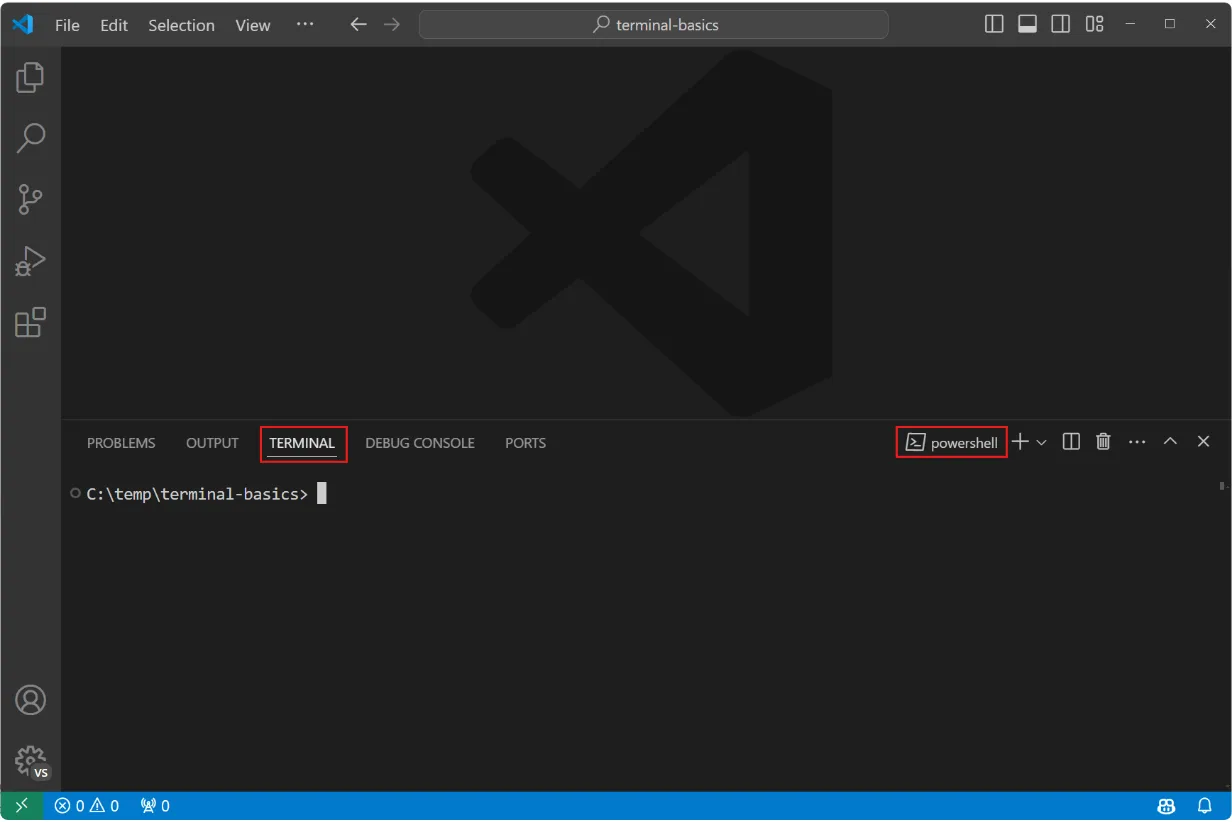
echo %MY_API_KEY%(Windows cmd) orecho $MY_API_KEY(Bash/zsh) to verify the value.
If the terminal displays the configured your_actual_key_here value, the environment variable is applied correctly.
Values that must never reach source code or public repos
Never hardcode API keys directly inside source files (.js, .py, .java, etc.). If a key is embedded in source code, it becomes permanently exposed in Git history when committed.
When pushing code to public repositories (GitHub, GitLab, etc.), ensure .env files, certificate files (.pem, .p12), and local database passwords are excluded from tracking. Explicitly list these extensions and filenames in .gitignore.
If using an organizational account, terminal environment variable injection may be restricted by admin console policies. When transmitting confidential company data to an external AI model API, obtain prior approval from the security team and review the transmission scope.
Fixing undefined values and unread .env files
If an undefined error occurs despite setting the environment variable, confirm whether the terminal session was opened before the variable was configured. VS Code’s integrated terminal loads environment variables only at session creation, so always open a new terminal via Terminal > New Terminal after modifying settings.json.
If the .env file is not recognized, verify that the script execution path matches the .env file location. Running a script from a subdirectory outside the project root can prevent dotenv from locating the file.
If a .env file has already been committed to the Git repository, adding it to .gitignore afterward does not remove it from tracking. Run git rm --cached .env in the terminal to remove the file from the Git index, then commit.
If an API key is already exposed, log in to the provider’s console and immediately revoke and reissue the key. When requesting official support or community help, mask the actual key string and share only the configuration structure.
If a shortcut does not respond, open View > Command Palette from the top menu and run the same command from there.
Revision history
This article was revised against the provider’s official documentation. Korean note
Sources
code.visualstudio.com — Get started with Visual Studio Code (2026-08-22)
code.visualstudio.com — VS Code extension marketplace (2026-08-22)
code.visualstudio.com — Download Visual Studio Code - Free AI Code Editor for Mac ... (2026-08-22)
code.visualstudio.com — Visual Studio Code - The open source AI code editor | Your ... (2026-08-22)
visualstudio.microsoft.com — Visual Studio: IDE and Code Editor for Software Development (2026-08-22)
visualstudio.microsoft.com — Visual Studio Downloads for Windows (2026-08-22)
Open provider document