Use Copilot in Excel for Data Analysis and Formulas
Confirm the Microsoft 365 subscription and Copilot license, then verify formulas and analysis results against the source data.
- Category
- Beginner guide
- Official sources
- 6
- Read time
- 7 min
- Last checked
- 2026.09.24
Prerequisites and conditions where Copilot Excel does not apply
Copilot in Excel needs a subscription that includes Copilot.
For organization accounts, an administrator assigns a Microsoft 365 Copilot Business add-on license in the Microsoft 365 admin center (₩28,400 per user per month, billed annually, VAT excluded), or the organization uses a bundle that includes Copilot: Business Standard (₩31,800 per user per month) or Business Premium (₩43,200 per user per month).
For personal accounts, Microsoft 365 Personal (₩12,500 per month or ₩125,000 per year) includes Copilot in the apps. In Family (₩15,500 per month) only the subscription owner can use the AI features, and advanced Copilot features come with Microsoft 365 Premium (₩29,000 per month). Without a license, the Copilot button does not appear in the Excel ribbon.
Microsoft does not disclose file size limits, row caps, or token limits, so testing is required before processing large workbooks.
Specifying scope and conditions in analysis prompts
Paste the following prompts into the Copilot chat pane. Replace bracketed placeholders with actual sheet names, ranges, and conditions.
[Data analysis request]
Analyze quarterly sales trends by product category in sheet 'Sales_2024' range A1:F1000 and create a pivot table in a new sheet.

[Formula generation request]
In sheet 'Cost_Calculation', fill column E (Amount) with a formula that multiplies column C (Quantity) by column D (Unit Price) for rows E2:E500. Treat empty Quantity or Unit Price cells as 0.

[Outlier detection request]
In sheet 'Quality_Data', highlight rows in column B (Measurement) that fall outside mean ± 3 standard deviations using conditional formatting, and list the row numbers in a new column.
Validation checklist:
| Validation item | Verification method | Pass criteria |
|---|---|---|
| Formula placement | Click target range and check formula bar | Formula entered exactly in intended range |
| Calculation accuracy | Manually compute 5 sample rows and compare | Zero error |
| Pivot table fields | View pivot table field list | Requested rows/columns/fields match |
| Conditional formatting rule | Home > Conditional Formatting > Manage Rules | Rule for mean ± 3σ exists |
| Source data integrity | Check original sheet row/column count | No deletions or moves |
Accessing and running Copilot in Excel: 5 steps
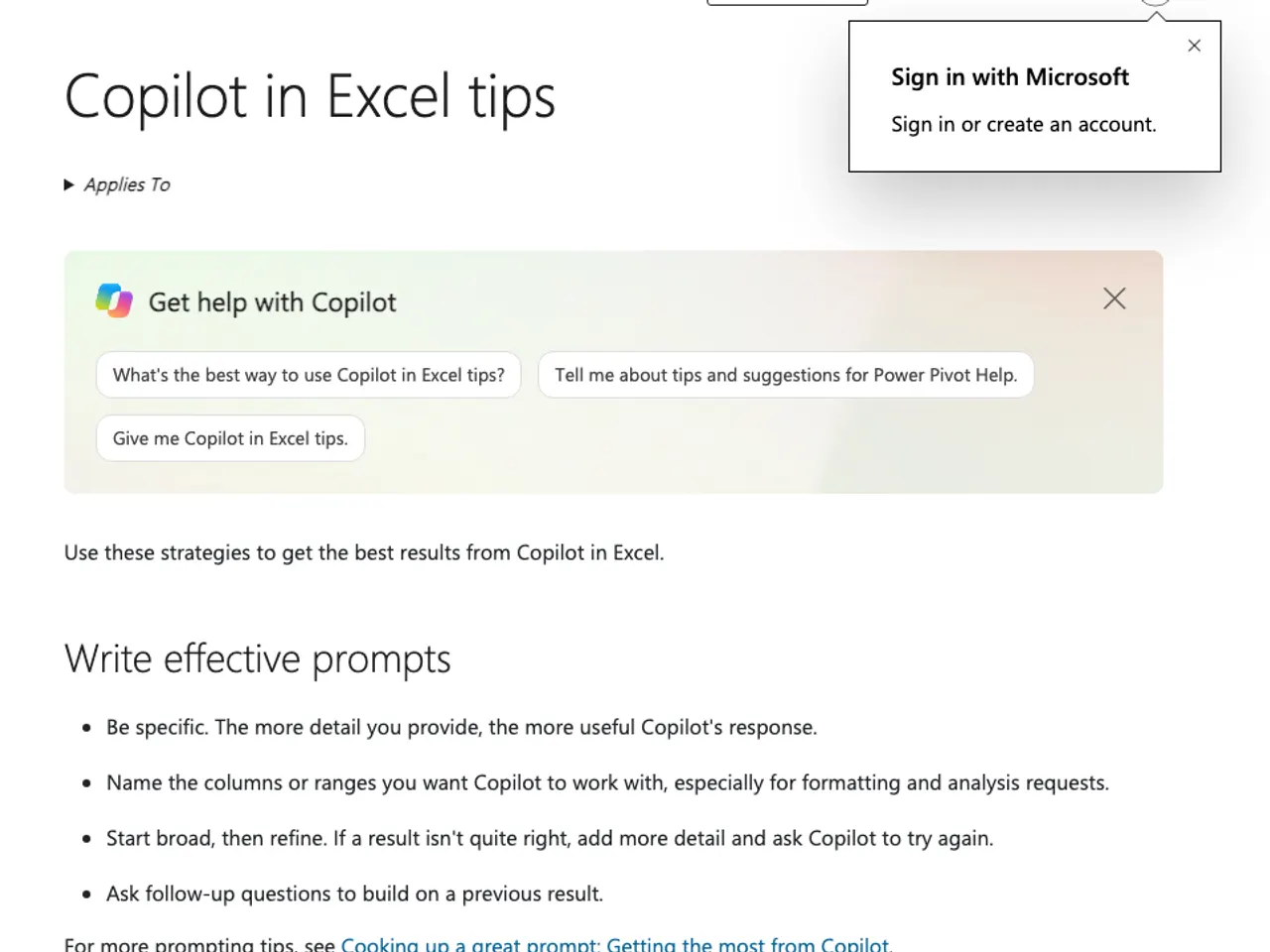
- Open Excel desktop or Excel for the Web and log in with an account that has an active Microsoft 365 Copilot license. Confirm the Copilot icon appears in the lower-right corner of the Excel window (per the official guide). If missing, the license may not be assigned or an admin policy may be pending.
- Open the workbook containing the data and activate the relevant sheet. Click the Copilot icon to open the right-side chat pane. The official guide lists editing worksheets, generating data and formulas, identifying insights, and highlighting, sorting and filtering; button names in the pane can change between updates.
- Copy and paste one of the prompt examples above into the chat input field and send. For natural-language requests, explicitly specify 'sheet name', 'range address', and 'conditions'. Ambiguous phrasing (e.g., 'analyze sales') may trigger a full-sheet summary instead.
- Review the proposed formulas, pivot tables, charts, or conditional formatting previews in the pane. Click 'Apply' or 'Insert'. For formulas, the target range is auto-selected; pivot tables are created in a new worksheet. Always verify the range and logic in preview before applying.
- Return to the worksheet and validate each item on the checklist in sequence. If formula errors (#REF!, #VALUE!, #N/A) occur, use 'Retry' in the pane or revise the prompt and re-execute. A successful outcome meets all pass criteria with no changes to source data.
Two common limitations often overlooked
First, Copilot follows Microsoft 365 permissions and sensitivity labels, so it cannot analyze a workbook the user is not allowed to open; ask the owner for access and retry.
Second, the official guide says edit and plan modes are available on Windows, Mac and the web, but no detailed feature comparison between web and desktop is published, so test important work in the environment you actually use.
Failure diagnosis: prompts sent but no result returned
Symptom: The pane shows 'Analyzing...' for over 30 seconds or returns 'An error occurred. Please try again.'
Diagnose the cause by testing these scenarios:
-
Network/server issue: If a simple sum formula request (=SUM(A1:A10)) succeeds on another sheet, the server may be temporarily overloaded.
-
Data structure issue: Missing header rows or merged cells in the specified range cause range recognition failure. Add headers or unmerge cells and retry.
-
License issue: If the Copilot plan shows 'Inactive' for the logged-in account, check status in the admin center or personal subscription page.
Recovery procedure: 1) Restart the browser. 2) Test with a simple prompt. 3) Clean and re-request data. 4) If persistent, check service status in Microsoft 365 admin center > Status > Service health for 'Copilot' and create a support ticket if needed.
Final validation: confirming completion with screen and values
Confirm completion by checking both of the following:
- Sheet tab: A new pivot table sheet named 'Pivot_QuarterlySales' or similar is created and retains default formatting.
- Formula bar: Clicking a cell in the target range (e.g., E2:E500) shows a formula such as
=IF(OR(C2="",D2=""),0,C2*D2)with the fill handle extended to the end of the range.
If all three conditions are met, the task is complete. If any condition fails, restart from the corresponding step.
Alternatives and upgrade paths when Copilot Excel is not suitable
Use alternative tools under these conditions:
-
No license or pending approval: Use Excel’s built-in 'Data Analysis' add-in, 'Quick Analysis' (Ctrl+Q), or 'Formula Recommendations' (Formulas > Function Library).
-
Workbooks exceeding 1 million rows or real-time streaming data: Use Power Query + Power Pivot or connect to Azure Synapse / Fabric.
-
Organization policy blocks Copilot (disabled in admin center 'User settings'): Request an exception from IT or use on-premises Excel macros/VBA alternatives.
-
Complex statistical modeling (regression, time-series forecasting, clustering): Use Python in Excel (public preview), R, or Azure Machine Learning integration.
FAQ
Q: Can a personal subscription use Copilot in Excel desktop? A: Microsoft 365 Personal and higher personal plans include Copilot in Excel desktop and on the web. Microsoft does not publish a feature-by-feature comparison between personal plans and organization licenses.
Q: Does data get sent to Microsoft servers during analysis requests? A: According to Microsoft’s official documentation, prompts, inputs, and responses are not used for model training and are processed within tenant boundaries. Data is transmitted to the cloud for inference, so extremely sensitive data should be processed using on-premises tools.
Review the Microsoft 365 Copilot privacy policy page for detailed data flow information.
Revision history · 2026-09-24
This article was revised against the provider’s official documentation. Korean note
Sources
Microsoft — Microsoft 365 플랜 및 가격 비교 (2026-09-24)
Microsoft — 비즈니스용 Microsoft 365 Copilot (2026-09-24)
Microsoft Support — Get started with Copilot in Excel (2026-09-24)
Microsoft Support — Copilot in Excel tips (2026-09-24)
support.microsoft.com — Get started with Copilot in Excel (2026-09-24)
support.microsoft.com — FAQ about Copilot in Microsoft 365 subscriptions (2026-09-24)
Open provider document