Create PowerPoint Slides with Microsoft 365 Copilot
Check the PowerPoint Copilot button and account license before creating slides from organization files.
- Category
- AI for work & Office
- Official sources
- 2
- Read time
- 5 min
- Last checked
- 2026.09.24
Microsoft 365 Copilot·PowerPoint prerequisites
This procedure applies to planners and practitioners using Microsoft 365 Copilot and PowerPoint under organizational accounts. First verify Copilot visibility in the Copilot app or PowerPoint interface.
Required materials include presentation purpose, audience, decision-required items, slide structure, approved meeting notes, public metrics, and product descriptions. Record document names and owners alongside original materials for result verification.
Confidential customer or personal information input depends on organizational policy. Materials prohibited from AI input per policy must not be included in Copilot prompts or reference files.
If using only personal Microsoft accounts without access to organizational Microsoft 365 materials, presentations based on company documents are not applicable. Availability of personal Copilot versus Microsoft 365 Copilot varies by account type and product terms; confirm via Microsoft support's individual user guide.
Condition-specific limitations
| Condition | Judgment | Next action | Completion criteria |
|---|---|---|---|
| Copilot visible in PowerPoint with access to approved materials | Proceed with draft generation | Input purpose, audience, reference range | Generated structure appears in slides |
| Copilot not visible in PowerPoint | Issue may relate to account or organizational settings | Consult Microsoft 365 administrator about account and policy | Copilot menu appears in PowerPoint |
| Document access permissions unconfirmed | Exclude from reference materials | Verify sharing permissions with document owner | Reference list matches actual usage |
| AI input of confidential materials restricted by policy | Avoid inputting confidential originals | Have approver supplement content in PowerPoint | Final file applies input restrictions |
First limitation involves account and policy. Microsoft distinguishes personal Copilot from organizational Microsoft 365 Copilot, providing separate technical guides and data protection instructions for administrators.
Second limitation concerns document permissions. Microsoft states Copilot inherits Microsoft 365 permissions, sensitivity labels, and retention policies. Users cannot access files they cannot originally view, even by modifying prompts.
Third limitation involves pricing and usage. Official materials do not specify PowerPoint Copilot's price, file size limits, usage caps, or reset periods. These details remain unpublished on Microsoft 365 Copilot product pages and must be confirmed via Microsoft support's latest access guides by account and region.
Input instructions for referencing organizational materials
Enter the following text in PowerPoint's Copilot interface, replacing bracketed values with approved work materials. Reference original confidential documents only after verifying policy and access permissions.
Presentation purpose: [Approved agenda item]
Audience: [Attendee roles or organization]
Desired outcome: PowerPoint presentation draft
Structure: Problem definition, current evidence, causes, improvement plans, timeline, decision request
Reference range: [Document 1], [Document 2], [Public material]
Writing condition: One title per slide with brief key points
Verification condition: Do not create numbers or cases not in reference materials; mark [Verification needed] |
Source attribution: List reference documents used on each slide
Include presentation target and final decision items in prompts. Inputs like "Create presentation" without purpose or verification criteria make human verification difficult.
| Review item | Cross-check material | Passing criteria |
|---|---|---|
| Presentation purpose | Approved request document | Title and final request match the same agenda item |
| Numbers and dates | Meeting notes/public metrics | Values match originals with no unsupported data |
| Document permissions | File sharing settings | Author and sharing targets fall within allowed ranges |
| Structure order | Input prompt | Maintains problem-evidence-causes-improvement-timeline-request sequence |
| Display status | Generated PowerPoint | No truncated text or missing slides |
Steps in PowerPoint
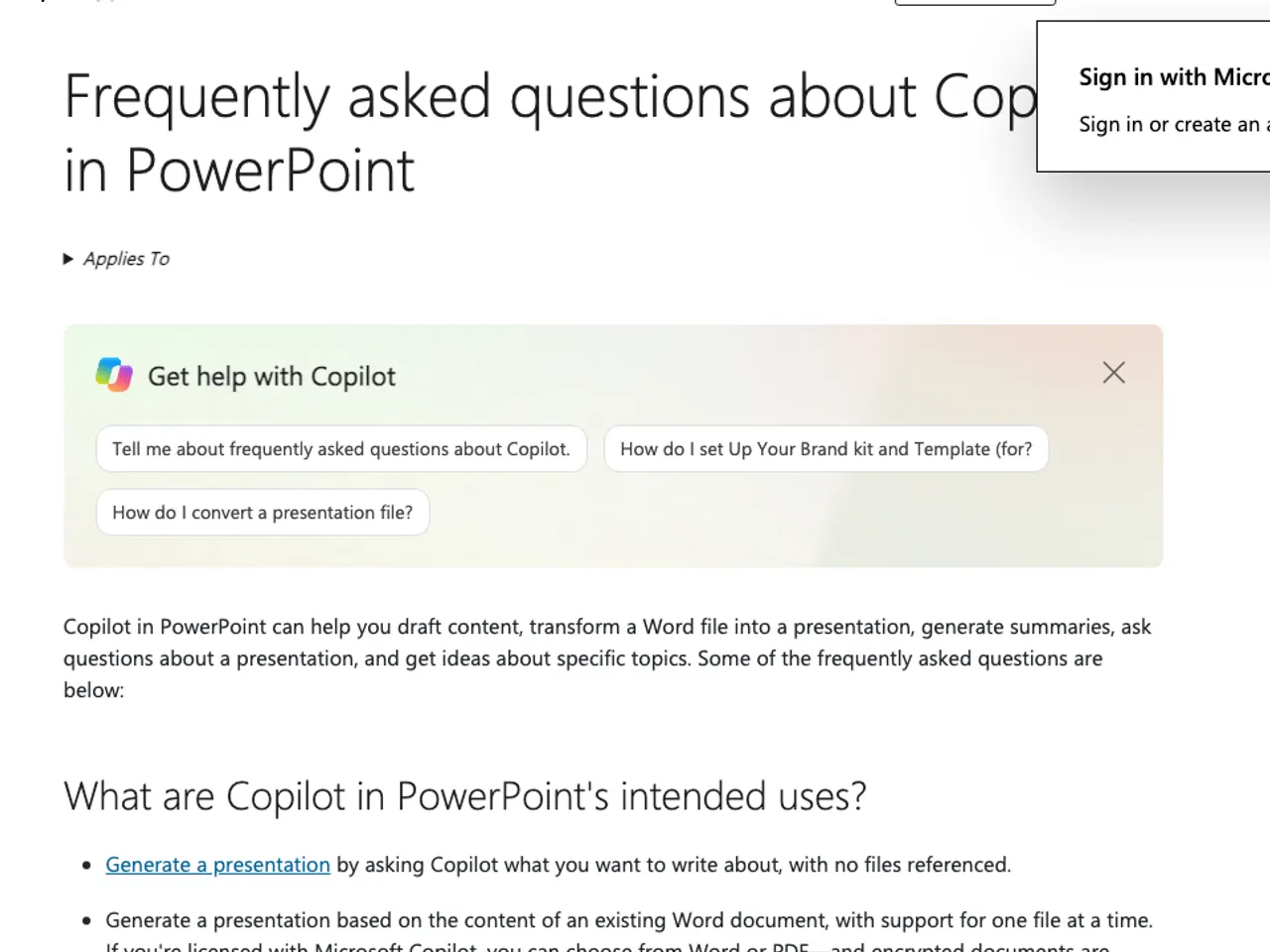
- Log in to Microsoft 365 Copilot app with organizational account and confirm PowerPoint appears in app list.
- Open PowerPoint and verify Copilot menu appears in the workspace.
- List document names of approved meeting notes and public metrics, cross-checking owners and access permissions.
- Replace bracketed values in prompts with actual work data for purpose, audience, structure, reference range, and [Verification needed] conditions.
- Submit modified prompt in PowerPoint Copilot input field and review generated draft.
- Confirm problem definition, evidence, causes, improvements, timeline, and decision request appear in input order on slides.
- Cross-check numbers, dates, proper nouns, and responsible names against original documents; leave unsupported items as [Verification needed].
- Verify sensitivity labels, sharing targets, and retention conditions in PowerPoint file against organizational policy.
- Have presenter review sentence errors, visual element readability, content alignment with purpose, and final approval items before saving approved version.
Microsoft 365 Copilot product page states prompts, inputs, and responses are not used for model training. However, this does not override organizational input restrictions or document classification policies.
Completion criteria for results
Judging completion solely by Copilot's draft generation response is insufficient. Actual PowerPoint file must be opened to verify purpose and reference materials are reflected.
First, titles and content must align with purpose and audience. Final decision targets (budget, timeline, product direction) must be clear in last request.
Second, numbers and dates must match reference documents' originals. Even if Copilot displays source document names, original cross-check is mandatory.
Third, content not in reference materials must not be presented as fact. Unsupported values or cases should be deleted or marked [Verification needed] for approver decision.
Fourth, when sharing files, confirm both reference material permissions and presentation sharing targets. Copilot inherits user permissions but presentation distribution scope requires separate review.
Fifth, all PowerPoint slides must have intact titles and content. Missing tables, images, or text boxes should be detected immediately upon generation.
Failure cause verification and recovery paths
Symptom: Copilot menu not appearing in Microsoft 365 Copilot app or PowerPoint workspace. Before modifying prompts, check login account and organizational settings.
If using personal Microsoft account, organizational materials and permissions may not be linked. Check account type in Microsoft account settings, switch to organizational account, then reopen Microsoft 365 Copilot app and PowerPoint.
If organizational account still lacks Copilot menu, contact Microsoft 365 administrator about Copilot availability and policy application status. Administrator manages technical guides and distribution support for organizational Microsoft 365 Copilot.
If draft generated but content missing, first verify document permissions. Searchable documents may show different results if read access is restricted or sensitivity labels/retention policies apply.
If table values differ from the originals, do not carry them into the approved version right away. Record original document name, page/position, generated slide value, and cross-check results; obtain presenter approval.
If Copilot remains invisible or administrator confirmation conflicts with screen state, escalate to Microsoft support. Include login account type, PowerPoint Copilot visibility, occurrence screen, document permissions, and policy verification results.
Out-of-scope alternatives and escalation paths
If AI input of confidential materials is prohibited, use public materials to create slide structure and question lists, then manually input confirmed numbers into PowerPoint. This reduces Copilot's input range but final numbers and sharing permissions remain under presenter review.
If PowerPoint lacks Copilot but Microsoft 365 Copilot Chat appears, review creating presentation outlines and sentence drafts in Copilot Chat, then manually transfer to PowerPoint. Microsoft states Copilot Chat answers questions and writes content drafts but does not automatically complete PowerPoint files with provided materials.
For managing multiple files and meeting notes as single reference, review Microsoft 365 Copilot's Notebooks feature to collect conversations, files, meeting notes, and project materials. If Notebooks menu does not appear, confirm policy and availability with administrator.
Final approval requires presenter to verify original cross-check, confidential/personal information input/sharing ranges, slide display status, and decision requests. Files without complete review are treated as drafts only and cannot be used as distribution copies.
Revision history · 2026-09-24
This article was revised against the provider’s official documentation. Korean note
Sources
microsoft.com — Microsoft 365 Copilot (2026-08-13)
support.microsoft.com — Microsoft 365 Copilot help (2026-08-13)
Open provider document