Create Excel Formulas and Pivot Tables with ChatGPT
Create Excel formulas with ChatGPT, structure the source table, and verify the fields before building a pivot table.
 OpenAI
- Category
- Beginner guide
- Official sources
- 5
- Read time
- 5 min
- Last checked
- 2026.09.19
Prerequisites before using ChatGPT
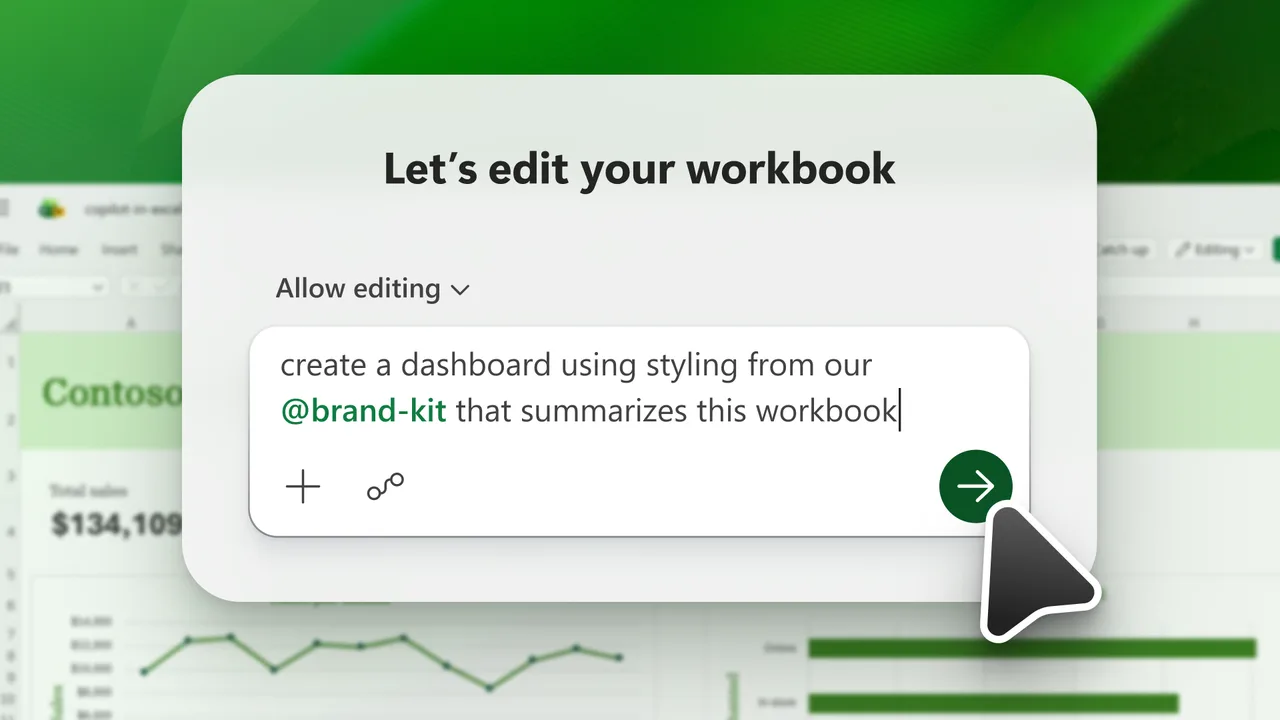
Before generating Excel formulas or designing pivot table layouts with ChatGPT, the column structure of the data and the required formula conditions must be organized.
If the source data contains personal information or corporate confidential data, do not input the actual data; instead, extract only column names and fictional example values for the query. When the Excel file is excessively large or external uploads are prohibited by security policy, use a structure-description prompt instead of direct data transmission.
| Category | General text query method | Data file upload method |
|---|---|---|
| Applicable conditions | Confidential data included, security policy environment | Non-confidential data, standardized CSV/XLSX files |
| Input material | Column names, data types, fictional example rows | Entire actual data file or sample sheet |
| Prompt structure | Directly specify formula conditions and output column names | Specify analysis purpose and pivot layout requirements |
| Verification method | Copy formula directly into Excel formula bar | Cross-reference ChatGPT analysis results with Excel calculated values |
Formula request prompt examples
When requesting formula creation, conditional statements, target ranges, and exception handling criteria must be specified for correct formula generation. Copy the prompts below, modify only the column names and condition values, and input them into ChatGPT.
The following is a prompt example for requesting an Excel formula: 'Column A is [Date], Column B is [Department Name], Column C is [Sales Amount]. Write a SUMIFS formula that calculates the sum of rows where Column B department name is "Sales Team 1" and Column C sales amount is greater than or equal to 1,000,000.
Also, nest the IFERROR function to display 0 when an N/A error occurs.'
The following is a prompt example for pivot table structure design: 'Based on the attached data (or the above column structure), guide the pivot table field placement to check monthly and departmental sales totals and proportions.
Specify which column names go into the row, column, value, and filter areas, and explain the aggregation method for the value field.'
From sheet verification to formula application
- Launch Excel and verify the column names (A1, B1, C1, etc.) and data types of the source sheet where the formula will be applied.
- Access chatgpt.com, log in, and enter the column structure and formula conditions specifically into the prompt input field.
- Press the 'Copy' button on the formula code generated by ChatGPT to save it to the clipboard.
- Return to the Excel sheet, click the cell where the formula will be entered, paste into the formula bar (Ctrl+V), and press Enter.
- Click the [Insert] tab on the Excel top menu, select [PivotTable], and drag items into the layout according to the field placement (rows, columns, values) recommended by ChatGPT to complete the layout.
ChatGPT result verification items
To verify that formulas and pivot tables are correctly applied, compare Excel's built-in verification features with manual calculations. For single-condition formulas, apply the filter function on the source data and verify that the sum or average of some samples matches the result of the ChatGPT-generated formula.
For pivot tables, use the [Change Data Source] menu in the [PivotTable Analyze] tab to verify that the entire data range is selected without omission.
Confirm that the aggregation method in Value Field Settings is correctly set to 'Sum' rather than 'Count', and check that pressing [Refresh All] after modifying the source data causes the pivot table results to change correspondingly.
ChatGPT error diagnosis and alternative paths
When #VALUE! or #NAME? errors occur during formula application, the cause may be function name differences due to Excel language version settings. Korean builds of Excel use the same English function names (VLOOKUP, SUMIFS and so on), so the names need no change; re-check the argument separator and quotation marks (") against Excel's formula rules instead.
ChatGPT normally returns English function names, so check the mapping below before you paste into a Korean build of Excel.
Even with the right name, a different argument separator produces the same error: Korean builds use a comma while some locales expect a semicolon, and that list separator is set in the additional settings of the Windows region settings, so check there first.
| English name | Name in the Korean build | Where it is used |
|---|---|---|
| SUMIFS | SUMIFS | Summing rows that meet several conditions |
| IFERROR | IFERROR | Showing a fallback value when a formula errors |
| VLOOKUP / XLOOKUP | VLOOKUP / XLOOKUP | Pulling a value from another table |
| COUNTIFS | COUNTIFS | Counting rows that meet several conditions |
Current Excel accepts the English names as they are. If a name is not converted after you enter the formula and #NAME? remains, that build does not support the function — XLOOKUP is the common case — and you should ask for VLOOKUP, or INDEX combined with MATCH, instead.
When data volume exceeds hundreds of thousands of rows causing Excel to become unresponsive or exceeding the ChatGPT prompt input limit, use the Power Query menu to transform data instead of Excel formulas.
When file uploads are restricted due to corporate security accounts, consult the internal IT administrator regarding data processing policies or switch to a data modeling approach using the Power Pivot feature.
Revision history
This article was revised against the provider’s official documentation. Korean note
Sources
support.microsoft.com — Create a PivotTable to analyze worksheet data (2026-09-24)
support.microsoft.com — XLOOKUP function (2026-09-24)
support.microsoft.com — Formula errors when the list separator is not set correctly (2026-09-24)
OpenAI Help Center — Data controls in ChatGPT (2026-09-24)
OpenAI Help Center — File uploads FAQ (2026-09-24)
Open provider document