Connect a Payment Gateway in Wix eCommerce and Fix Errors
Upgrade from the Free plan to Core or higher, connect a payment provider in the Wix dashboard's Accept Payments menu, complete identity verification,.
- Category
- Troubleshooting
- Official sources
- 4
- Read time
- 5 min
- Last checked
- 2026.09.24
Payment Features and Operational Limits by Wix Plan
Subscribing to a Core plan or higher is required to integrate a payment gateway (PG) and accept online payments. The Free and Light plans restrict payment system connections, preventing customers from completing orders.
Supported storage capacity and collaborator permissions vary by plan tier, so select a plan that matches the operational model. Key specifications and payment acceptance conditions by plan are as follows.
| Plan | Monthly price (annual billing, USD reference) | Online payment acceptance | Storage | Site collaborators |
|---|---|---|---|---|
| Free | $0 | Not available | Not shown on the official table | Not shown on the official table |
| Light | $17 | Not available | 2 GB | 2 |
| Core | $29 | Available | 50 GB | 5 |
| Business | $39 | Available | 100 GB | 10 |
| Business Elite | $159 | Available | Unlimited | 100 |
Source: Wix plans page (wix.com/upgrade/website). Prices and currency vary by location; Korean accounts see KRW amounts at checkout. [1]
When using the Free or Light plan, payment methods do not appear on the checkout page even if a customer reaches it. To operate an online store, verify whether the Core or higher plan provides payment methods and proceed with the upgrade.
Wix Dashboard Payment Setup Example
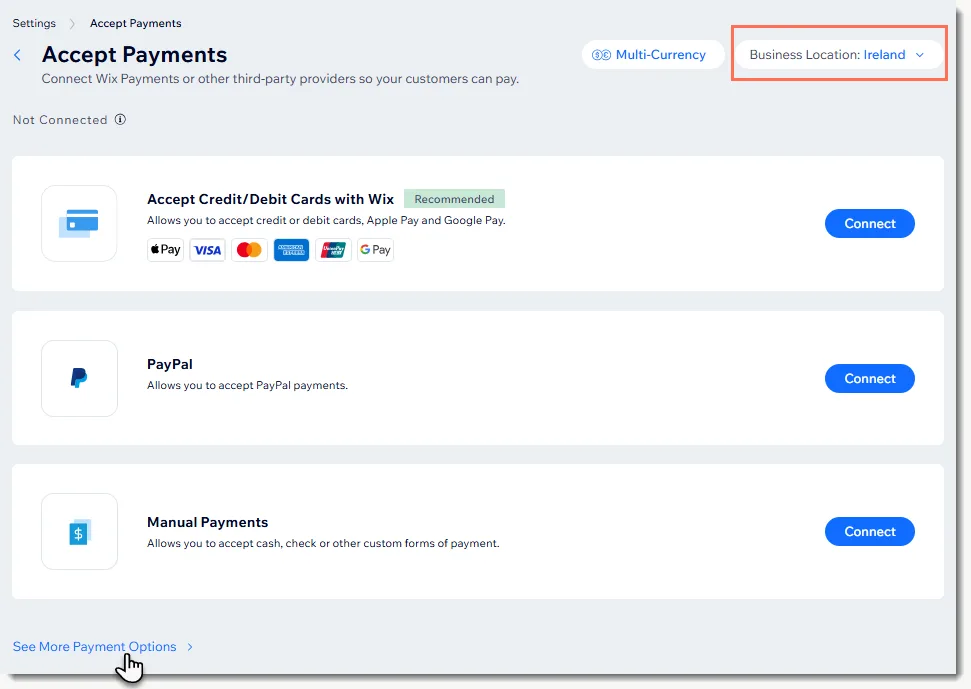
When configuring payment methods in the dashboard, enter the PG company information accurately. Service approval may be rejected if the business registration information differs from the PG enrollment information.
The reference information structure for the widget input fields is as follows. Prepare the setting values in advance and cross-check them against the dashboard input screen before registering.
[Payment Method Setup Reference Example]
- Business Country: South Korea
- Connected provider: KG Inicis / PayPal / Paymentwall / Splitit (per Wix's payment providers by country list, 2026-09-24)
- Business Type: Sole Proprietorship or Corporation
- Dashboard status: whether the provider is connected and the provider's review status (wording differs by provider)
If the country setting is not specified as Korea, domestic-only PG options will not activate. Verify the business location setting first, then proceed with the provider connection.
The Merchant ID and API key received during provider authentication must be entered in an environment accessible only to the account administrator to prevent external leakage. Once the approval process completes, the integration status updates on the dashboard.
5-Step Wix Payment Integration Procedure
This is the complete execution procedure to activate the online store payment function and apply it to the site. All steps must be executed in order to reach a formal payment acceptance state.
- Log in to the Wix account and navigate to the My Sites dashboard.
- Open Accept Payments in the site dashboard.
- Verify that the business location is correctly set to South Korea and click Connect next to the desired payment gateway (PG).
- Enter the PG account information (Merchant ID, API key, etc.) or complete the account authentication procedure following the guided prompt.
- Once payment option setup is complete, click the Publish button at the top right of the Wix Editor to apply the website changes live.
If the publish action is not performed, the payment window will not appear on the actual visitor screen even if the PG integration shows as complete in the dashboard. Press the publish button immediately after integration setup finishes.
Checking the mobile layout in the Editor screen prevents payment button positioning errors or layout obstruction issues in advance. Modified content reflects to the server instantly.
Checking that payments work
To determine whether payment integration completed normally, cross-check the final execution state. Verify not only screen display but also whether actual test order data remains.
The criteria to check during verification are specified in the following bullet list.
- Whether the PG payment window launches normally when clicking the Buy button on an actual product page
- Whether a new order record is created in the Wix dashboard Orders menu during a test payment
- The Accept Payments screen in the Wix dashboard shows the provider as connected, and account verification for payouts is complete
- Whether the order confirmation email is automatically received by the customer after payment completion
When all verification items match, the online payment system build is complete. If any item falls short, recheck the dashboard settings.
Transition to live transaction operation only after confirming that order record creation and email reception work fully. Conduct regular monitoring to prevent payment loss.
Payment Integration Failure Diagnosis and Official Support Channels
Diagnose the cause when the payment window does not work or a "Payment function unavailable" error occurs even after completing the setup procedure.
If the Light or Free plan is still active, payment functionality is blocked; upgrade to Core or higher. If PG review is in progress (Pending), actual payments are rejected until the provider completes approval.
If the PG internal account is suspended or the account approval stage is incomplete, contact the payment gateway's customer center. For Wix system errors or plan approval reflection issues, submit a technical support request through the Contact Us menu in the Wix Help Center.
Attaching a screenshot of the error screen and the payment method settings dashboard screen when submitting a technical support inquiry reduces resolution time. A specialist consultant connects to analyze the detailed cause.
Revision history · 2026-09-24
This article was revised against the provider’s official documentation. Korean note
Sources
wix.com — Wix Pricing Information (2026-09-24)
support.wix.com — Choosing a Premium Plan (2026-09-24)
support.wix.com — Available Payment Providers in Your Country (2026-09-24)
support.wix.com — Connecting KG Inicis as a Payment Provider (2026-09-24)
Open provider document