How to Create YouTube Shorts with AI Tools
YouTube Shorts AI creation combines AI-generated scripts and square or vertical video assets in the YouTube mobile app.
- Category
- Photo, video & ads
- Official sources
- 8
- Read time
- 5 min
- Last checked
- 2026.09.24
Prerequisites before creating YouTube Shorts with AI tools
AI-generated YouTube Shorts require verified original audio licenses and a mobile editing environment. Shorts revenue is shared with music partners according to the number of music tracks used, and a Short longer than one minute that contains claimed content is blocked and not eligible for monetization.
[8] YouTube categorizes a video as a Short when it was uploaded on or after October 15, 2024 with a square or vertical aspect ratio and runs up to three minutes; Official Artist Channels follow the same rule for uploads on or after December 8, 2025.
1080x1920 (9:16) is a common way to meet the vertical requirement, not a required resolution, and a wider ratio such as 16:9 keeps a video long-form. [5]
| Preparation and review item | Specific criteria and specifications | Result if not met | Applicable authority and entity |
|---|---|---|---|
| Aspect ratio | Square or vertical (1080x1920 resolution is one example) | Wider ratios are classified as long-form video | All creator accounts |
| Content duration | Up to 3 minutes (uploads on or after October 15, 2024) | Longer videos are classified as long-form | All creator accounts |
| Audio usage rights | YouTube Audio Library or owned audio | Copyright claim and monetization halt | Channel owner and manager |
| Capture equipment and environment | Webcam or mobile camera (optional) | AI assets may substitute | Content production staff |
Even when scripts are generated via AI prompt tools, final video edits must be cross-checked for copyright violations. If third-party rights are detected in audio tracks, either file a dispute or remove the track. Both personal accounts and brand channel manager accounts support identical feature scopes.
If an existing video is widescreen, re-crop it to a square or vertical canvas in a video editor or fill the margins to change the ratio. For audio tracks without secured licenses, apply only approved audio from the ‘Add sound’ menu in the YouTube app.
Shorts script prompt and correction checklist
AI script generation requires structured prompts specifying visual descriptions and subtitle placement. Generated subtitles and voice assets undergo platform policy compliance checks. YouTube's Shorts creation tools support videos up to 3 minutes, so 60 seconds is a choice rather than a limit.
The template below is a 60-second layout; stretching it to 3 minutes only changes the segment timings. [4]
[Topic]: Productivity keyboard shortcuts for professionals
[Format]: 60-second YouTube Shorts script
[Structure]:
- 0–3 seconds: Hook question to capture attention
- 4–50 seconds: Display 3 key shortcuts with on-screen captions
- 51–60 seconds: Subscribe prompt and next video teaser
[Constraints]: Place core captions centrally; leave top and bottom UI areas blank
When composing subtitles, position text to avoid overlap with mobile UI elements such as the bottom title bar and like/comment buttons on the right. Do not use audio tracks containing others’ copyrighted material; replace with YouTube’s built-in library audio.
Main editing and upload Steps
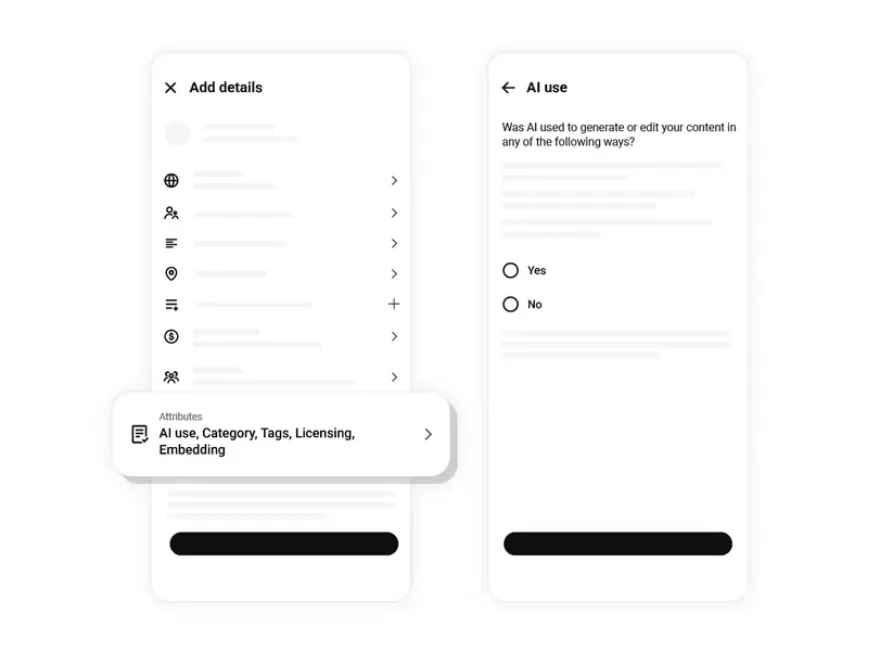
Use the ‘Create’ menu in the official YouTube mobile app to combine externally AI-generated video assets and upload quickly. Arrange verified video files and licensed audio in sequence before applying.
- Open the official YouTube app on your smartphone and tap the ‘+’ button at the bottom center, then select ‘Create a Short’.
- Tap the gallery icon in the bottom left to import a vertical or square video file generated in advance with AI tools.
- Navigate to the ‘Add sound’ menu and search for an approved audio track within YouTube’s Audio Library, then apply it.
- Tap the ‘Text’ icon to enter key subtitles generated from the prompt and adjust their timing segments precisely.
- Tap ‘Next’ to move to the details screen, enter a keyword-rich title in the title field, then press ‘Upload Shorts’.
During upload, if the network disconnects, the process pauses; perform uploads on a stable wireless network. During processing the upload is matched automatically against works registered in Content ID, and a match sends you a claim notification.
The Copyright Match Tool works the other way round: it finds other channels’ re-uploads of your videos, so it is not the step that checks whether your upload infringes someone else’s work. [6][7]
YouTube Shorts result verification checklist
After upload, access the YouTube Studio management console to verify normal publication status and check for copyright infringement. Diagnose issues using the displayed status values immediately after processing completes.
In YouTube Studio, go to the ‘Content’ tab and check the restrictions column for the uploaded Shorts video. A ‘None’ status indicates normal public exposure and monetization eligibility. If a copyright ownership claim appears, modify the audio track or delete the offending segment.
A video longer than three minutes or with a wide aspect ratio is classified as long-form. The classification is decided by the ratio and length at upload, and YouTube Help describes no way to change it afterwards, so to publish as a Short upload a new file that meets the criteria.
Do not delete an existing video that already has views or comments; leaving it as long-form is the safer choice. [5]
YouTube Shorts error diagnosis and alternative routes
If a copyright violation warning appears or an audio track is blocked, initiate the ownership dispute resolution procedure immediately. If unresolved, use YouTube Help Community or the admin dispute pathway.
A 1–3 minute Short with an active Content ID claim is blocked regardless of the claimant’s policy, and YouTube states that from September 24, 2026 new Shorts longer than one minute may no longer be blocked automatically. A claim is not a copyright strike and usually does not affect the channel itself.
[6] If you hold valid licenses, submit a dispute via the ‘Actions’ menu in the YouTube Studio content details screen.
If you cannot prove a license, use YouTube Studio’s remove-claimed-content options: trim out the claimed segment, mute the song, or replace it with a track from the Audio Library. [6] Repeated warnings may restrict channel features; therefore, use only library audio in advance.
For business accounts where modifications are not permitted due to permission issues, request action from a channel owner with full permissions. If resolution is unattainable, check technical support via the ‘Post to Help Community’ menu in YouTube Help Center.
Revision history · 2026-09-24
This article was revised against the provider’s official documentation. Korean note
Sources
support.google.com — YouTube Help (2026-08-22)
support.google.com — YouTube copyright (2026-08-22)
play.google.com — YouTube - Apps on Google Play (2026-08-22)
support.google.com — YouTube Shorts 제작 시작하기 (2026-09-20)
support.google.com — Understand three-minute YouTube Shorts (2026-09-24)
support.google.com — What is a copyright claim? (2026-09-24)
support.google.com — Copyright Match Tool (2026-09-24)
support.google.com — YouTube Shorts monetization (2026-09-24)
Open provider document