Photoroom vs Adobe Express for Photo Editing
Use Photoroom for e-commerce product cutouts and AI backgrounds; use Adobe Express for marketing posters and multi-channel banners.
- Category
- Photo, video & ads
- Official sources
- 4
- Read time
- 5 min
- Last checked
- 2026.09.24
Pre-Work Conditions for Adobe Express and Photoroom
The optimal tool depends on the work purpose when producing e-commerce product shots and marketing assets. Photoroom specializes in shopping-mall product image optimization with AI cutout removal, AI background generation, batch editing, and virtual model application.
Adobe Express suits marketing poster, social-media banner, and multi-channel design production with diverse templates, text layout, brand kit integration, and multi-page editing.
E-commerce sellers who must process large volumes of product SKUs quickly should choose Photoroom. Teams whose primary goal is marketing posters, social promotions, and event banners should choose Adobe Express to reduce production time.
| Comparison Item | Photoroom | Adobe Express |
|---|---|---|
| Primary Purpose | E-commerce product cutout removal and AI background generation | Marketing posters, social banners, design template editing |
| Core features | AI Shadow, Recolor, Batch Edit, AI Fashion Models | Text layout, stock asset integration, multi-page editing |
| Bulk Processing | Batch Edit supports hundreds of images at once | Single-asset design and template duplication focus |
| Export Formats | PNG, JPEG, WEBP | PNG, JPEG, PDF, MP4 |
| Main Web Path | app.photoroom.com | express.adobe.com |
Use Photoroom for simple cutout removal followed by marketplace listing. Use Adobe Express when placing promotional copy and brand logos on product photos for poster production.
Before starting retouching, verify the original image specifications and platform constraints. Images with unclear product shapes or strong light reflections cause AI edge-detection errors.
Required items and constraints:
- Original product image files in PNG or JPEG format
- Computer for browser-based work, or Apple Mac with M1 chip or later, iOS/Android mobile devices
- Non-M1 Apple Mac and general PC environments require web-only browser access
- Complex transparent glass products or photos with blurred edges reduce cutout accuracy
If logging in with an organization account, check admin console policies first.
Pre-Upload Retouch Verification Checklist
Set verification criteria in advance when using AI prompt generation or performing bulk work. Standardized criteria reduce rework during platform upload.
Verify the following items in order:
First, edge verification: confirm no clipping or distortion of the product outline. Second, AI Shadow verification: confirm the product contact surface and light direction match. Third, channel compliance: confirm canvas ratios and margin specifications for targets such as Amazon, Shopify, and Instagram are satisfied.
Fourth, color fidelity: confirm actual product colors are not altered after Recolor or AI background application.
For marketplace listing images, verify compliance with pure white background (Hex #FFFFFF) requirements.
Main Product Photo AI Retouch and Background Generation: 5-Step Steps
Continuous procedure from uploading the actual product image through AI background editing to specification-compliant export.
- Access the Photoroom web app (app.photoroom.com) in a browser and log in.
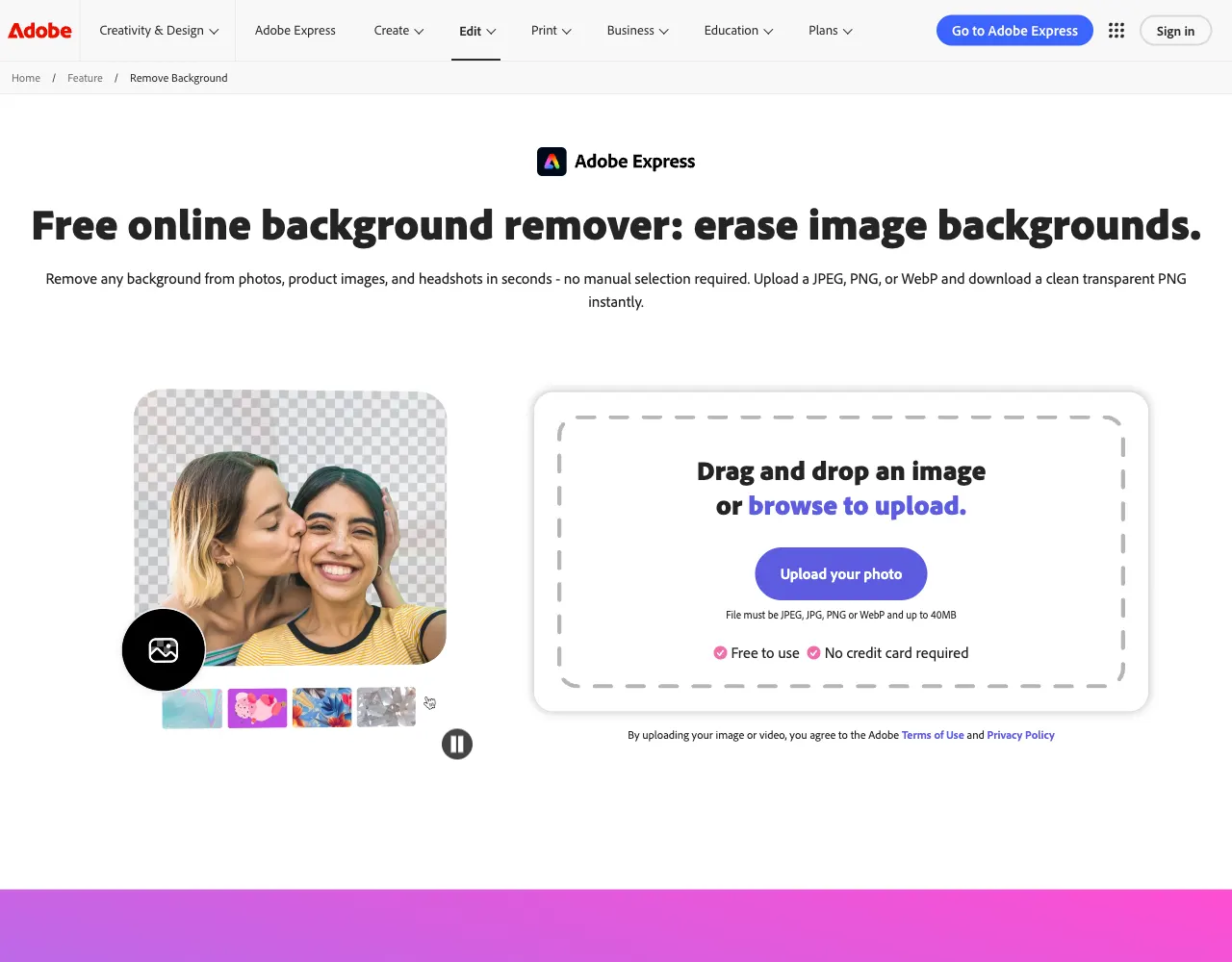
- Drag the JPEG or PNG product photo into the "Start from a photo" or "Drop an image here" area on the main screen to upload.
- After automatic AI cutout removal completes, click "Transparent", "White", or "AI Backgrounds" in the background selection menu.
- Adjust shadow intensity and blur in the AI Shadow menu, then select Amazon, Shopify, or Instagram specifications via the Instant Resize menu.
- After editing finishes, click the "Download" button at the top of the screen, specify the required file format among PNG, JPEG, and WEBP, and save.
For bulk work, click the Batch Edit menu to apply uniform rules to hundreds of files.
Adobe Express and Photoroom Result Verification Items
Judge whether work completed normally by verifying the final exported files and work history.
The downloaded file extension must match the selected PNG, JPEG, or WEBP format. Image resolution must not be excessively reduced relative to the original, and no unwanted residual background should remain around the subject for a normal-status judgment.
Photoroom's help center states that a free account cannot be used for commercial purposes and is limited to personal use, so for images that sell products switch to Pro, Max or Ultra before exporting, regardless of watermarks. Check the pricing page for the current free web export resolution and paid monthly export limits.
Adobe Express and Photoroom Error Diagnosis and Alternative Paths
Diagnose causes and set alternative paths when image upload fails or AI background generation errors occur.
Excessive file size or unsupported formats trigger upload error messages. Convert the file to PNG or JPEG using an image editor and retry. If the browser freezes during web app execution, clear the cache or install and run the M1-or-later Mac and mobile dedicated apps.
When work requires complex layer compositing, text typography, or multi-page promotional production beyond simple background replacement, move to Adobe Express (express.adobe.com) to continue.
For API integration automation issues, verify API key validity in the Photoroom dashboard API settings menu or request approval authority from the organization administrator. If API usage is exceeded, change plans via the dashboard billing management menu.
Revision history · 2026-09-24
This article was revised against the provider’s official documentation. Korean note
Sources
photoroom.com — PhotoRoom - AI-Powered Photo Editor and Listing Studio for Product ... (2026-08-18)
help.photoroom.com — Download the Photoroom app (2026-08-18)
help.photoroom.com — Free accounts and commercial use (2026-09-24)
photoroom.com — Photoroom pricing (2026-09-24)
Open provider document