Upload YouTube Shorts with correct specs and verify copyright
Match the 9:16 aspect ratio and 60-second limit, then run the 5-step YouTube Studio Content ID check before publishing.
- Category
- Photo, video & ads
- Official sources
- 5
- Read time
- 5 min
- Last checked
- 2026.09.03
YouTube Shorts specifications and copyright check criteria
To complete a YouTube Shorts upload, the vertical video format and audio copyright conditions must be met in advance. Videos longer than 60 seconds or uploaded with aspect ratios other than 1:1 or 9:16 are classified as regular videos. Using commercial audio without a licensed music track triggers Content ID claims that restrict or block monetization.
| Check item | Pass criteria | Result if failed |
|---|---|---|
| Aspect ratio | 9:16 vertical (1080x1920 recommended) | 16:9 videos are classified as regular videos |
| Video length | Minimum 15 seconds to maximum 60 seconds | Over 60 seconds processed as regular video |
| Audio track | YouTube Audio Library tracks or original audio | Content ID ownership claim and monetization restriction |
| File format | MP4, MOV (H.264 codec recommended) | Upload failure or encoding error |
Editing at the recommended 1080x1920 resolution provides the optimal vertical playback experience. Original audio avoids copyright penalties, but editing and inserting third-party audio without prior permission can be judged a license violation.
Equipment and compatibility requirements for YouTube Shorts
A smartphone or webcam can be used to create Shorts; expensive camera gear is not required. If a mobile device's built-in camera supports 1080p 60fps vertical recording, the posting specifications can be met without a separate camera.
When recording with a webcam on a PC, a manual rotating mount that supports vertical mode or a software-side 9:16 crop setting is needed. When connecting an external microphone for audio recording, verify that the sample rate is set to 44.1 kHz or 48 kHz.
When shooting directly via the YouTube mobile app, the in-app Shorts creation tool can record up to 60 seconds. When using an editing program, set the project resolution to 1080x1920 so the output file is generated correctly.
Upload to YouTube Studio and verify copyright in 5 steps
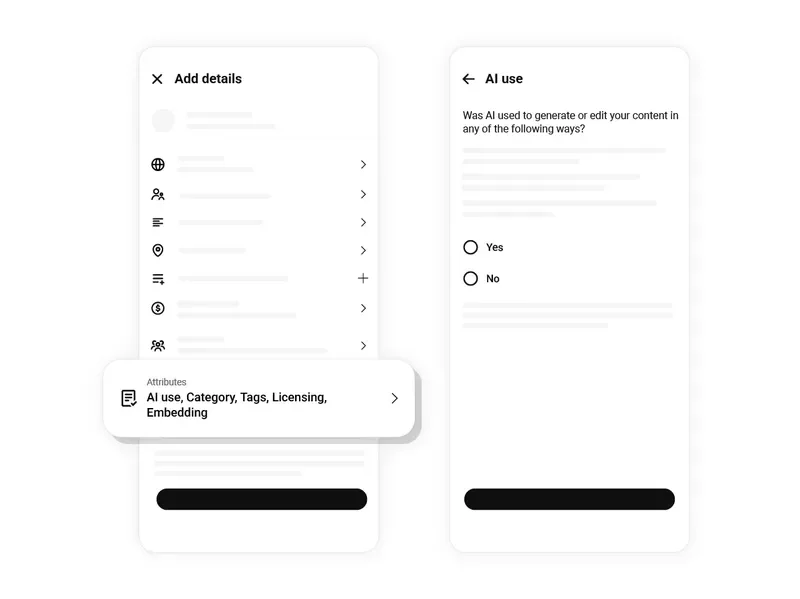
The full sequence for uploading a compliant video and diagnosing copyright issues using YouTube Studio web and mobile app.
- Open YouTube Studio, click the Create button in the upper right, and select Upload videos.
- Drag the prepared 9:16, 60-second MP4 file (e.g., shorts_sample_1080p.mp4) into the upload window.
- In the Details step, add the #Shorts tag at the end of the title and set the audience age restriction.
- Proceed to the Checks step and wait for the automatic Content ID scan to finish to confirm copyright status.
- When the Copyright section shows No issues, set visibility to Public or Scheduled and click Publish.
Post-publish verification and final checks
After upload, verify that the video is registered in the Shorts tab. In the channel's video list, the target video icon must display the dedicated red Shorts logo to confirm normal processing.
- In Video Manager, confirm the video label reads Shorts.
- In the mobile YouTube app Shorts tab, play the video and verify no black bars appear on the left or right.
- Confirm the Copyright status remains No restrictions.
- Verify that keywords applied in the description and tags are registered correctly.
On mobile playback, confirm that subtitles or key viewing elements are not obscured by the bottom profile bar or right-side reaction buttons. Monitor that audio volume plays without distortion.
Fix or replace audio when a copyright warning appears
If a copyright warning occurs at the Content ID check step, the video can be edited inside YouTube Studio without immediate deletion. The problematic audio segment can be muted or replaced with a free track from the YouTube Audio Library.
If the ownership claim is believed to be a licensor error, initiate the dispute process. If a license was legitimately purchased or the use falls under fair use, submit a counter-notification with supporting documentation.
If self-correction is impossible or rights cannot be proven, set the video to private or delete it, remove the music, re-edit, and re-upload. Repeated copyright strikes can revoke the channel's monetization eligibility, so pre-validating the audio track is required.
Sources checked
support.google.com — YouTube Help (2026-09-03)
support.google.com — YouTube copyright (2026-09-03)
blog.youtube — Official YouTube Blog for Latest YouTube News & Insights (2026-09-03)
en.wikipedia.org — YouTube - Wikipedia (2026-09-03)
en.wikipedia.org — YouTube (YouTube channel) - Wikipedia (2026-09-03)
Open provider document