ChatGPT File Upload Failed? Limits, Causes, and Fixes
Fix ChatGPT upload errors by checking the 512 MB file limit, rolling upload cap, shared storage, account plan, and OpenAI service status.
 OpenAI
- Category
- Troubleshooting
- Official sources
- 2
- Read time
- 7 min
- Last checked
- 2026.09.24
Identify the cause from the error message
ChatGPT upload rejections originate from three distinct systems, and the on-screen message indicates which system triggered the block.
Size-related messages point to the per-file limit, "upload limit reached" messages indicate either the 3-hour upload count or the storage volume limit, and format-related messages signal an unsupported file type.
A common misstep is misattributing a "upload limit reached" message to file size. If a file of only a few kilobytes is rejected, the issue is not the file’s size but the number of uploads in the last 3 hours or the total storage consumed by the account.
| On-screen message | Actual cause | First action |
|---|---|---|
| File is too large | Per-file size limit exceeded | Compare file type against its specific cap |
| upload limit reached | 3-hour upload count or storage volume limit | Check usage in Settings > Storage |
| Unsupported file type | Unsupported file extension | Convert to supported text or document format |
| Upload hangs or no response | Possible service disruption | Check status.openai.com for outages |
| Free accounts reject uploads after the third file per day | Free plan daily limit of 3 files | Retry the next day or upgrade to a paid plan |
Per-file limits vary by file type
The absolute maximum file size is 512 MB, but most formats have stricter caps. Images are capped at 20 MB, and CSV or spreadsheet files are capped near 50 MB depending on row count.
Text and document files have an additional 2 million token limit per file, independent of size. Spreadsheets are exempt from this token cap, so a 100 MB PDF may be rejected while a 100 MB CSV file is accepted.
| File type | Limit | Additional constraints |
|---|---|---|
| All files | 512 MB | Type-specific caps override if lower |
| Images | 20 MB | Inline images in documents follow plan-specific rules |
| CSV / Spreadsheets | ~50 MB | Depends on row count; token cap does not apply |
| Text / Documents | 512 MB | 2 million tokens per file |
When a file exceeds its cap, splitting the file is more reliable than compression, because compressed archives retain the same token count and do not reduce token usage.
Distinguish between upload count and storage volume limits
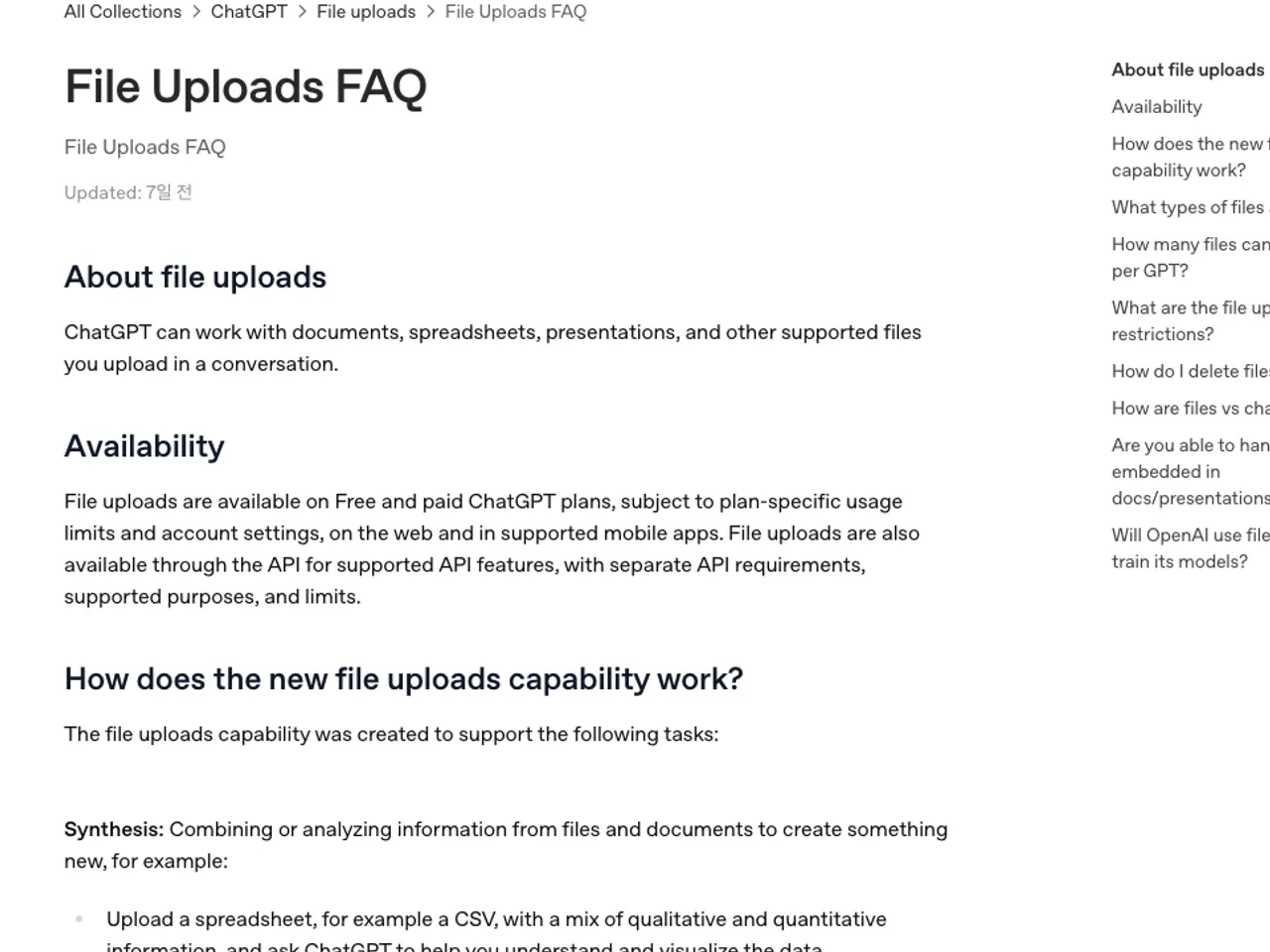
The same "upload limit reached" message can stem from two different limits: a rolling 3-hour upload count or a cumulative storage volume cap. The 3-hour upload count resets automatically, whereas the storage volume does not.
The 3-hour upload count is 80 attempts for most plans, but free accounts are limited to 3 attempts per day. Storage volume is 25 GB per user and 100 GB per organization. Both general conversations and custom GPT knowledge files share this storage pool.
Note that failed upload attempts also count toward the 3-hour limit. Repeatedly retrying large files can exhaust the limit even when no upload succeeds. During peak usage hours, the effective limit may be lower than the published value.
- Open Settings and navigate to Storage to check how close the current library usage is to the 25 GB cap.
- If usage is near the cap, delete recent conversations and knowledge files from custom GPTs to free space.
- If usage is within limits, the issue is the 3-hour upload count; wait at least 3 hours from the last failed attempt before retrying.
- Before retrying, reduce the file size to stay within the type-specific cap to avoid another failed attempt counting against the limit.
- Confirm the logged-in account and plan match the intended usage; switching accounts can apply a lower limit unexpectedly.
- If the issue persists, check status.openai.com for ongoing service disruptions.
Projects and custom GPTs have separate item limits
When uploading files to a project or a custom GPT—not to a general chat—the upload is subject to additional item limits. Custom GPTs allow a maximum of 10 files over their entire lifetime; replacing a file requires deleting the existing one first.
Project file limits depend on the plan. Free allows 5 files per project, Go and Plus allow 25, and Edu, Pro, Business, and Enterprise allow 40. If an organization administrator has enforced file upload restrictions, the personal plan limit does not apply and must be verified with the administrator.
Verify successful upload and escalate if needed
A successful upload is indicated by the file name appearing above the chat input box and the model citing specific numbers or quotes from the file in its response. If the file name appears but the model cannot cite content, the issue is in processing, not upload; split the file into smaller segments and retry to isolate the failure point.
When uploads continue to fail and support is required, provide the account email, a screenshot of the error, the timestamp and timezone of the failure, the platform and browser used, and, if available, the request ID. Missing details delay root-cause analysis.
If uploads fail on web but succeed in the mobile app, switching environments may resolve the issue faster for time-sensitive tasks. When upload conditions cannot be met, pasting content directly into the chat is an alternative, but the 2 million token cap still applies.
Revision history · 2026-09-24
This article was revised against the provider’s official documentation. Korean note
Sources
OpenAI Help Center — File Uploads FAQ (2026-09-24)
OpenAI — ChatGPT Pricing (2026-09-24)
Open provider document