Check ChatGPT file upload limits for PDF images Excel text
Learn how to upload and analyze PDF, image, Excel, and text files in ChatGPT with verified size limits and error Fixes.
 OpenAI
- Category
- AI for work & Office
- Official sources
- 8
- Read time
- 5 min
- Last checked
- 2026.08.25
ChatGPT file upload specifications and constraints
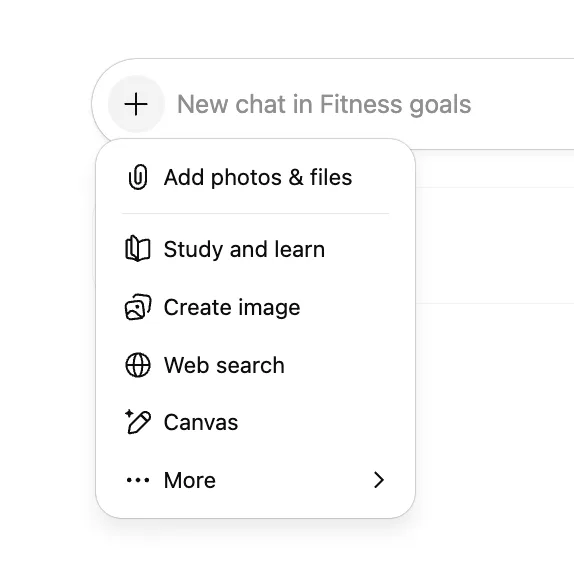
ChatGPT conversations and Custom GPTs accept PDF, Excel, image, and text file formats. Before attaching files, verify the account type and per-format size limits. Uploads are rejected immediately if a file exceeds the limit or text token threshold.
When processing business documents, check both individual file limits and the account’s cumulative storage capacity. Do not attach internal confidential, security-sensitive, or personally identifiable data without reviewing privacy settings and organizational policies.
| File type | Supported extensions | Single-file size limit | Token and other constraints |
|---|---|---|---|
| Documents and text | PDF, TXT, DOCX, etc. | Up to 512 MB | 2 million tokens per file limit applies |
| Spreadsheets | CSV, XLSX | ~50 MB | Varies by row count; token limit does not apply |
| Images | PNG, JPG, WEBP, etc. | Up to 20 MB | Visual analysis and OCR processing supported |
| Personal storage | All file types | 25 GB per user | Check via Settings > Storage menu |
| Organization storage | Enterprise / Team | 100 GB per organization | Shared storage limit for the entire organization |
Free accounts may upload files up to 3 times per day. Plus and paid accounts may attach up to 80 files within any 3-hour window, though peak-time limits may be lower.
Prompts for extracting data from Excel and PDF files
To extract accurate data from attached documents, structure prompts with explicit validation conditions. After uploading a file via the paperclip icon at the bottom of the input field, paste the following template exactly as shown.
When requesting data extraction, prevent AI from estimating or omitting values by specifying constraints. For Excel files, request structured aggregations. For PDF analysis, instruct the model to cite original page numbers and key quotations.
[Instructions]
Analyze the '2026_Q_Results.xlsx' file, specifically the 'Sales' sheet.

[Steps]
1. Extract the top 5 product categories by total revenue.
2. Calculate the revenue share percentage for each category and output in tabular format.
3. If any values are missing, do not estimate; label them as 'Missing' instead.
For image files containing text, instruct the model to separate infographic elements from tabular data. When reviewing PDF documents, require the model to present the exact paragraphs that support each claim.
Five-step process to upload and analyze documents in ChatGPT
Follow these steps to upload a file and obtain verified output in ChatGPT conversations.
- Navigate to the ChatGPT web interface, log in, and click the '+' icon or the paperclip attachment button on the left side of the input field.
- Select a single PDF, Excel (XLSX/CSV), image (PNG/JPG), or text (TXT) file from local storage to upload.
- Compose a prompt specifying the processing goal and desired output format, then press Enter or click Send.
- Wait for ChatGPT to interpret the file content and generate a response in the form of tables, summaries, or data analysis.
- Verify that the generated output matches the original file’s values and content by cross-checking against the source pages or data cells.
When using Projects, Plus accounts may register up to 20 files per project. Pro, Team, Education, and Business accounts may register up to 40 files per project. When building Custom GPTs, up to 10 knowledge files may be attached per GPT for the duration of its creation period.
Output verification and text accuracy assessment criteria
Always validate ChatGPT’s analytical output against the original file before using it in any workflow. Numerical aggregations and summaries can produce hallucinations—facts that do not exist in the source.
For spreadsheet analysis, first confirm that the total number of rows and columns matches the source data. Ask the model to output the row count and compare it with the count shown in the original spreadsheet software.
When reviewing PDF summary results, check for sentences that do not appear in the original document. Use the source PDF’s Find function (Ctrl+F) to locate and verify the exact position of any cited numbers or quotations.
Diagnosing upload errors and switching tools
If the error message 'Upload limit reached' appears, check the number of uploads made in the last 3 hours and the account’s cumulative storage usage. Failed upload attempts also count toward the 3-hour rolling limit.
If personal storage exceeds 25 GB, new file uploads are blocked. Navigate to Settings > Storage and delete unnecessary files attached to past conversations or Custom GPTs.
For files that exceed size limits, convert the format or split the content. Split CSV files larger than 50 MB into smaller files for upload. Compress images larger than 20 MB using an image compression tool before retrying.
Sources checked
help.openai.com — ChatGPT file uploads FAQ (2026-08-25)
openai.com — Introducing ChatGPT - OpenAI (2026-08-25)
openai.com — GPT-4 | OpenAI (2026-08-25)
play.google.com — ChatGPT - Apps on Google Play (2026-08-25)
learn.chatgpt.com — Use ChatGPT | ChatGPT Learn (2026-08-25)
help.openai.com — The ChatGPT home page - OpenAI Help Center (2026-08-25)
learn.chatgpt.com — ChatGPT | ChatGPT Learn (2026-08-25)
en.wikipedia.org — ChatGPT - Wikipedia (2026-08-25)
Open provider document