Create Family Schedules and Grocery Lists with ChatGPT
Enter household size, meal counts, dining-out dates, on-hand ingredients, and exclusions to generate a schedule and a separate shopping list.
 OpenAI
- Category
- AI for everyday life
- Official sources
- 3
- Read time
- 5 min
- Last checked
- 2026.09.24
Prerequisites Before Starting ChatGPT
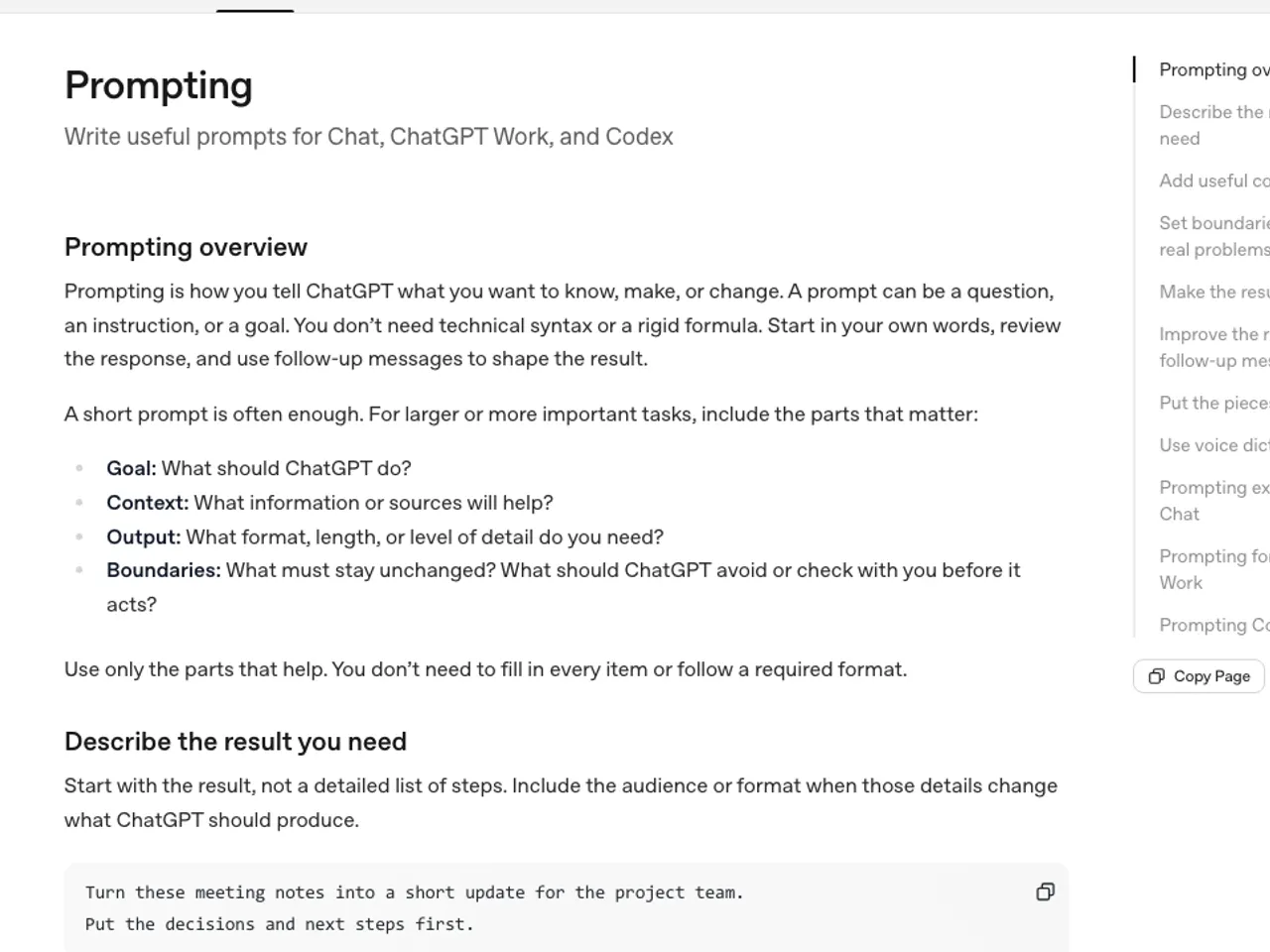
To create a family schedule and grocery list, first prepare the target period, household size, meal counts, dining-out dates, on-hand ingredients, and purchase criteria. Distinguish which meals among breakfast, lunch, and dinner are actually prepared at home for each date so you can verify that dining-out days do not generate duplicate home-cooked meals.
Cooking plans must include cooking method and assignee, not just menu names. For example, write Steamed egg | Steam | Caregiver 1, Pan-fried tofu | Pan-fry | Caregiver 2 so the output separates menu, cooking step, and assignee for verification.
Exclude children's real names, school names, home addresses, phone numbers, and face photos from input data. Use role names such as Child A, Caregiver 1, Caregiver 2 in the schedule; the caregiver verifies actual times and travel requirements against source records.
Do not rely on ChatGPT estimates for allergies, food storage, or doneness.
When product packaging labels or caregiver-verified dietary standards are required, treat ChatGPT output as a draft only and delegate health and allergy judgments to the caregiver and official food references.
Even if a family calendar stores events, do not assume ChatGPT automatically accesses dates and times not present in the input. Paste the schedule text directly or attach supported documents or spreadsheets to the conversation.
Input Paths by Condition
| Condition | Input Path | Output Scope | Next Action |
|---|---|---|---|
| Schedule and ingredients are a short table | Chat text input | Schedule and purchase draft | Cross-check dates and ingredients against source |
| Data exists in CSV or document | Conversation file upload | File content extraction and table conversion | Verify filename and check for missing rows |
| Personal data cannot enter external service | Anonymized text | Role-name-based draft | Caregiver cross-checks source against output |
| File upload blocked | Split key rows into chat input | Table generation without files | Check error message and account status |
If the schedule and ingredients are short text, do not create a file; paste the table and prompt into a new conversation. If Free-plan file upload is needed, check the limited upload conditions on the OpenAI pricing page and the 3-files-per-day limit for Free users in the File Upload FAQ first.
If an existing schedule is in CSV, use the file upload path. The OpenAI File Upload FAQ states that common file extensions such as documents, spreadsheets, and presentations are supported, but notes that per-file size and per-account usage limits also apply.
Exclude any file exceeding 512 MB from upload. If a text or document file exceeds 2 million tokens, split by period or item. If a CSV or spreadsheet hits the approximate 50 MB row-size limit, retain only necessary columns and save again.
Family Conditions and Meal Scope Input Template
Replace only the bracketed values below. Use role names instead of real names; if a quantity is unknown, leave Quantity verification needed instead of entering a number.
[Period]
2026-08-10 Monday through 2026-08-16 Sunday

[Family]
2 adults, 1 child

[Meal Scope]
Weekday breakfast 3 times, dinner 5 times
Lunch: each person external schedule
Dining out: 2026-08-12 Wednesday dinner

[Excluded Ingredients]
Peanuts

[On-Hand Ingredients]
Rice, eggs, onions, carrots, tofu

[Schedule]
Monday 18:30 Caregiver 1 returns home
Tuesday 17:00 Child A academy ends
Wednesday 18:00 Family dining out
Thursday 19:00 Caregiver 2 meeting ends
Friday 17:30 Child A activity ends

[Menus and Cooking Methods]
Monday dinner: Pan-fried tofu | Pan-fry | Caregiver 1
Tuesday dinner: Steamed egg | Steam | Caregiver 2
Thursday dinner: Stir-fried carrots and rice | Stir-fry·Cook rice | Caregiver 1
Friday dinner: Menu undecided | Cooking method undecided | Assignee undecided
Append the following prompt after the above data. The OpenAI File Upload FAQ explains that file uploads support extracting information from files and combining multiple sources to create new outputs, so the same output rules apply when files are attached.
Using only the above data, create a family meal schedule and a grocery list.

1. Schedule columns: Date, Meal, Menu, Cooking Method, Assignee, Prep Time, Schedule Conflict.
2. Grocery list columns: Ingredient, Use Date, Use Meal, On-Hand Status, Quantity Status.
3. Mark on-hand ingredients as On-Hand and exclude them from purchase items.
4. Separate meals marked as dining out from home-cooked meals.
5. Do not estimate quantities missing from input; mark as Quantity verification needed.
6. If peanuts appear in the menu or grocery list, stop and mark Caregiver verification required.
7. Do not arbitrarily fill undecided menus, cooking methods, or assignees; mark as Decision needed.
8. Finally, output a separate list of dates, times, ingredients, and quantities not confirmed in the source data.
7-Step End-to-End Execution in ChatGPT
Open ChatGPT on the web or a supported mobile app and start a new conversation. The OpenAI File Upload FAQ states that file upload is available on Free and paid plans on the web and supported mobile apps. When working without files, paste the text from [Period] through [Menus and Cooking Methods] into the chat input.
Replace identifying information such as real names, addresses, phone numbers, and school names with role names before pasting. Add Create schedule columns: Date, Meal, Menu, Cooking Method, Assignee, Prep Time, Schedule Conflict and grocery list columns: Ingredient, Use Date, Use Meal, On-Hand Status, Quantity Status to the input.
If attaching a CSV or document, confirm the filename appears in the input field. Split files that exceed the FAQ limits of 512 MB per file, 2 million tokens per text or document file, or approximately 50 MB for CSV or spreadsheets into period-based files.
Enter Separate dining-out meals from home-cooked schedule, mark ingredients without quantities as Quantity verification needed, and stop with Caregiver verification required if peanuts appear. Verify the first table produced by ChatGPT contains Date, Meal, Menu, Cooking Method, Assignee, Prep Time, Schedule Conflict columns.
Verify the second table contains Ingredient, Use Date, Use Meal, On-Hand Status, Quantity Status columns.
Cross-check the Items not confirmed in source data section at the bottom of the output against the original records. If corrections are needed, specify the target date and columns in the same conversation, e.g., Wednesday dinner is dining out; remove home-cooked menu and grocery ingredients for that day and output only changed rows.
ChatGPT Output Verification Checklist
Period verification: Confirm every date between the entered start and end dates appears. If a home-cooked menu remains for Wednesday dinner marked as dining out, the meal scope was not applied correctly.
Cooking verification: Cross-check menu name, cooking method, and assignee against the input block. If Menu undecided, Cooking method undecided, or Assignee undecided changes to a number or arbitrary name, do not finalize that row; re-enter the source data.
Grocery verification: Confirm on-hand ingredients do not reappear as purchase items. When the same ingredient serves multiple meals, verify each Use Date and Use Meal appears separately; missing input quantities must remain as Quantity verification needed.
Exclusion verification: Search both the schedule menus and grocery list ingredient names. If peanuts or any caregiver-excluded ingredient appears, do not finalize purchase or cooking; verify with caregiver and product packaging labels.
Cooking step verification: Compare ChatGPT-proposed steps with actual household tools and ingredients. For example, if Steamed egg | Steam was entered but no steamer exists, do not approve the cooking method; change to Tool verification needed.
Completion state: Date-specific schedule, grocery list, and verification-needed list are all output and cross-checked against source data. If no separate result file is generated, copy the tables to storage, then re-compare saved rows against source dates and ingredient rows.
Failure Diagnosis and Recovery Procedures
If upload limit reached appears, verify the correct account and subscription plan first, not just recent upload count. The OpenAI File Upload FAQ explains that upload rate limits and per-user or per-organization storage limits apply separately, and failed uploads may count toward rate limits.
If upload limit reached persists, check storage usage at Settings > Storage. If file deletion is required, first identify recent conversations or custom GPTs linked to the file; back up necessary originals before deleting.
If upload succeeds but dates or ingredients are missing, compare the table ChatGPT read against the original rows. When missing rows are identified, do not re-upload the entire file; paste the specific rows into chat and enter Add this row as source data and flag missing status.
If a file size error occurs, check file size and format. Split files exceeding 512 MB, documents exceeding 2 million tokens, or spreadsheets hitting the approximate 50 MB row-size limit by period or by column.
If phantom ingredients or times appear during text-only input, verify whether values absent from the source were added. Re-enter the affected rows plus Do not add values not in input; mark as verification needed in the same conversation and compare only corrected rows against the original.
If the error is not explained by account or file conditions, check status.openai.com for incidents. If no incident is reported and the same account repeats the error, prepare account email, error screenshot, occurrence timestamp and timezone, platform/app/browser used, and request ID, then submit to official support.
Alternative Menus, Tools, and Admin Paths
When recurring calendar events, travel times, and attendee changes are critical, use a calendar app's shared schedule feature instead of ChatGPT tables. Keep ChatGPT output as schedule candidates and grocery drafts; calendar registration and family sharing are performed by a person.
When multiple people manage family data, general users verify account type and sharing scope before uploading files. The OpenAI pricing page distinguishes personal plans from Business and Enterprise tiers; in an organization account, the administrator confirms permitted data processing scope and retention policies before approving use.
If Free-tier file upload is needed but the 3-files-per-day limit is reached, do not repeatedly re-upload. Enter required date and ingredient rows as text without personal data, or re-check upload eligibility; the FAQ notes that public rolling upload allowance is not visible on the ChatGPT screen, so check account and storage together when errors occur.
If sensitive family or child data cannot be uploaded to an external service, convert to a text table with identifiers removed. If cooking tools, product labels, excluded ingredients, or quantities do not match source records, do not use ChatGPT output as the final grocery or cooking reference; halt at the caregiver review stage.
Revision history · 2026-09-24
This article was revised against the provider’s official documentation. Korean note
Sources
help.openai.com — ChatGPT file uploads FAQ (2026-08-13)
OpenAI — ChatGPT 요금제 (2026-09-24)
OpenAI Help Center — Data controls in ChatGPT (2026-09-24)
Open provider document