Organize Study Materials with NotebookLM
Upload PDFs, Google Docs, and web sources to NotebookLM, then verify every generated answer against the cited source.
- Category
- AI for everyday life
- Official sources
- 5
- Read time
- 5 min
- Last checked
- 2026.09.24
Prerequisites before starting NotebookLM
The NotebookLM service is now provided under the name Gemini Notebook. To organize learning materials, you need source document files or web links, and a personal Google account or Google Workspace account.
If the source document format or size falls outside the official supported range, upload errors occur, so verify constraints before starting.
With a personal account on the free plan, basic features are available within the data capacity limit. In a workplace environment using an organization account, the Admin console must allow data sharing with external AI services for normal operation.
For private web pages or permission-restricted Google Drive files, adjust sharing settings or download the files directly for preparation.
| Category | Supported conditions and formats | Unsupported conditions and exceptions | Next action |
|---|---|---|---|
| File format | PDF, Google Docs, Slides and Sheets, TXT, MD, docx, pptx, csv, images, audio, public YouTube and web URLs | Encrypted PDFs, paywalled pages, YouTube videos without captions | Remove encryption and re-save as TXT or PDF. Free accounts get up to 50 sources per notebook and 500,000 words or 200 MB per source. |
| External links | Public YouTube URL, webpage URL | Private/unlisted YouTube, login-required webpages | Copy script as text and paste directly. |
| Single file size | Max 200 MB per source, 500,000 words (English basis) | Source exceeds 200 MB or 500,000 words | Split document by chapter and upload separately. |
| Data security | Uploaded data not used for model training (kept private) | Organization policy blocks external AI data leakage | Confirm Google Workspace admin policy approval. |
Instruction template to prevent source distortion
When organizing learning materials, write an instruction (prompt) so the AI extracts key information accurately without distorting the original content. For complex theories or long academic papers, copy the template below into the chat window.
[Instruction]: Based only on the uploaded source materials, write the following items. Do not speculate on content not in the sources.
1. Overall key summary (within 3 sentences)
2. Key term definitions and concept explanations (one sentence per term)
3. Five expected exam and review questions with source-cited answers
Use a verification checklist to confirm the source analysis results are properly organized. Cross-reference the checklist items to judge completeness of the learning materials. Checklist items include whether original document page citation numbers appear, whether key terms are included, and whether key concepts are mentioned in the audio overview.
From notebook creation to audio overview
The full execution sequence to organize learning materials and generate audio overviews and summary notes is as follows.
- Access the Gemini Notebook (formerly NotebookLM) official website via web browser and sign in with a Google account.
- Click the '+' button or 'Create new notebook' menu in the center of the screen to create a workspace.
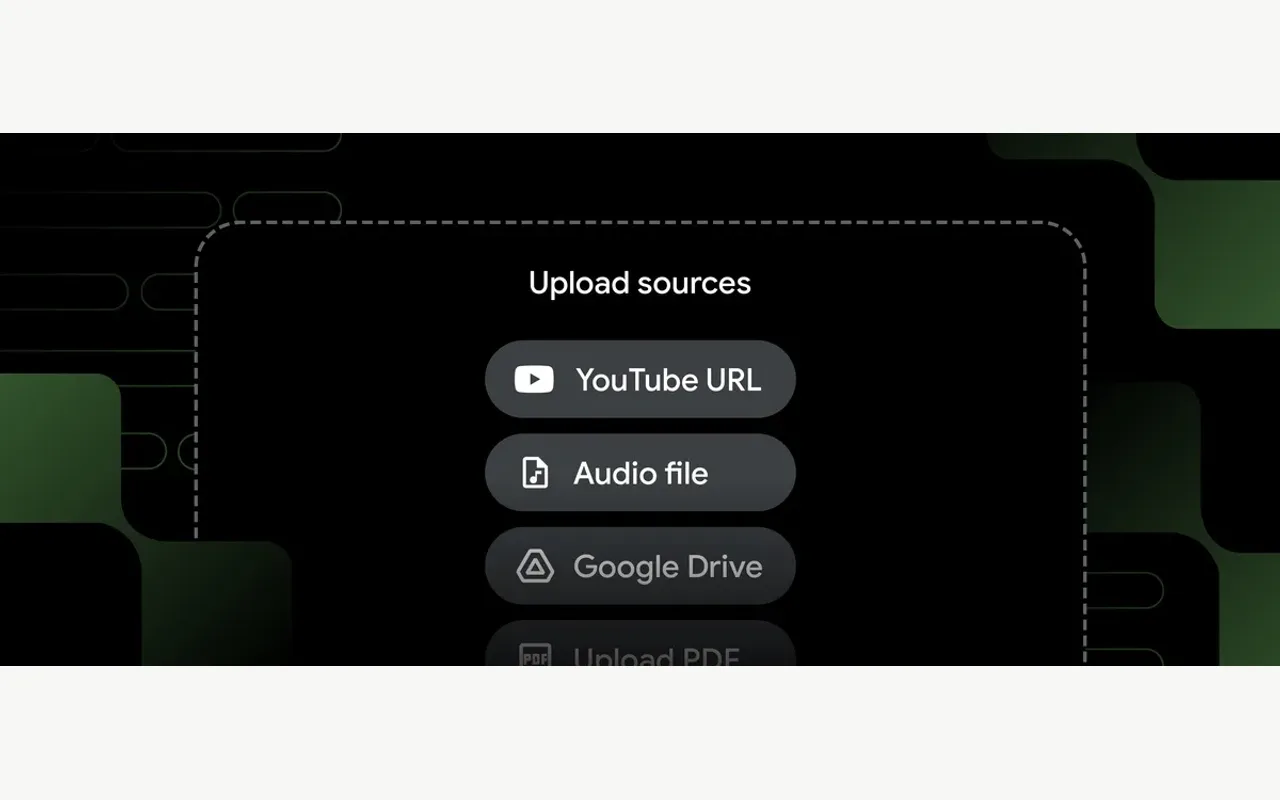
- When the 'Add source' window opens, drag and drop prepared PDF files to upload, or click the Google Drive menu to select Google Docs or Google Slides documents.
- For websites or lecture videos, choose the web URL or YouTube URL option on the add-sources screen and paste a public video address or web page link to add it.
- After source analysis completes, enter the prepared instruction prompt in the bottom chat window, or click 'Study guide' or 'Generate audio overview' in the right Studio panel to output results.
When multiple source documents are included, you can generate summaries using only selected sources. Uncheck the checkbox on the left of each source to create a custom study guide reflecting only specific documents.
NotebookLM result verification items
Verify that answer citations work correctly inside the notebook to judge organization status. Click the Arabic numeral citation tags generated at the bottom of AI answers.
When a citation number is clicked, the left source panel should navigate to the exact page or highlighted text location in the original document. If citation tags do not appear or do not link to the source panel, the answer may contain information outside the uploaded sources; do not save it to a note and re-enter the instruction.
Confirm that the audio overview generated in the Studio panel outputs as an audio file via the playback bar. When the generated summary note saves normally in the notepad, the learning material organization is judged complete.
NotebookLM error diagnosis and alternative paths
If document upload fails or summary answer generation fails, check three causes.
If an error message appears during file upload, check the file security settings or size. For password-protected PDFs, remove the password and re-upload. If source file size exceeds 200 MB, split the document and upload separately. If an error occurs when adding a web URL, confirm the page is public and requires no access permission.
If service access is blocked while using an organization account, Google's help says the organization's admin has to turn on access to Gemini Notebook. If admin policy stops external AI tool use, switch to a personal Google account to execute, or use the alternative path of opening the Gemini side panel within Google Docs to summarize the document directly.
Revision history · 2026-09-24
This article was revised against the provider’s official documentation. Korean note
Sources
support.google.com — Add sources (2026-09-24)
support.google.com — Chat with sources (2026-09-24)
support.google.com — Create a notebook (2026-09-24)
support.google.com — Work or school accounts (2026-09-24)
workspace.google.com — Gemini Notebook (2026-09-24)
Open provider document