Cursor Subscription vs Your Own API Key: Who Bills What
Your own API key in Cursor is billed by the provider and covers chat models only; on Teams a $0.25 per million token Cursor rate still applies.
- Category
- Comparison
- Official sources
- 3
- Read time
- 6 min
- Last checked
- 2026.09.24
Included usage and your own API key are billed by different parties
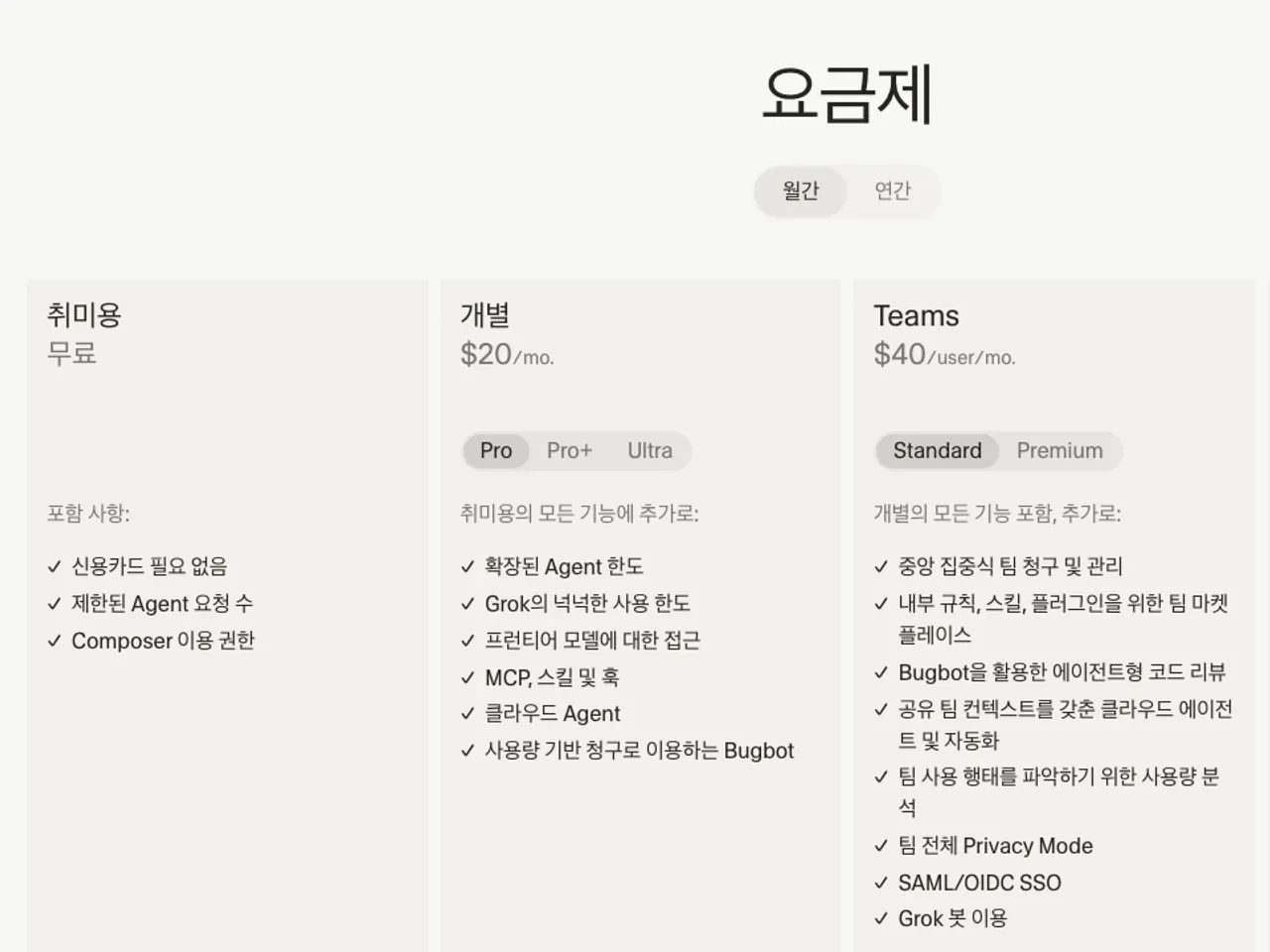
A Cursor subscription (Pro $20, Pro+ $60, Ultra $200, Teams Standard $40 and Premium $120 per user, all monthly) includes a monthly usage budget, and requests beyond it are billed as on-demand usage at API rates.
When you register your own API key, the model cost of requests made with that key is billed directly by the provider (OpenAI, Anthropic, Google and others), not by Cursor.
On individual plans (Pro, Pro+ and Ultra) those requests do not draw from included usage, so you pay the provider instead and are not limited in message count. [1][2]
| Condition | Individual plans (Pro, Pro+, Ultra) | Teams and Enterprise |
|---|---|---|
| Model cost of own-key requests | Billed by the provider | Billed by the provider |
| Additional Cursor charge | None | Cursor Token Rate: $0.25 per million tokens (input, output and cached) |
| Draws from included usage | No | Yes, from the Other Models allowance |
| Where the key applies | Chat models only (Tab completion uses Cursor's built-in models) | Chat models only (Tab completion uses Cursor's built-in models) |
Source: Cursor help on bringing your own API key and on usage-based charges [1][2]
Teams and Enterprise plans differ. The provider still bills the model cost, but every third-party model request carries the Cursor Token Rate, and own-key requests are no exception. That charge appears under Other Models in the dashboard's Spending tab and draws from that allowance.
A team using its own keys therefore has costs split across the provider's invoice and Cursor's, so neither one alone shows the total. [1]
Your own key applies to chat models only
Keys are added per provider under Cursor Settings > Models (OpenAI, Anthropic, Google, Azure OpenAI or AWS Bedrock). The provider's models then appear in the model picker; if a key is invalid or rejected, requests to that provider fail until the key is fixed.
OpenAI keys support standard chat models, Anthropic keys use the Claude models available through the Anthropic API, and Google keys use Gemini models through the Google AI API. For AWS Bedrock you enter access keys in the IDE or configure IAM roles in the dashboard. [1]
Custom keys work only with chat models; Tab completion keeps using Cursor's built-in models. Do not assume every request goes through your key: Tab usage follows the subscription's included usage and on-demand rules regardless of the key.
If you cannot use your own key, staying within the Cursor subscription is the alternative, and if usage runs short, ask an admin for a higher plan. [1][2]
How to decide
If one team wants seats and usage under a single set of controls, stay within the Cursor subscription and, when it runs short, upgrade to Pro+ or Ultra or set a spend limit on on-demand usage. If you already have a contract with a provider or must control cost in the provider's console, use your own key.
On an individual plan the key preserves included usage; on Teams the Cursor Token Rate reduces the saving, so a team admin should add up both invoices before deciding. [1][2]
An organization handling confidential code should first decide who owns the key and who approves the cost. Putting a personal key into a shared team setting concentrates billing and usage records on one person and forces a key rotation when they leave.
Never commit the key to a repository; enter it only in the Cursor settings screen, and if it may have leaked, reissue it immediately in the provider's console.
Setup and verification
- Under Billing & Invoices at cursor.com/dashboard, note the current plan and this cycle's Included Usage and On-Demand Usage.
- Issue a key in the provider's console (OpenAI Platform, Anthropic Console, Google AI Studio and so on) and set a spend limit there first.
- In Cursor Settings > Models, paste the key into the provider's field and click Save.
- Pick that provider's model in the model picker, send a short request and confirm it is recorded on the provider's usage screen.
- On Teams, confirm the Cursor Token Rate appears under Other Models in the Spending tab; on an individual plan, confirm Included Usage did not decrease.
The normal state is a visible result plus a matching record on the chosen biller's usage screen. If a request fails, check the key's validity and the provider balance first; if that does not resolve it, remove the key to fall back to Cursor's default models and send the error text and time to support, without the key itself. [1]
Conditions that are easy to miss
On-demand usage is charged only if you enable it on an individual plan, but it is on by default on Teams, so an admin should check the spend limit separately from any own-key setup. Auto mode bills at the list price of the routed model, and on Teams a third-party routing also adds the Cursor Token Rate.
Screen names and prices change, so re-check the Cursor help center and the account's billing screen before contracting or renewing. [2][3]
Revision history · 2026-09-24
This article was revised against the provider’s official documentation. Korean note
Sources
cursor.com — Bring your own API key (2026-09-24)
cursor.com — Usage-based charges (2026-09-24)
cursor.com — Pricing and plans (2026-09-24)
Open provider document