Compare Cursor Individual and Team Plans
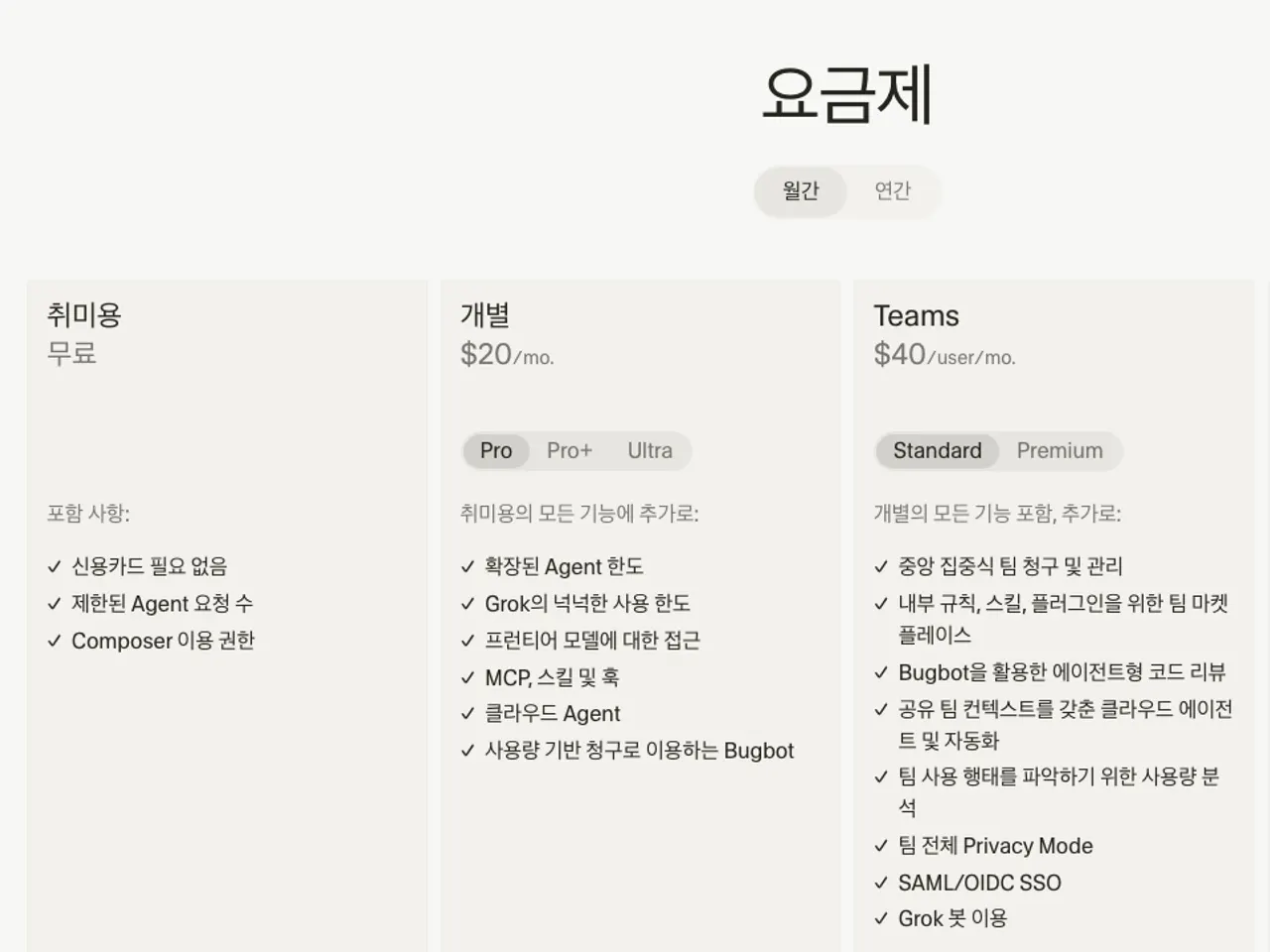
Compare Cursor's Hobby, Pro ($20), Pro+ ($60), Ultra ($200) and Teams ($40 per user) plans from the official pricing page, then set up a team.
- Category
- Pricing
- Official sources
- 3
- Read time
- 5 min
- Last checked
- 2026.09.24
Cursor plan pricing and team plan core metrics comparison
Cursor pricing is structured according to operational criteria and permission management for individual developers and teams.
| Category | Hobby | Individual paid (Pro, Pro+, Ultra) | Teams | Enterprise |
|---|---|---|---|---|
| Monthly price | Free | Pro $20, Pro+ $60, Ultra $200 | Standard $40 per user, Premium $120 per user | Custom quote |
| Usage | Limited Agent requests | Pro+ and Ultra raise Pro's limits | A Premium seat gets 5x the usage of a Standard seat | Pooled usage across the team |
| Administration | None | Personal account | Central billing and admin, SAML/OIDC SSO, team-wide privacy mode | SCIM seat management, audit logs, invoice billing |
When adopting Cursor at an organization, review the billing control authority of the administrator and the project code security policy in addition to the cost of a single account. Select Teams or higher if central control of payment methods is required.
Choosing a plan by usage
Users testing basic agent features for personal projects or learning purposes should select the Hobby plan. Use the free basic limits first, then decide whether to upgrade to a higher plan as needed.
Individual developers who need frontier models and extended Agent limits should use the $20/month Pro plan. Cursor's own guidance recommends Pro+ ($60/month) for daily Agent users and Ultra ($200/month) for the heaviest Agent users.
Teams of two or more developers needing centralized billing and member management should use the Teams plan. The team administrator manages licenses via the organization dashboard by inviting or removing members.
Duplicate personal billing and BYOK charges
Individual Pro plan users who accept an invitation to join an organization’s Teams plan must verify that the account’s billing path is not set up twice. If a personal subscription remains active without cancellation upon joining a team, monthly billing may continue on the personal card, so check the remaining term of the personal subscription in advance.
When applying Bring Your Own Key (BYOK), the calculation method for Cursor’s default processing limits and external API call costs differs.
If a personal API key is registered and used, charges from the model provider’s API usage fees apply separately, and restrictions may apply to some Cursor-exclusive services, so check the official API guidance in the settings documentation.
Cursor team plan subscription and account setup procedure
The full procedure to manage personal subscriptions, set up team plans, and verify account status is as follows.
- Open a web browser, go to the Cursor official website (cursor.com), and click the 'Login' button in the top-right corner to sign in.
- After logging in, click the profile menu in the top-right corner and navigate to the 'Settings' or 'Billing' menu.
- In the plan management section, click 'Upgrade to Pro' for individual upgrade or select 'Create Team' or 'Teams' for team setup.
- Enter the organization name, payment card details, and team member email addresses in the input fields, then click the payment request button.
- After payment approval, go to the 'Organization' dashboard and verify that invited members display 'Active' or 'Pending' status correctly.
After setup, launch the Cursor editor, go to the Settings menu in the top-right corner, and confirm that the subscribed plan name is displayed correctly under the 'Account' section. Team members must click the approval link sent to their email inboxes to complete registration, after which the organization plan assignment is finalized.
Subscription upgrade failure diagnosis and corrective actions
Cases may occur where Pro or Teams plan permissions are not reflected in the editor even after payment completion. This includes cases where the editor account information still shows 'Hobby' or 'Free'.
| Symptom | How to verify the cause | Corrective action steps |
|---|---|---|
| Plan not reflected after payment completion | Check whether the editor account email matches the billing account email | Log out of the editor, then log back in using the account used for web login |
| Team invitation approval link error | Check the Pending member status in the invited organization dashboard | Request the organization administrator console to resend the invitation to the email address |
If logging out and back in does not approve the subscription or if payment history errors persist, contact Cursor support (support) with the receipt number and account email for direct assistance.
Alternative and upgrade path guidance
Users whose primary need is code autocompletion or who cannot afford dedicated AI editor subscription fees may consider linking a personal API key in the free editor environment as an alternative. This approach does not allow use of Cursor’s team management features and applies only to individual development work.
Organizations requiring single-individual billing impossibility or needing enterprise-grade security policies and custom contracts should proceed with Enterprise plan quotes and security review procedures via the official sales contact (cursor.com/contact-sales).
Revision history · 2026-09-24
This article was revised against the provider’s official documentation. Korean note
Sources
Cursor — Cursor pricing (2026-09-24)
Cursor Docs — Teams pricing (2026-09-24)
Cursor Docs — Cursor API keys (2026-08-19)
Open provider document