Cursor Overage Charges: Check Usage and Turn Off On-Demand
Charges beyond your Cursor subscription are on-demand usage. Check Included and On-Demand Usage under Billing & Invoices, then turn it off or cap it.
- Category
- Pricing
- Official sources
- 5
- Read time
- 6 min
- Last checked
- 2026.09.24
Charges beyond the subscription are on-demand usage
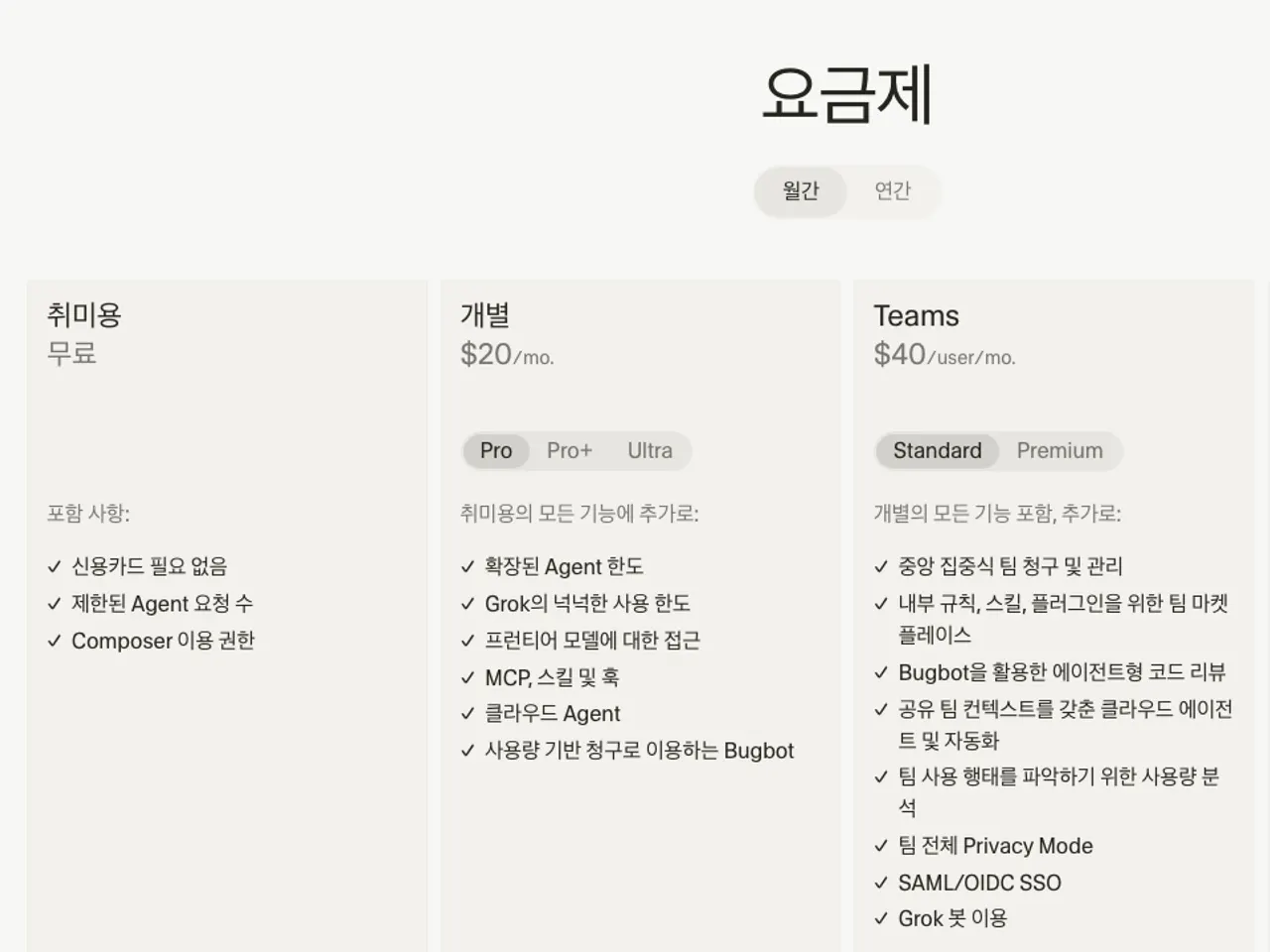
Every Cursor plan includes a monthly usage budget, and requests beyond it are billed as on-demand usage at API rates with no markup. If you were charged more than the subscription price, on-demand usage was enabled.
On individual plans it must be turned on explicitly in your settings; on Teams it is on by default, so an admin has to disable it or set a spend limit. On-demand usage has its own invoices and line items, separate from the subscription. [1]
| Plan | Price | On-demand default |
|---|---|---|
| Hobby | Free | Not applicable (included usage only) |
| Pro | $20/month | Off (enable it yourself) |
| Pro+ | $60/month | Off (enable it yourself) |
| Ultra | $200/month | Off (enable it yourself) |
| Teams Standard | $40/user/month | On (admin disables or sets a limit) |
| Teams Premium | $120/user/month | On (admin disables or sets a limit) |
Source: Cursor pricing help, on-demand usage help [1][2]
On Teams and Enterprise plans every third-party model request also carries the Cursor Token Rate of $0.25 per million tokens on top of the model price, including requests made with your own API key.
Auto mode bills at the list price of whichever model the request is routed to, so routing to an expensive model uses up the budget faster. [1][2][4]
Usage is shown under Billing & Invoices in the dashboard
Not inside the editor: sign in at cursor.com/dashboard and open Billing & Invoices, which shows two sections. Included Usage is what the subscription covers; On-Demand Usage is what is charged above it. Included usage resets monthly on individual plans and per paid seat each billing cycle on Teams. [1][3]
- Sign in at cursor.com/dashboard and open Billing & Invoices.
- Check how much of this cycle's included usage remains under Included Usage.
- Check whether any amount will be charged beyond the subscription under On-Demand Usage.
- Confirm in the invoice list that subscription and on-demand invoices are issued separately.
- As a Teams admin, also review the team-wide on-demand setting and spend limit in the team dashboard.
The Spending tab on the same screen lists the Cursor Token Rate under Other Models, so teams using their own keys should check that item too. [4]
Three settings that stop extra charges
First, turn off on-demand usage. On individual plans, turning it off in your spending settings stops requests once included usage runs out; on Teams, admins turn it off in the team dashboard.
Second, set a spend limit: the most you are willing to pay for on-demand usage in a billing cycle, set in spending settings by individuals and in the team dashboard by admins. Third, if included usage is always short, upgrade to Pro+ or Ultra. [1]
Enforcement of the spend limit is not instant, so usage can briefly exceed it. Once Cursor recognizes the limit has been reached, on-demand usage stops, and the overage before enforcement is treated as a temporary credit.
If you raise the limit in the same cycle, that credit can be billed up to the new limit, so leave the limit unchanged or turn off on-demand usage to keep it. [1]
What happens after cancelling or downgrading
To cancel, open cursor.com/dashboard/billing, click Manage Subscription to open the Stripe billing portal, then Cancel Subscription. You keep paid features until the end of the current billing period, are not charged again, and the account reverts to the free Hobby plan afterwards; the account and local project files are not deleted.
On an individual plan you can instead use Adjust plan and Schedule Downgrade to move to a lower plan from the next cycle. [3][5]
Subscriptions bought in the iOS or Android app are managed by Apple or Google and cannot be cancelled on cursor.com; cancel them in the store's subscription settings. On Teams only admins can cancel, and an unpaid invoice can block cancellation.
If the cancel button is missing, the plan has already lapsed to Hobby, there is an unpaid invoice, or you are a Teams member without admin access. [5]
Disputing a charge or asking for a refund
If a charge is unclear or looks wrong, contact support while signed in and include the invoice IDs and dates. On-demand charges are separate invoices from the subscription, so identify which invoice you mean first. Never put API keys or passwords in a support request. [3]
The normal state is On-Demand Usage at zero or within the spend limit, and invoices that match the subscription price. If requests keep going through after included usage runs out even though on-demand is off, check that the setting was saved and, on Teams, what the admin configured.
Cursor can rename screens, so if something looks different, follow the current wording in the help center. [1]
Revision history · 2026-09-24
This article was revised against the provider’s official documentation. Korean note
Sources
cursor.com — Usage-based charges (2026-09-24)
cursor.com — Pricing and plans (2026-09-24)
cursor.com — Billing and payments (2026-09-24)
cursor.com — Bring your own API key (2026-09-24)
cursor.com — Cancel your subscription (2026-09-24)
Open provider document