Notta vs CLOVA Note for Meeting Minutes
Compare Notta and CLOVA Note by recording length, Korean transcription, collaboration, and export requirements.
- Category
- Workflows
- Official sources
- 4
- Read time
- 5 min
- Last checked
- 2026.09.20
Before You Start
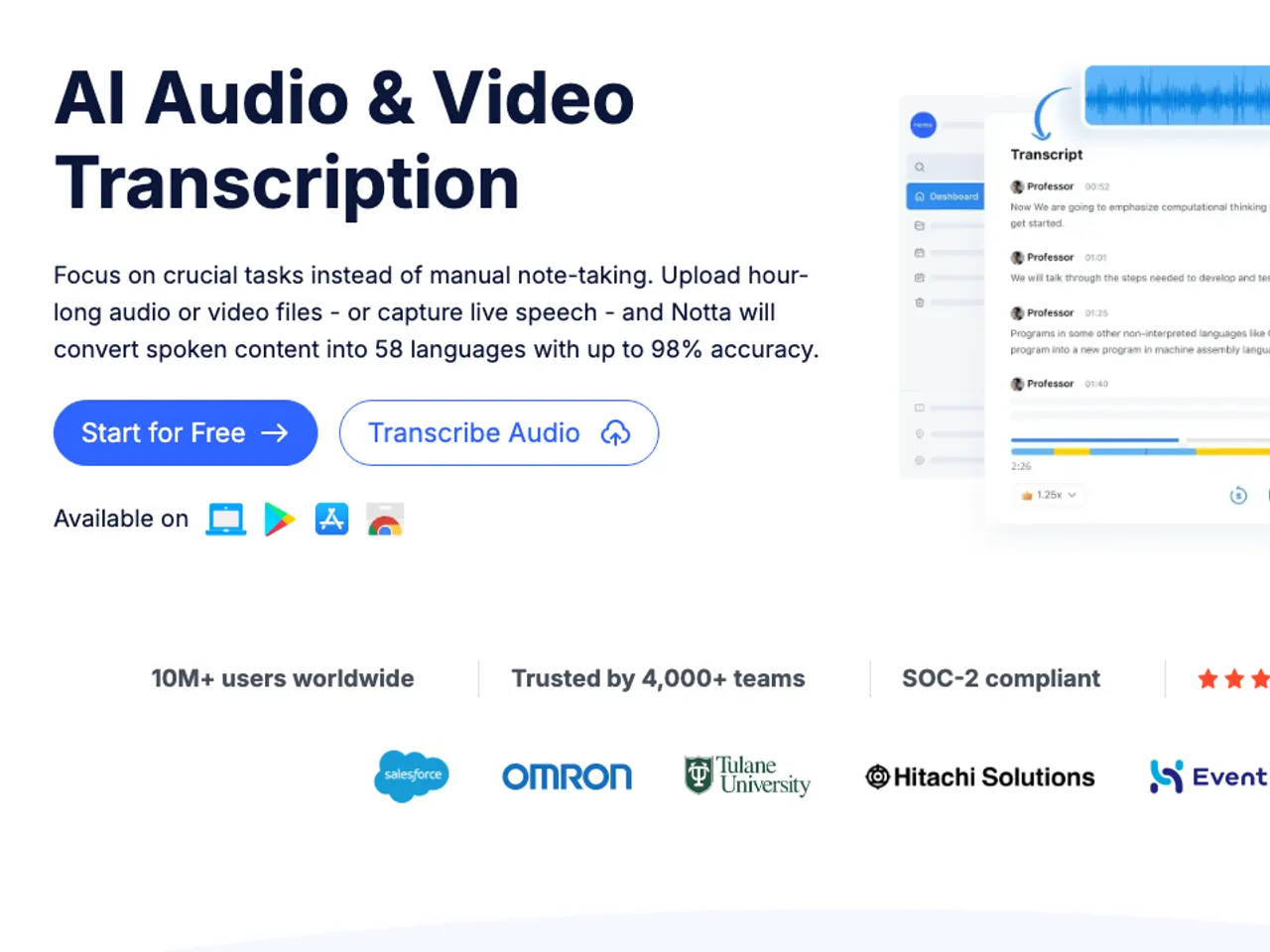
Before using Notta or Clova Note to automatically process meeting minutes, essential preparations and account authority policies must be verified. Failing to check file size limits and pricing plan conversion time restrictions may cause transcription interruptions.
The applicable tool varies depending on speaker distinction and security approval status.
| Category | Notta (Notta) | Clova Note (Clova Note) |
|---|---|---|
| Free Basic Provision | 120 minutes/month (maximum 3 minutes per conversation) | Personal free: 300 conversion minutes and 15 AI summaries a month |
| Maximum File Length per File | Pro/Business: Maximum 5 hours per conversation | File length is deducted from the monthly conversion minutes |
| Web Meeting Bot Participation | Supports Zoom, Teams, Meet, Webex | Live recording, file upload and PC web recording (video-meeting recording on business plans) |
| External Integration Scope | Notion, Slack, Zapier, Salesforce | External system API from the business Team plan |
| Security Certification Standards | SOC 2, ISO 27001, GDPR, HIPAA (as listed on the pricing page) | No certification listed on the personal pricing page (admin and security features on business plans) |
Notta's free plan differs not only in recording length but in how many items it processes a month.
The official pricing page lists Free at $0 with 120 transcription minutes a month, 3 minutes per conversation, 50 file uploads a month, 10 AI summaries, and 5 custom templates; Premium at $8.17 a month (billed $97.99 a year) with 1,800 transcription minutes, 5 hours per recording, 100 files, and 100 AI summaries; and Business at $16.67 a month (billed $199.99 a year) with unlimited transcription, 200 files, and 200 AI summaries.
Exporting a transcript starts at Premium, so the free plan can only copy from the screen. [8]
| Monthly limit | Free | Premium | Business |
|---|---|---|---|
| Price | $0 | $8.17 a month ($97.99 a year) | $16.67 a month ($199.99 a year) |
| Transcription time | 120 minutes | 1,800 minutes | Unlimited |
| File uploads | 50 | 100 | 200 |
| AI summaries | 10 | 100 | 200 |
| Custom AI templates | 5 | Unlimited | Unlimited |
For a weekly one-hour meeting the free plan's 120 minutes run out during the second meeting, while its 10 AI summaries last the month. Work out which one runs out first, then choose the plan. [8]
When logging in with an organizational account, first check the policy allowing voice data transmission to external AI services in the administrator console. If corporate security policies prohibit external cloud transmission for internal meetings, both tools require security review approval before introduction.
The choice of preparation tools and equipment is a critical factor determining audio quality. Basic recording is possible without expensive equipment, but for multi-party meetings, using unidirectional directional microphones or USB condenser microphones is recommended to improve speaker separation accuracy.
Wired connections are advised for wireless headphones to avoid signal interference causing frequency distortion and reduced speaker identification performance.
Checking the Minutes Against the Original Audio
A reference table comparing AI-generated meeting minutes with original audio is required when verifying transcribed text. Store the transcription as original text and edit the final internal report based on the following check items.
- Speaker Identification Check: Verify if names and positions of Speaker 1 and Speaker 2 are corrected to actual attendees.
- Key Decision Extraction: Confirm that decisions (Decision) and unresolved items are clearly marked in the AI summary.
- Action Item Clarity: Ensure responsible persons and deadlines are explicitly extracted.
- Numerical and Proper Noun Verification: Check product names, contract amounts, dates, and technical terms for errors using original audio timestamp segments.
Notta's custom vocabulary applies only to English and Japanese according to the pricing page, so it does not help with proper nouns in Korean meetings; clean up Korean terms with find-and-replace after transcription.
From Language Settings to a Report-Ready Draft
The standard procedure for generating and organizing meeting minutes using Notta or Clova Note is as follows:
- Account Login and Language Setting: Log in to the Notta web dashboard (notta.ai/en) and set the default voice recognition language to 'Korean' or 'English' under 'Settings' in the lower left corner.
- Meeting Input Method Selection: For real-time video conferences, click the 'Transcribe Web Meeting' button in the top right of the dashboard and enter the Zoom, Google Meet, or Teams meeting URL to join the Notta Bot. For audio files, click 'Import Files' and drag-and-drop MP3, WAV, or M4A files.
- Real-Time Recording and Speaker Distinction Check: Monitor the waveform and real-time transcription during the meeting. Ensure 'Speaker 1' and 'Speaker 2' tags correctly distinguish speakers as they change.
- AI Summary Template Application: After transcription, click the detailed page of the audio segment and select the 'AI Summary' tab. Apply 'Meeting' or 'Action Items' templates from 30+ options to generate a summary within 10 seconds.
- Result Verification and External Export: Correct text and summary errors, then download as TXT, DOCX, or PDF via the 'Export' menu or automatically send to organizational channels using 'Notion Share' or 'Slack' buttons.
When uploading files, pre-check file size limits and the 3-minute conversation limit for free users to prevent mid-process interruptions.
Criteria for Judging Results
To confirm successful automatic meeting minute generation, verify three final states. First, ensure synchronization between audio timestamps and transcription text so clicking text plays the corresponding audio segment.
Second, check that the AI Summary window displays the full meeting summary, key agenda items, and action items (Action Items) as specific details. If action items lack responsible persons or deadlines, use the Notta Brain chat input to add a prompt: 'Create a table of action items by responsible person.' Third, validate external sharing and security status.
Confirm password protection (Share with password) for non-member sharing links and complete deletion of unnecessary original audio files per data retention policies.
Troubleshooting and Alternatives
If the web meeting bot fails to connect or transcription stops at 0%, first check the lobby approval status. If the meeting host does not approve the Notta Bot's entry, recording and transcription will not occur. Enable the 'Allow Participant Bot Entry' option in host settings. For browser tab recording with no sound, check Chrome extension permissions.
Navigate to 'Settings > Privacy and Security > Site Settings > Microphone' and ensure Notta's microphone access is 'Allowed.' If free plan limits cause 3+ minute conversion interruptions, upgrade to Premium or Business plans via the profile menu.
For on-premises processing required by corporate infrastructure or security regulations restricting external AI bots, contact IT for Enterprise integration approval or switch to an in-house voice recognition solution.
Revision history · 2026-09-20
This article was revised against the provider’s official documentation. Korean note
Sources
notta.ai — Notta pricing (2026-08-18)
shop.notta.ai — Notta Memo AI Voice Recorder (2026-08-18)
notta.ai — Notta 가격: 요금제, 기능 및 비용 비교 (2026-09-20)
clovanote.naver.com — 클로바노트 이용요금 (2026-09-27)
Open provider document