How to Automate Meeting Minutes and Email Reports with ChatGPT
Step-by-step prompts for summarizing meeting minutes and converting them into email reports using ChatGPT, plus essential data-security settings.
 OpenAI
- Category
- Workflows
- Official sources
- 4
- Read time
- 5 min
- Last checked
- 2026.09.24
Prerequisites and security baseline for automation
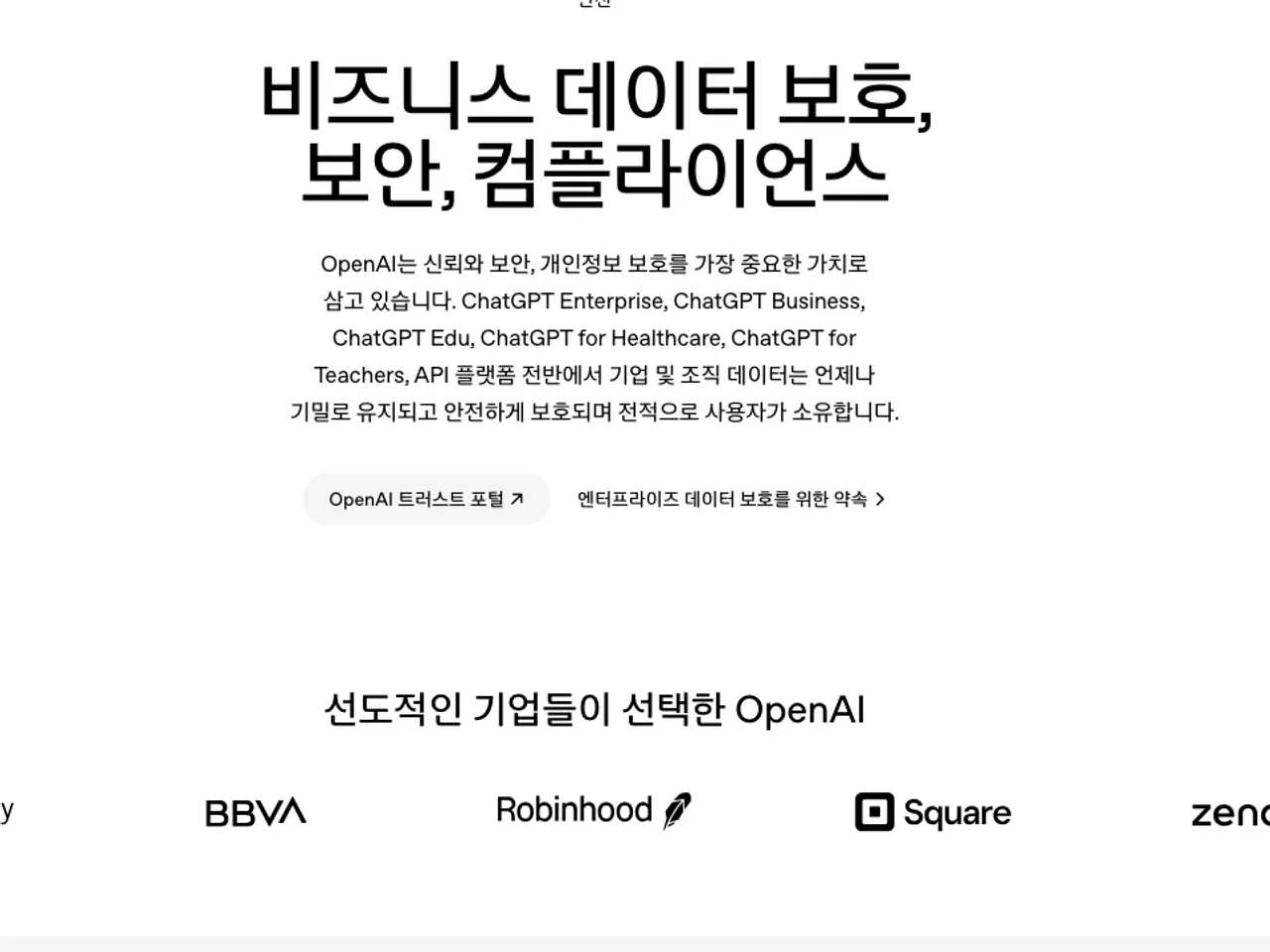
Before integrating ChatGPT into workflows, confirm security controls that prevent exposure of corporate secrets or personal data during generation.
| Category | ChatGPT Free / Plus | ChatGPT Business / Enterprise |
|---|---|---|
| Model learning | Enabled by default (must be manually disabled) | Disabled by default (excluded from training) |
| Encryption | TLS 1.2+ in transit, AES-256 at rest | TLS 1.2+ in transit, AES-256 at rest |
| Data retention control | Retained until user deletes conversation | Configurable retention period per organization policy |
| Permission management | Individual user control | Workspace admin batch control |
Personal accounts (Free, Plus) require manual adjustment in Settings → Data Controls to stop conversations from being used for model improvement. Business plans (Business, Enterprise, API) exclude input data from training by default and guarantee full corporate data ownership.
Security settings to protect internal data
Apply controls to block ChatGPT from collecting and learning from meeting content before entering sensitive data. These settings sync across web and mobile apps in real time.
- Click the profile icon in the lower-left corner of the ChatGPT web interface.
- Select Settings from the pop-up menu.
- In the left sidebar, open the Data Controls tab.
- Locate the Improve the model for everyone switch and turn it off.
- For conversations that should not be kept in history, select Temporary in a new chat. Temporary chats do not appear in history and are not used for training, but OpenAI may keep a copy for up to 30 days for safety.
Standard prompt template for converting meeting minutes to email reports
Copy the following template verbatim into the ChatGPT input field when transforming transcribed meeting text into a formal email report.
[Role]
You are the Senior Executive Assistant and Project Manager for a large corporation.

[Input]
Attendees: Manager Kim Cheol-soo, Deputy Lee Young-hee, Staff Park Min-soo
Meeting content:
- Manager Kim: Approval for the new product marketing budget is complete; ad execution begins next week.
- Staff Park: Contract signing with the ad agency is scheduled for tomorrow morning.

[Output requirements]
1. Write a concise meeting summary in the order: date, attendees, topic.
2. List key decisions as bullet points.
3. Extract action items with owners and deadlines into a table.
4. Format the final output as a formal email body addressed to executives; exclude informal tone and exclamations.
Five-step process to generate and verify the email report
Follow this sequence to produce and validate the draft report from meeting data.
Open a web browser, navigate to the official ChatGPT site, and log in. Paste the prepared prompt template into the input area after confirming that Data Controls remain disabled. Replace the placeholder text in the Input section with the actual meeting date, attendees, and transcribed dialogue, adhering to the required format.
Submit the prompt and wait for the generated draft. Compare the generated decisions and action-item deadlines against the original meeting minutes for accuracy.
Validation checklist and failure recovery
Every AI-generated email report must undergo human review before distribution because hallucinations can produce plausible but incorrect content.
Verify that owner names and deadlines in action items match the original minutes exactly. Check that figures such as amounts, quantities, and percentages are rendered correctly. Mask any confidential or personally identifiable information that appears verbatim in the draft.
If ChatGPT outputs incorrect summaries or confuses participant roles, return to the prior chat and issue a corrected directive such as: "In the report just generated, change Deputy Lee Young-hee’s deadline from Friday to Thursday and regenerate the entire document."
When prompts exceed the single-input token limit or meeting transcripts are too long, generation may halt. Use the API platform to define a system role explicitly, or split the minutes by agenda item and request sequential summaries.
Revision history · 2026-09-24
This article was revised against the provider’s official documentation. Korean note
Sources
OpenAI Help Center — Data controls in ChatGPT (2026-09-24)
OpenAI Help Center — Temporary chat FAQ (2026-09-24)
openai.com — Enterprise privacy (2026-09-24)
OpenAI — ChatGPT 요금제 (2026-09-24)
Open provider document